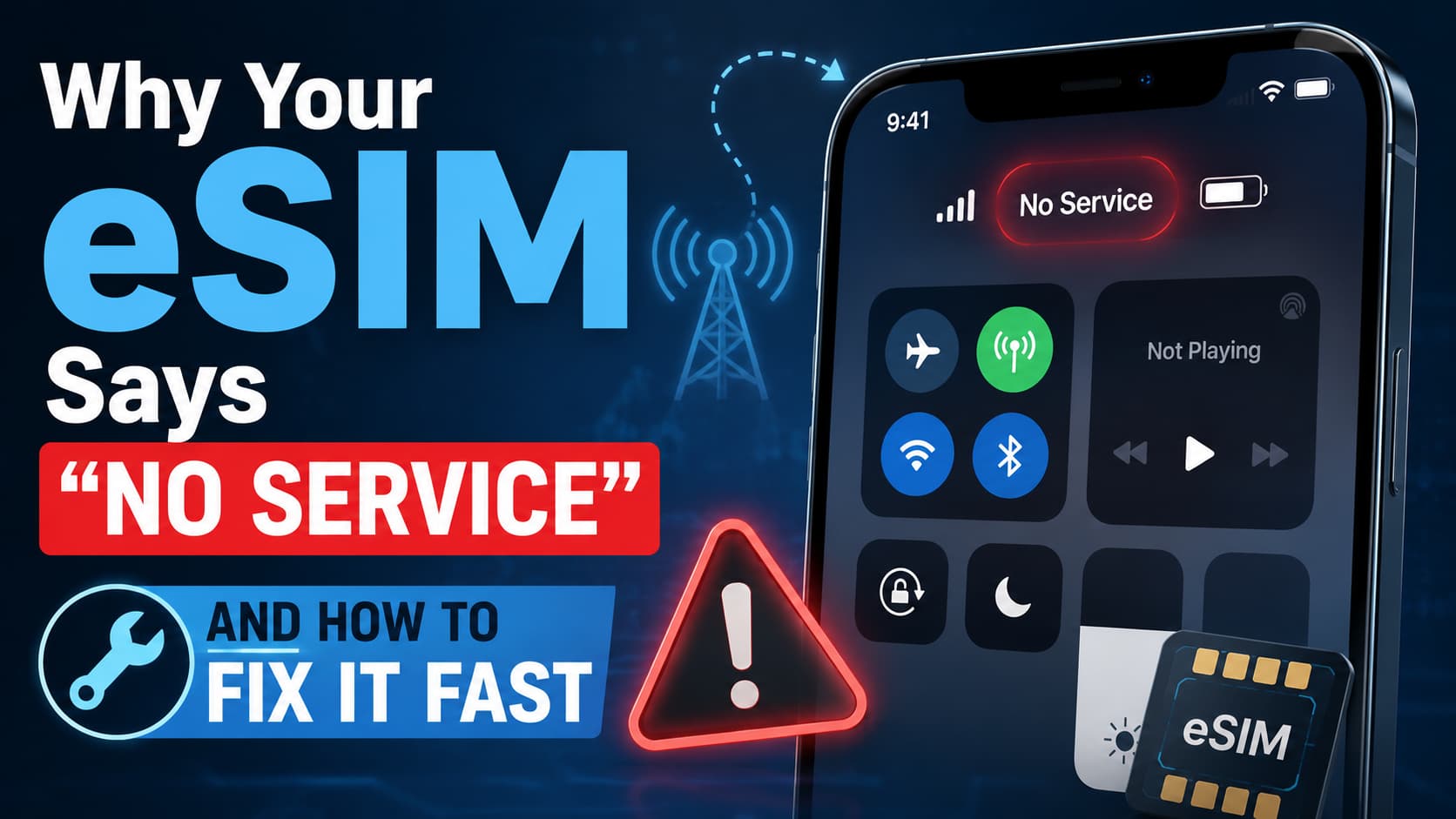
Your eSIM is sitting right there in Settings, but the status bar reads No Service. No calls, no texts, no data. It is one of the more frustrating phone problems because the line looks installed yet behaves like it does not exist. The cause is almost always one of a handful of small things, and most of them take under a minute to fix.
Work through these in order, from fastest to most involved. Stop the moment your signal returns.
Why an eSIM shows No Service
An installed eSIM still needs three things to connect: an active profile on the carrier side, a line that is switched on in your settings, and a network it is allowed to use. No Service means one of those three is broken. That could be a temporary network glitch, a line you turned off by accident, a profile your carrier has not finished activating, or network selection stuck on the wrong tower.
1. Toggle Airplane Mode and restart
This fixes a stuck connection more often than anything else.
- Swipe into Control Center and tap Airplane Mode on. Wait ten seconds.
- Tap it off and give the phone a moment to find the network.
- If that does nothing, restart the phone fully rather than just locking it.
A restart forces the device to re-register with the tower, which clears most one-time glitches.
2. Make sure the eSIM line is turned on
It is easy to switch a line off without realizing it, especially on a dual SIM phone.
- On iPhone, go to Settings > Cellular, tap your eSIM line, and confirm Turn On This Line is enabled.
- On Android, go to Settings > Network and internet > SIMs, select the eSIM, and check that it is switched on.
While you are there, confirm the eSIM is selected for cellular data if it is your main line. A line that is on but not set for data can still show weak or no service.
3. Confirm the line finished activating
If you just added the eSIM, it may not be live yet. Carrier activation can take a few minutes to a few hours.
Open your carrier app or account page and check that the line shows as active. While you are there, rule out the boring causes: an unpaid balance, a suspended account, or a new prepaid plan that has not been topped up will all show as No Service even with a perfect signal.
4. Install a carrier settings update
An outdated carrier profile can break a working eSIM, particularly after you switch phones or update the operating system.
- On iPhone, go to Settings > General > About and wait a few seconds. If an update is available, a prompt appears. Install it, then restart.
- On Android, check Settings > System > System update and your carrier app for any pending profile updates.
5. Check network selection
If your phone is locked onto the wrong network, it will report No Service even where coverage is strong.
- On iPhone, go to Settings > Cellular > Network Selection and turn Automatic on.
- On Android, go to Settings > Network and internet > SIMs > Choose network automatically and enable it.
Letting the phone pick the network itself resolves cases where a manual selection was left behind from travel or testing.
6. Turn on Data Roaming if you are traveling
A line that works at home and dies the moment you cross a border usually just needs roaming switched on.
Go to your line settings and enable Data Roaming. For a travel eSIM bought for a specific country, roaming often needs to stay on even inside that country, because the eSIM connects through a partner network rather than a home one.
7. Reset Network Settings
If you have reached this point, clear the phone’s stored network configuration.
- On iPhone, go to Settings > General > Transfer or Reset iPhone > Reset > Reset Network Settings.
- On Android, go to Settings > System > Reset options > Reset Wi-Fi, mobile and Bluetooth.
This wipes saved Wi-Fi passwords and Bluetooth pairings but does not delete the eSIM itself. It is a safe step and often the one that finally works.
8. Re-add the eSIM
If the profile is corrupted, a fresh copy will fix it, but treat this as a near-last resort. Removing an eSIM before you have a replacement ready can leave you with no way to get back online, so only do this if your carrier can quickly reissue the profile.
Ask your carrier for a new QR code or activation details, delete the old eSIM, then add the new one through your phone’s Add eSIM option.
9. Call your carrier
If nothing above works, the issue is on the network side. Call support and ask them to re-provision your eSIM to your device. Have your EID ready, found under Settings > General > About on iPhone or in your eSIM details on Android. With it, they can push a clean profile in minutes.
The short version
No Service on an eSIM almost always means the line is switched off, not finished activating, or stuck on the wrong network. Start with Airplane Mode and a restart, confirm the line is on and active, then let the phone choose the network automatically. If it still will not connect, a network reset or a fresh profile from your carrier will get you back online fast.