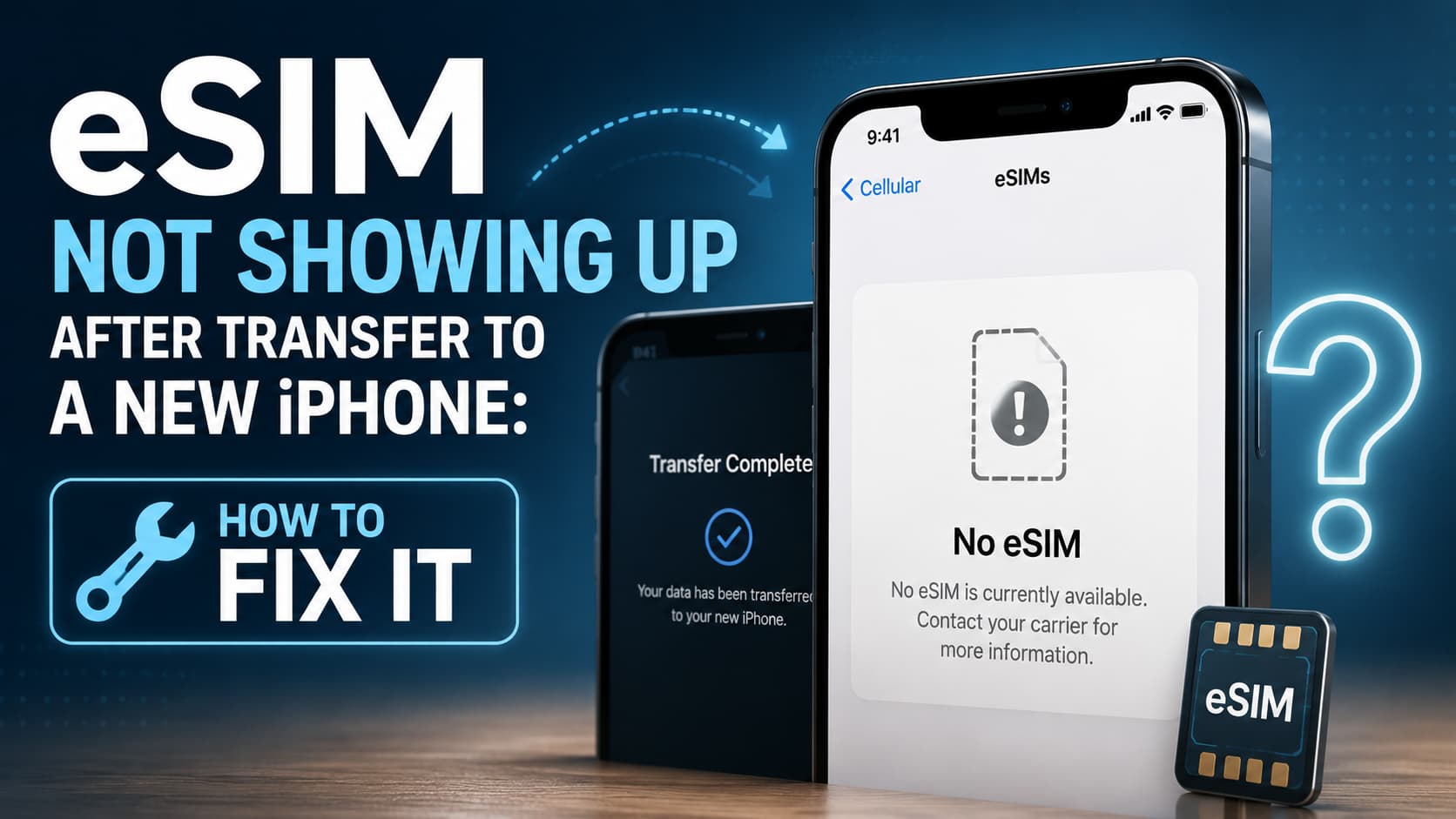
You set up your new iPhone, expected your number to come along for the ride, and now Settings shows no eSIM at all. No bars, no carrier name, no line under Cellular. The good news is that your number is almost never lost. In most cases the eSIM simply did not make the jump during setup, and a few minutes of work will bring it back.
Here is why it happens and exactly how to fix it.
Why your eSIM did not transfer
An eSIM is not a file that lives in your photos or your iCloud backup. It is a secure profile tied to your carrier and your specific device. That single fact explains most of these problems:
- Backups do not carry eSIMs. If you restored your new iPhone from an iCloud or computer backup, your apps and settings came over but your eSIM did not. Apple deliberately leaves it out for security.
- Quick Transfer can be skipped. During setup, iOS offers to move your eSIM from your old iPhone over Bluetooth. It is easy to tap past that screen without noticing.
- The carrier has not re-provisioned the line. Sometimes the profile installs but stays inactive until your carrier activates it on the new device.
Work through the steps below in order. Stop as soon as your line reappears.
1. Look in the right place first
Open Settings > Cellular (called Mobile Service in some regions). Scroll to the SIMs section. If you see your line listed but it says No Service, skip to step 4. If you see nothing at all, your eSIM was never installed and you need to bring it over.
Keep your old iPhone nearby, charged, and on the same Wi-Fi network. You will likely need it.
2. Transfer the eSIM from your old iPhone
This is the fastest fix if both phones are still in your hands and both run iOS 16 or later.
- On your new iPhone, go to Settings > Cellular > Add eSIM.
- Choose Transfer From Nearby iPhone.
- Bring your old iPhone close and unlock it. A prompt appears asking you to confirm the transfer.
- Tap Transfer, then follow the code or confirmation shown on the old device.
Within a minute or two the line should move to the new phone and deactivate on the old one. If the option is greyed out or missing, your carrier may not support Quick Transfer, so move on.
3. If you restored from a backup
A restore will never bring your eSIM with it, so do not keep waiting for it to appear. Use the Quick Transfer steps above while your old phone still has the eSIM active. If you have already wiped or returned the old phone, jump to step 5 and re-download the profile from your carrier.
4. Install a carrier update and restart
If the line shows but has no service, your iPhone may be missing the latest carrier settings.
- Go to Settings > General > About and wait a few seconds. If an update is available, a prompt appears. Tap to install it.
- Turn Airplane Mode on for ten seconds, then off.
- Restart the iPhone fully.
This alone resolves a surprising number of stuck activations.
5. Re-download the eSIM from your carrier
If transfer is not possible, your carrier can issue a fresh profile.
- Open your carrier’s app and look for an option like Activate eSIM, Set Up eSIM, or Manage SIM.
- If they email or display a QR code, go to Settings > Cellular > Add eSIM > Use QR Code and scan it.
- Some carriers use manual entry with an SM-DP+ address and activation code instead of a QR image. Choose Enter Details Manually and paste what they provide.
Installing a new profile can deactivate the old one, so only do this once you are ready to commit the line to the new phone.
6. Make sure the line is not stuck on the old phone
A carrier can usually keep only one active copy of a number at a time. If the eSIM is still showing as active on your old iPhone, the new one may refuse to take it. On the old device, go to Settings > Cellular, select the line, and either transfer it using step 2 or remove it once you are certain the number is set up elsewhere. Removing an eSIM before it is active on the new phone can leave you without service, so transfer rather than delete whenever you can.
When to call your carrier
If you have tried Quick Transfer, a carrier settings update, and a fresh QR download and the line still will not appear, the problem is on the carrier side. Call support and ask them to re-provision your eSIM to the new device EID. You can find that number under Settings > General > About. With the EID in hand, they can push a working profile in minutes.
The short version
Your number is almost certainly fine. eSIMs do not travel in backups, so the fix is either a direct Quick Transfer from your old iPhone or a fresh profile from your carrier. Start with the transfer, install any carrier update, and keep the old phone active until the new one shows full bars.