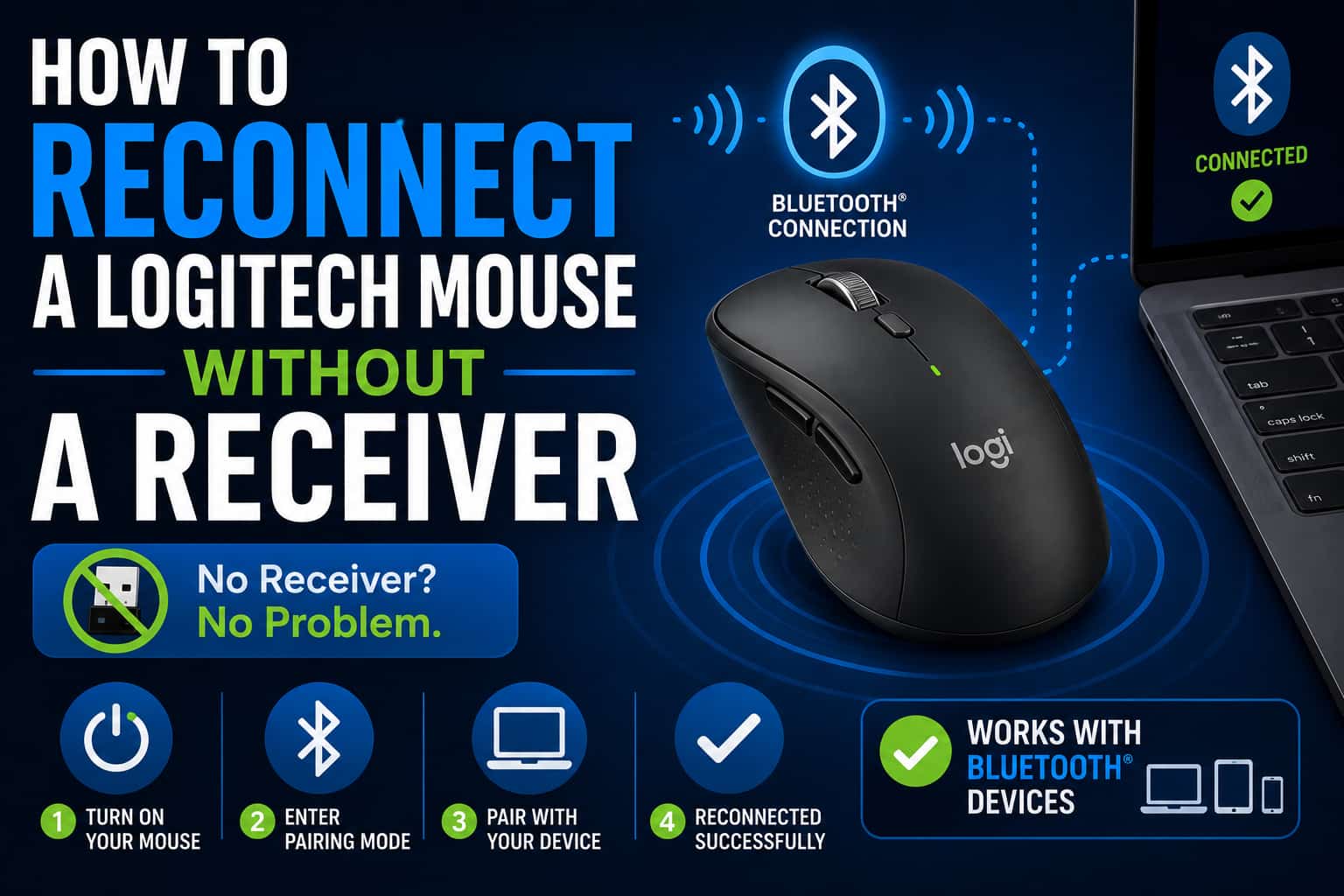
I lost the tiny USB receiver for my Logitech mouse last month during a move. I was convinced I’d have to buy a whole new mouse, but then I discovered there are actually several ways to get a Logitech mouse working again without the original receiver. Some methods worked instantly, others required a bit more effort, but I got my mouse reconnected and saved myself $50.
Let me show you exactly how to reconnect your Logitech mouse without a receiver, starting with the easiest solutions first.
Check if Your Mouse Has Bluetooth
The simplest solution is to check if your Logitech mouse supports Bluetooth connectivity in addition to the USB receiver.
Logitech mice with dual connectivity (Bluetooth + USB receiver):
- Logitech MX Master series (MX Master 3, 3S)
- Logitech MX Anywhere series (MX Anywhere 2, 3, 3S)
- Logitech M720 Triathlon
- Logitech M585/M590
- Logitech Signature M650
- Logitech Lift Vertical Mouse
- Many Logitech “Multi-Device” mice
How to check if your mouse has Bluetooth:
- Look for a Bluetooth button on the bottom of the mouse
- Check for multiple device selection buttons (1, 2, 3)
- Look at the original packaging or manual
- Search your mouse model number on Logitech’s website
If your mouse has Bluetooth, you can skip the receiver entirely and connect directly to your computer.
Connect via Bluetooth (If Your Mouse Supports It)
This is by far the easiest solution if your mouse has Bluetooth capability.
For Windows 10/11:
- Turn on your mouse
- Press and hold the Bluetooth pairing button (usually on the bottom) for 3-5 seconds
- The LED should start blinking rapidly
- On your computer, click Start > Settings
- Go to “Bluetooth & devices”
- Click “Add device”
- Select “Bluetooth”
- Wait for your Logitech mouse to appear in the list
- Click on your mouse name to pair
- Wait for the connection to complete (5-10 seconds)
For Mac:
- Turn on your mouse
- Press and hold the Bluetooth pairing button for 3-5 seconds
- Click the Apple menu > System Settings (or System Preferences)
- Click “Bluetooth”
- Make sure Bluetooth is turned on
- Wait for your mouse to appear under “Nearby devices”
- Click “Connect” next to your mouse name
- The mouse should connect within seconds
For Linux:
- Turn on your mouse
- Press and hold the Bluetooth pairing button
- Open Bluetooth settings (varies by distribution)
- Click “Add Device” or the “+” button
- Select your Logitech mouse from the list
- Click “Pair” or “Connect”
Troubleshooting Bluetooth connection:
- Make sure your mouse batteries are fresh
- Hold the pairing button for the full 3-5 seconds
- Turn Bluetooth off and on again on your computer
- Restart your computer if the mouse doesn’t appear
- Remove old Bluetooth pairings if your mouse was previously connected
Buy a Logitech Unifying Receiver (Universal Solution)
If your mouse doesn’t have Bluetooth, you can buy a replacement Logitech Unifying receiver that works with most Logitech wireless mice.
What is a Unifying receiver:
- A small USB dongle sold separately by Logitech
- Works with most Logitech wireless mice and keyboards made after 2009
- One receiver can connect up to 6 Logitech devices
- Costs about $10-15
- Available on Amazon, Logitech’s website, Best Buy, and other retailers
Logitech mice compatible with Unifying receivers:
- Most Logitech wireless mice from the past 15 years
- Look for the orange “Unifying” logo on your mouse
- Check Logitech’s compatibility list on their website
- Notable exceptions: Some gaming mice use proprietary receivers
Where to buy a Unifying receiver:
- Amazon (search “Logitech Unifying Receiver”)
- Logitech.com official store
- Best Buy
- Office supply stores (Staples, Office Depot)
- Electronics retailers
How to pair your mouse with a new Unifying receiver:
- Plug the Unifying receiver into a USB port
- Download Logitech Unifying Software from Logitech’s website
- Install and run the software
- Click “Next” to start the pairing process
- Turn off your mouse, then turn it back on
- The software should detect your mouse within 10-15 seconds
- Click “Finish” when pairing is complete
Buy a Logitech Bolt Receiver (For Newer Mice)
Logitech’s newer mice use the Bolt receiver, which is USB-C and has enhanced security features.
What is a Bolt receiver:
- Logitech’s newer receiver technology (released 2021)
- Uses USB-C instead of USB-A
- Has Bluetooth Low Energy encryption
- More secure than Unifying receivers
- Works with newer Logitech mice and keyboards
Mice that use Bolt receivers:
- Logitech MX Master 3S
- Logitech MX Anywhere 3S
- Logitech MX Mechanical keyboard
- Logitech Lift Vertical Mouse
- Other newer “MX” series devices
How to get a Bolt receiver:
- Buy from Logitech’s website ($20-25)
- Sometimes included with keyboard/mouse combos
- Check if you have a Bolt receiver from another Logitech device
Pairing with Bolt receiver:
- Download Logi Options+ software from Logitech
- Install the software
- Plug in the Bolt receiver
- Turn on your mouse
- Press the Easy-Switch button or pairing button
- The software should detect and pair automatically
- Follow on-screen prompts
Use Logitech’s Pairing Software
Logitech provides software that makes pairing mice with receivers much easier.
Logitech Unifying Software (for older devices):
- Free download from Logitech’s support site
- Works on Windows and Mac
- Allows pairing of up to 6 devices to one receiver
- Very simple interface
- Download link: support.logitech.com
Logi Options+ (for newer devices):
- Free download from Logitech
- Works with Bolt receivers and Bluetooth
- Offers advanced customization options
- Download link: logitech.com/options-plus
How to use the pairing software:
- Download and install the appropriate software for your mouse
- Plug in your Unifying or Bolt receiver
- Launch the software
- Click “Add Device” or “Pair new device”
- Follow the on-screen instructions
- Turn your mouse off and on when prompted
- Wait for successful pairing confirmation
Check if You Have Another Logitech Receiver
You might have a compatible receiver from another Logitech device that you can repurpose.
Where to look for spare receivers:
- Check other Logitech mice or keyboards you own
- Look in desk drawers or tech boxes
- Check with family members or coworkers who use Logitech devices
- Old computer accessories boxes
Testing a different receiver:
- Plug the receiver into your computer
- Download Logitech Unifying Software or Logi Options+
- Try to pair your mouse using the software
- If it works, you can use this receiver permanently
- One receiver can handle multiple Logitech devices
Buy a Third-Party Universal USB Receiver
Some third-party companies make universal USB receivers that claim to work with Logitech mice, but results are mixed.
Important warnings about third-party receivers:
- Not all Logitech mice work with third-party receivers
- Official Logitech receivers are more reliable
- Some features may not work (DPI buttons, extra buttons)
- Cheaper option but less guaranteed to work
If you try a third-party receiver:
- Read reviews specifically mentioning Logitech compatibility
- Buy from retailers with good return policies (Amazon, etc.)
- Expect to spend $8-15
- Be prepared that it might not work
Better option:
- Spend the extra $5-10 for an official Logitech Unifying receiver
- Guaranteed compatibility
- Full feature support
- Better long-term reliability
Contact Logitech Support for a Replacement
Logitech’s customer service sometimes provides replacement receivers, especially if your mouse is still under warranty.
When to contact Logitech:
- Your mouse is less than 1-2 years old
- You have proof of purchase
- You’ve tried other solutions without success
- You bought an expensive mouse (MX Master series, etc.)
How to contact Logitech:
- Visit support.logitech.com
- Click “Contact Us”
- Select your product
- Explain that you lost your receiver
- Provide proof of purchase if requested
What to expect:
- They may send a free replacement receiver if under warranty
- They might offer a discount on a new receiver
- Out-of-warranty mice typically won’t get free replacements
- Response time is usually 1-3 business days
Determine Your Mouse Model First
Before buying anything, make sure you know exactly which mouse you have.
How to identify your Logitech mouse:
- Check the bottom of the mouse for a model number
- Model numbers usually start with “M” (like M720, M585)
- Look for any labels or stickers
- Search for “Logitech” plus any visible text on the mouse
- Check your purchase history if you bought it online
Why this matters:
- Different mice use different receiver technologies
- Some mice are Bluetooth-only
- Some use proprietary receivers that can’t be replaced easily
- Knowing your model helps you buy the correct receiver
Mouse-Specific Solutions
Different Logitech mouse series have different options available.
For Logitech Gaming Mice (G series):
- Many use Logitech’s Lightspeed technology
- These often require specific receivers
- Replacement receivers are harder to find
- Check if your gaming mouse has Bluetooth as backup
- Contact Logitech support for gaming-specific receivers
For Logitech MX Series:
- Most have both Bluetooth and receiver options
- Always try Bluetooth first
- Compatible with Bolt receivers (newer models) or Unifying (older models)
- Logi Options+ software provides easy pairing
For Budget Logitech Mice:
- Usually come with non-replaceable receivers
- Often cheaper to buy a new mouse
- Some work with Unifying receivers (check for the orange logo)
- Bluetooth is less common in budget models
For Logitech Marathon Mice:
- Most support Unifying receivers
- Known for extremely long battery life
- Usually have the orange Unifying logo
- Rarely have Bluetooth
Prevent Losing Your Receiver Again
Once you get your mouse reconnected, take steps to avoid this problem in the future.
Storage solutions:
- Many mice have a storage slot for the receiver inside the battery compartment
- Use a small USB hub and leave the receiver plugged in permanently
- Attach the receiver to your keychain with a small USB cover
- Keep a spare receiver in a labeled envelope
Use Bluetooth when possible:
- If your mouse supports both, use Bluetooth as your primary connection
- Keep the receiver as a backup
- Bluetooth works on most modern laptops without extra hardware
- One less thing to lose
Label your receiver:
- Use a small piece of tape with your name
- Write “Logitech mouse” on it
- Makes it easier to identify if mixed with other USB devices
Buy a backup receiver:
- Unifying receivers are cheap ($10-15)
- Having a spare saves time and frustration
- Can connect multiple Logitech devices to one receiver
When to Just Buy a New Mouse
Sometimes replacing the mouse makes more sense than finding a new receiver.
Consider buying a new mouse if:
- Your mouse is a budget model (under $20)
- The mouse is several years old with worn buttons or scroll wheel
- You can’t find a compatible receiver
- A replacement receiver costs more than half the price of a new mouse
- You want to upgrade to a better model anyway
Good replacement options:
- Logitech MX Master 3S (has Bluetooth, top-tier mouse)
- Logitech MX Anywhere 3 (portable, has Bluetooth)
- Logitech M720 Triathlon (budget-friendly, has Bluetooth)
- Any mouse with both Bluetooth and receiver options
Benefits of upgrading:
- Newer mice have better sensors
- Improved battery life
- Bluetooth connectivity built-in
- Modern features like USB-C charging
- Better ergonomics
Quick Troubleshooting Tips
If Bluetooth pairing fails:
- Replace the mouse batteries with fresh ones
- Make sure you’re holding the pairing button long enough (3-5 seconds)
- Turn off other Bluetooth devices that might interfere
- Try pairing closer to your computer (within 3 feet)
- Restart your computer’s Bluetooth
If a new Unifying receiver doesn’t work:
- Make sure your mouse actually supports Unifying (check for orange logo)
- Download and use the Logitech Unifying Software
- Try different USB ports
- Update the Unifying Software to the latest version
- Restart your computer with the receiver plugged in
If your mouse connects but doesn’t work properly:
- Update mouse drivers through Device Manager (Windows)
- Install Logitech Options or Logi Options+ for full functionality
- Check if extra buttons need software configuration
- Verify DPI settings in the software
- Make sure the mouse firmware is up to date
If the receiver isn’t detected at all:
- Try a different USB port
- Test the USB port with another device
- Check if USB selective suspend is causing issues (Windows)
- Disable USB power management for that port
- Try the receiver on a different computer to test if it’s defective
Understanding Logitech Receiver Types
Knowing which type of receiver technology your mouse uses helps you find the right solution.
Logitech Unifying Receiver:
- Orange Unifying logo on mouse and receiver
- Works with multiple Logitech devices
- USB-A connector
- 2.4GHz wireless technology
- Most common type (2009-2021)
Logitech Bolt Receiver:
- Newer technology (2021+)
- USB-C connector
- Enhanced security with Bluetooth LE
- Works with newer MX series devices
- Requires Logi Options+ software
Logitech Lightspeed Receiver:
- Used in gaming mice (G series)
- Ultra-low latency for gaming
- Usually black with “G” logo
- Often not interchangeable between mice
- 1ms report rate
Proprietary Receivers:
- Some budget mice come with non-replaceable receivers
- No Unifying logo
- Paired only to that specific mouse
- Cannot be repurchased separately
- If lost, you must buy a new mouse
Cost Comparison: Receiver vs New Mouse
Understanding the costs helps you make the best financial decision.
Official Logitech Unifying Receiver:
- Cost: $10-15
- Works with: Most Logitech wireless mice (2009+)
- Pros: Guaranteed compatibility, supports 6 devices
- Cons: Shipping time if ordered online
Official Logitech Bolt Receiver:
- Cost: $20-25
- Works with: Newer Logitech MX series devices
- Pros: USB-C, enhanced security, official support
- Cons: More expensive, limited compatibility
Third-Party Universal Receiver:
- Cost: $8-12
- Works with: Maybe your Logitech mouse
- Pros: Cheaper, fast shipping
- Cons: Unreliable compatibility, limited features
New Budget Logitech Mouse:
- Cost: $15-30
- Pros: Includes receiver, fresh batteries, new warranty
- Cons: Might be lower quality than your current mouse
New Premium Logitech Mouse:
- Cost: $50-100+
- Pros: Bluetooth + receiver, better features, upgrade
- Cons: More expensive
Step-by-Step: Complete Reconnection Process
Here’s the complete process I used to reconnect my MX Master 3 when I lost the receiver.
My situation:
- Lost Unifying receiver during move
- Have Logitech MX Master 3 mouse
- Using Windows 11 laptop
- Didn’t want to buy new mouse
What I did:
- Checked if my mouse had Bluetooth (it does)
- Turned on the mouse and flipped it over
- Found the Easy-Switch button on the bottom
- Pressed and held button 1 for 3 seconds
- LED started blinking rapidly
- Opened Windows Settings > Bluetooth & devices
- Clicked “Add device” > “Bluetooth”
- Waited 10 seconds for “MX Master 3” to appear
- Clicked on it to pair
- Connection successful in 5 seconds
- Mouse worked immediately
Total time: 2 minutes
Total cost: $0
Backup plan I had ready:
- Order Logitech Unifying receiver from Amazon ($12)
- Keep as spare in case Bluetooth has issues
- Can switch between Bluetooth and receiver as needed
Real-World Experiences
Understanding how others solved this problem can help you choose the best approach.
Budget mouse scenario:
- User had a $20 Logitech M185
- No Bluetooth capability
- No Unifying logo
- Solution: Bought a new M720 with Bluetooth for $25
- Outcome: Better mouse, no receiver to lose
Premium mouse scenario:
- User had MX Master 2S ($70 mouse)
- Lost Unifying receiver
- Solution: Connected via Bluetooth instead
- Outcome: Works perfectly, no money spent
Gaming mouse scenario:
- User had Logitech G502 Lightspeed
- Lost proprietary receiver
- Tried Unifying receiver – didn’t work
- Solution: Contacted Logitech support, bought replacement Lightspeed receiver for $15
- Outcome: Full functionality restored
Multiple device scenario:
- User lost receiver for M720 mouse
- Also had Logitech K380 keyboard with Unifying receiver
- Solution: Paired both devices to the keyboard’s receiver
- Outcome: One receiver for both devices
When Bluetooth Is Better Than a Receiver
In many cases, Bluetooth is actually the superior option if your mouse supports it.
Advantages of Bluetooth:
- No USB port occupied
- Can’t lose a receiver
- Works on more devices (tablets, phones)
- Slightly better battery life in some cases
- One less thing to carry for laptops
Disadvantages of Bluetooth:
- Slightly higher latency (not noticeable for normal use)
- Setup required on each new device
- Some older computers don’t have Bluetooth
- Can have interference from other Bluetooth devices
When to use Bluetooth:
- Your laptop has limited USB ports
- You frequently switch between devices
- You travel often
- You don’t play competitive games requiring ultra-low latency
When to use a receiver:
- Your computer doesn’t have Bluetooth
- You need the absolute lowest latency (gaming)
- You have USB ports to spare
- You prefer plug-and-play simplicity
I learned from experience that losing a receiver isn’t the end of the world. My MX Master 3 works perfectly on Bluetooth now, and I actually prefer it because I have one more free USB port. I did buy a spare Unifying receiver for $12 just in case, and I keep it in the mouse storage compartment as a backup. The whole experience taught me to always check if a mouse has Bluetooth before assuming I need to replace the receiver – it saved me time, money, and frustration.