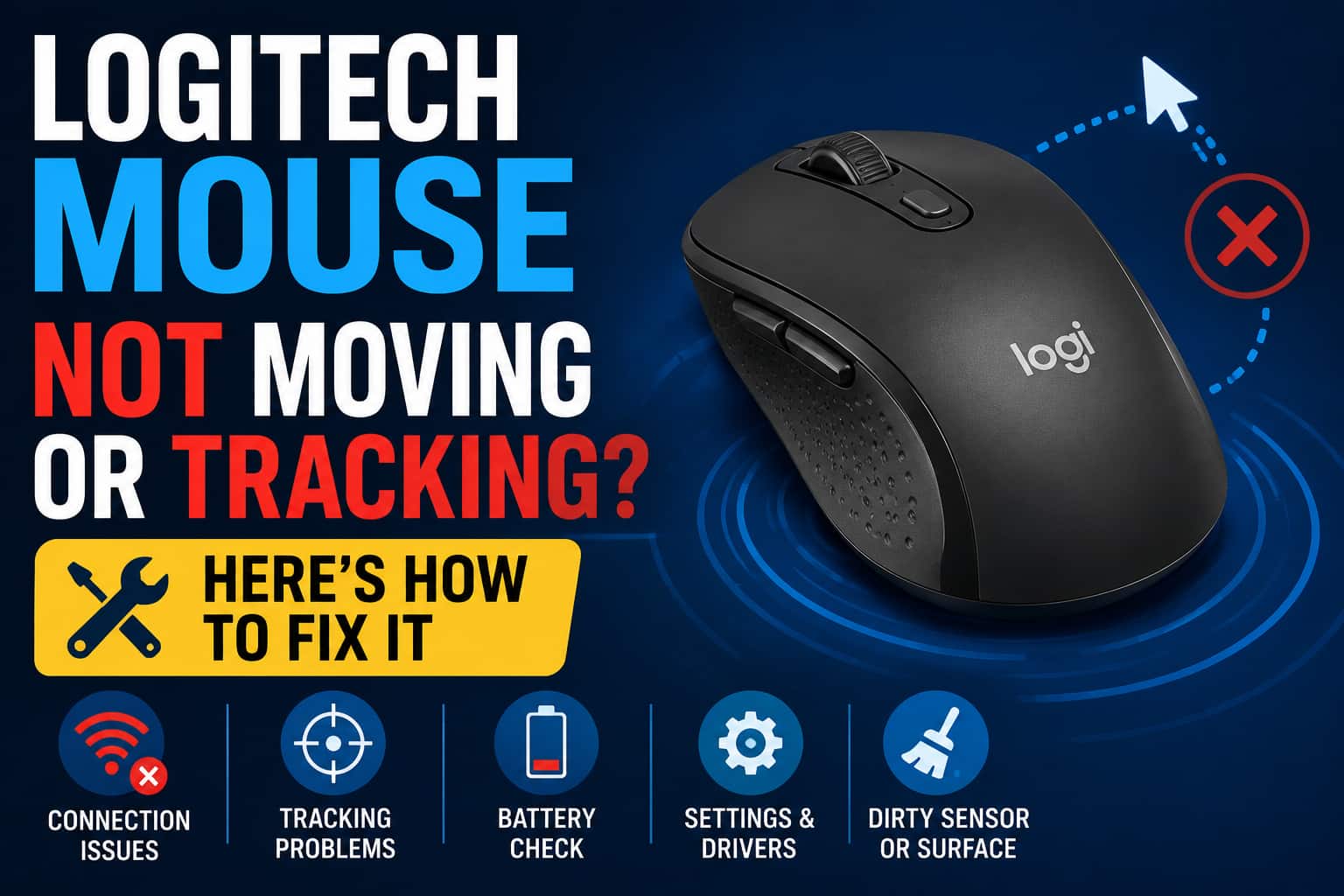
My Logitech MX Master stopped tracking in the middle of an important presentation last week. The cursor was frozen on screen, and I felt completely helpless as my audience waited. I tried clicking, moving it around frantically, nothing worked. After the presentation (which I had to finish using my laptop trackpad), I spent two hours troubleshooting and discovered the problem was absurdly simple – a tiny hair wrapped around the sensor.
Let me show you how to fix a Logitech mouse that won’t move or track properly, starting with the quickest solutions first.
Check the Basics First
Before diving into complicated troubleshooting, these simple checks fix the problem about 70% of the time.
Make sure the mouse is turned on:
- Look for a power switch on the bottom
- Most Logitech mice have an on/off slider
- Switch should be in the “on” position
- Some mice have a power indicator LED
Check if the batteries are dead:
- Low batteries cause erratic tracking or no movement
- Replace with fresh batteries
- Try known-good batteries from another device
- For rechargeable mice, plug in the charging cable
- Some mice won’t work at all with dead batteries
Verify the USB receiver is plugged in:
- Check if the receiver is fully inserted
- Make sure it’s not loose or partially disconnected
- Try pressing it in firmly
- Look for an LED on the receiver (some models have this)
Try a different surface:
- Move your mouse to a different area of your desk
- Test on a mouse pad
- Avoid glass, mirrors, or glossy surfaces
- Shiny or reflective surfaces confuse optical sensors
Check if the mouse is paired/connected:
- For wireless mice, connection can drop
- Look for a blinking LED (usually means searching for connection)
- Solid LED usually means connected
- No LED might mean dead batteries
Clean the Mouse Sensor
A dirty sensor is one of the most common causes of tracking problems.
Turn off the mouse and flip it over:
- Look at the sensor opening on the bottom
- You should see a red or blue LED light
- Check for visible debris, dust, or hair
Clean the sensor area:
- Use compressed air to blow out dust
- Don’t spray too close (can damage sensor)
- Use a cotton swab barely dampened with isopropyl alcohol
- Gently clean around the sensor opening
- Don’t press directly on the sensor
- Let it dry completely (30 seconds)
Check for hair or fibers:
- Hair wrapped around sensor is extremely common
- Use tweezers to carefully remove any fibers
- Even a single hair can block the sensor completely
- Check the glide feet area too
Wipe the bottom of the mouse:
- Clean the entire bottom surface
- Remove any sticky residue
- Use a slightly damp cloth
- Dry thoroughly before using
Test after cleaning:
- Turn the mouse back on
- Try moving it on different surfaces
- Sensor should glow when mouse is on
- If no light, there might be a power issue
Restart Your Computer
Sometimes the problem is with your computer, not the mouse.
Perform a simple restart:
- Save your work
- Restart your computer normally
- Wait for complete boot-up
- Test the mouse immediately after restart
Why this works:
- Clears USB driver glitches
- Resets mouse driver software
- Fixes temporary system conflicts
- Refreshes USB power delivery
If you can’t use the mouse to restart:
- Use keyboard shortcuts (Alt+F4 on Windows, Ctrl+Eject on Mac)
- Press the power button briefly (don’t hold)
- Use touchpad if available
- Connect a different mouse temporarily
Check the USB Receiver Connection
The receiver is often the culprit for wireless tracking issues.
Remove and reinsert the receiver:
- Unplug the USB receiver completely
- Wait 10 seconds
- Plug it back in firmly
- Wait 15-20 seconds for reconnection
- Look for Windows/Mac notification of device connection
Try a different USB port:
- Some USB ports provide more power than others
- Try USB 2.0 ports instead of USB 3.0 (less interference)
- Avoid USB hubs if possible
- Plug directly into computer
Check for USB port issues:
- Test the port with another device
- Port might be damaged or loose
- Look for physical damage in the port
- Try all available USB ports
Move the receiver closer to the mouse:
- USB extension cables can help
- Receiver should be within 3-10 feet of mouse
- Remove obstacles between mouse and receiver
- Metal objects cause interference
Check for interference:
- Move receiver away from Wi-Fi routers
- Keep away from other wireless devices
- Bluetooth devices can cause interference
- Try turning off nearby wireless devices temporarily
Replace or Recharge the Batteries
Battery issues cause more tracking problems than you’d think.
For replaceable battery mice:
- Remove old batteries completely
- Check battery contacts for corrosion
- Clean contacts with isopropyl alcohol if corroded
- Insert fresh, high-quality batteries
- Make sure batteries are inserted correctly (+ and – orientation)
- Use alkaline batteries for best performance
For rechargeable Logitech mice:
- Plug in the charging cable
- Look for charging indicator LED
- Charge for at least 30 minutes
- Test while plugged in to rule out battery issues
- Some mice work while charging, some don’t
Battery troubleshooting tips:
- Mixed old and new batteries cause problems
- Rechargeable AA/AAA batteries have lower voltage
- Cold batteries perform poorly
- Check battery expiration dates
Check battery level in software:
- Install Logitech Options or Logi Options+
- Software shows battery percentage
- Gives warning before batteries die
- Helps predict when to replace
Reconnect/Re-pair the Mouse
Wireless mice can lose their connection to the receiver.
For Logitech Unifying mice:
- Download Logitech Unifying Software
- Plug in the Unifying receiver
- Launch the software
- Click “Next” to pair
- Turn mouse off, then back on
- Software should detect the mouse within 15 seconds
For Logitech Bolt mice:
- Download Logi Options+ software
- Plug in Bolt receiver
- Open the software
- Turn mouse off and on
- Follow on-screen pairing instructions
For Bluetooth mice:
- Remove old Bluetooth pairing
- Windows: Settings > Bluetooth > Remove device
- Mac: System Settings > Bluetooth > Remove device
- Put mouse in pairing mode (hold pairing button 3-5 seconds)
- Re-pair through Bluetooth settings
Check for connect button:
- Some mice have a connect button on bottom
- Press to initiate pairing with receiver
- Hold for 3-5 seconds
- Look for blinking LED indicating pairing mode
Update or Reinstall Mouse Drivers
Outdated or corrupted drivers cause tracking failures.
Windows – Update mouse drivers:
- Right-click Start menu > Device Manager
- Expand “Mice and other pointing devices”
- Right-click your Logitech mouse
- Select “Update driver”
- Choose “Search automatically for drivers”
- Install any available updates
- Restart computer
Windows – Reinstall mouse drivers:
- Open Device Manager
- Right-click your mouse
- Select “Uninstall device”
- Check “Delete driver software” if option appears
- Restart computer
- Windows will reinstall drivers automatically
Mac – Reset SMC (System Management Controller):
- Shut down your Mac
- For laptops: Hold Shift+Control+Option+Power for 10 seconds
- For desktops: Unplug power cord, wait 15 seconds, plug back in
- Start up normally
- This resets USB power management
Install Logitech software:
- Download Logitech Options or Logi Options+
- Install the appropriate version for your mouse
- Software includes optimized drivers
- Provides better compatibility
Test on Different Surfaces
The surface matters more than most people realize.
Surfaces that cause tracking problems:
- Glass tables (worst offender)
- Mirrored or highly polished surfaces
- Very dark surfaces (black desks)
- Glossy magazine pages
- Transparent or translucent materials
- Very light colored surfaces
- Surfaces with patterns or textures
Best surfaces for optical mice:
- Standard mouse pads
- Matte finish desks
- Plain colored paper
- Fabric surfaces
- Medium-colored wood
Quick surface test:
- Move mouse to a plain sheet of white paper
- If it tracks properly, your desk surface is the problem
- Buy a mouse pad ($5-20)
- Problem solved permanently
Special considerations:
- Gaming mice often include special mouse pads
- Some Logitech mice work on glass (Darkfield sensors)
- Check if your mouse model supports your surface type
Check for Physical Damage
Physical damage can prevent proper tracking.
Inspect the sensor area:
- Look for cracks around the sensor
- Check if sensor appears damaged
- Ensure sensor opening isn’t blocked
- Look for water damage indicators
Check the glide feet:
- Worn or missing feet affect tracking
- Mouse should glide smoothly
- Replace feet if worn down
- Aftermarket feet available online ($5-10)
Test all buttons:
- Make sure buttons click properly
- Stuck buttons can affect performance
- Clean around buttons with compressed air
Look for damage from drops:
- Internal damage from falls
- Rattling sounds indicate broken parts
- Intermittent tracking suggests loose components
Check the cable (for wired mice):
- Look for fraying or kinks
- Bent cable damages internal wires
- Try gently moving cable while using mouse
- If tracking comes and goes, cable is damaged
Disable Power Saving Settings
Power management features can turn off your mouse.
Windows power settings:
- Open Device Manager
- Expand “Universal Serial Bus controllers”
- Right-click each “USB Root Hub”
- Select “Properties”
- Go to “Power Management” tab
- Uncheck “Allow computer to turn off this device”
- Repeat for all USB Root Hubs
- Restart computer
Windows selective suspend:
- Open Control Panel > Power Options
- Click “Change plan settings”
- Select “Change advanced power settings”
- Expand “USB settings”
- Expand “USB selective suspend setting”
- Set to “Disabled” for both battery and plugged in
- Click “OK”
Mac energy saver settings:
- Go to System Settings
- Select “Battery” or “Energy Saver”
- Uncheck “Put hard disks to sleep when possible”
- This affects USB power delivery
Why power settings matter:
- Computer cuts power to USB ports to save energy
- Mouse appears to work but doesn’t track
- Movement can wake it but with delay
- Disabling prevents this issue
Update Logitech Software
Software problems can prevent proper mouse function.
Update Logi Options+ (newer mice):
- Open Logi Options+
- Check for software updates
- Install any available updates
- May also update mouse firmware
Update Logitech Options (older mice):
- Open Logitech Options
- Click the gear icon for settings
- Check for updates
- Install and restart
Firmware updates:
- Connect mouse via cable or receiver
- Software will notify of firmware updates
- Never interrupt firmware updates
- Can take 5-10 minutes
Reinstall Logitech software:
- Uninstall current Logitech software
- Download fresh copy from logitech.com
- Install latest version
- Restart computer
- Reconnect mouse
Try the Mouse on Another Computer
This helps isolate whether the problem is the mouse or your computer.
Test on a different computer:
- Plug receiver into another computer
- Or pair via Bluetooth to different device
- Turn on the mouse
- Test tracking and movement
If mouse works on other computer:
- Problem is with your original computer
- Focus on driver/software issues
- Check USB ports on original computer
- Reinstall operating system as last resort
If mouse doesn’t work on other computer:
- Problem is definitely the mouse or receiver
- Try a different receiver (if you have one)
- Contact Logitech support
- May need replacement
Check for Software Conflicts
Other programs can interfere with mouse operation.
Disable other mouse software:
- Uninstall other mouse management software
- Gaming mouse software from other brands
- Trackpad enhancement software
- Accessibility software
Check for malware:
- Run antivirus scan
- Malware can affect USB devices
- Use Windows Defender or reputable antivirus
- Remove any detected threats
Disable startup programs:
- Windows: Task Manager > Startup tab
- Disable non-essential programs
- Restart computer
- Test if mouse works
Safe Mode test:
- Boot computer in Safe Mode
- Windows: Hold Shift while clicking Restart
- Select Troubleshoot > Advanced > Startup Settings > Safe Mode
- Test mouse in Safe Mode
- If works, a program is causing conflict
Adjust Mouse Settings
Sometimes settings get changed accidentally.
Windows mouse settings:
- Settings > Bluetooth & devices > Mouse
- Check “Mouse pointer speed”
- Set to middle position
- Try moving slider to see if mouse responds
Windows additional settings:
- Control Panel > Mouse
- Check “Pointer Options” tab
- Ensure “Enhance pointer precision” is checked (or unchecked to test)
- Adjust pointer speed
- Disable “Hide pointer while typing” if enabled
Mac mouse settings:
- System Settings > Mouse
- Check “Tracking speed”
- Adjust slider
- Test different speeds
Logitech software settings:
- Open Logitech Options or Logi Options+
- Check pointer speed settings
- Verify buttons are configured correctly
- Reset to default settings
- Some configurations can disable tracking
Check for Hardware Button Issues
Physical buttons can get stuck and prevent tracking.
Inspect all buttons:
- Press each button individually
- Make sure they click and release properly
- Stuck buttons can disable cursor movement
Clean around buttons:
- Use compressed air around button edges
- Remove any visible debris
- Don’t use liquids near buttons
Test with buttons unpressed:
- Make sure you’re not accidentally holding a button
- Some mice disable tracking when buttons are held
- DPI buttons can affect sensitivity
Try a Different USB Port Type
USB 3.0 ports can cause interference with wireless mice.
USB 2.0 vs USB 3.0:
- USB 3.0 ports are usually blue inside
- USB 2.0 ports are black or white
- USB 3.0 can interfere with 2.4GHz wireless signals
- Try USB 2.0 ports specifically
Use USB extension cable:
- Moves receiver away from interference
- Position receiver closer to mouse
- Reduces obstacles between mouse and receiver
- Logitech sells official extension cables
Direct computer connection:
- Avoid USB hubs when possible
- Hubs can cause power or signal issues
- Plug directly into computer’s USB ports
- Desktop rear ports often better than front ports
Reset the Mouse to Factory Settings
Some Logitech mice have reset procedures.
Check for reset button:
- Look for a small reset hole on bottom
- Use paperclip to press recessed button
- Hold for 5-10 seconds
- Mouse will restart with factory settings
Reset through software:
- Open Logitech Options or Logi Options+
- Look for “Restore defaults” option
- Reset button configurations
- Reset pointer speed to default
Complete re-pairing after reset:
- May need to re-pair with receiver
- Follow pairing instructions for your model
- Test tracking after reset
Check DPI Settings
DPI (dots per inch) settings affect how far cursor moves.
Accidentally changed DPI:
- Some mice have DPI buttons
- Easy to press accidentally
- Can set DPI so low that mouse appears not to move
- Or so high that tiny movements cause huge cursor jumps
Adjust DPI in software:
- Open Logitech Options or Logi Options+
- Find DPI or sensitivity settings
- Try different DPI levels
- Start with 1000-1600 DPI (medium sensitivity)
DPI button on mouse:
- Usually on top of mouse
- Click to cycle through DPI levels
- Watch for LED color changes indicating DPI shift
- Try all available DPI settings
Troubleshoot Specific Logitech Mouse Models
Different models have unique issues.
MX Master series issues:
- Check if thumb rest button is stuck
- Thumb button can disable tracking
- Clean around thumb button area
- Update firmware through Logi Options+
MX Anywhere issues:
- Small size makes sensor cleaning critical
- Check for debris in sensor area
- Darkfield sensor should work on most surfaces
- Update through Logi Options+
Gaming mice (G series) issues:
- Check Logitech G HUB software
- Gaming profiles can affect tracking
- Disable angle snapping if enabled
- Check for firmware updates in G HUB
- Surface calibration might be needed
Budget Logitech mice (M185, M220, etc.):
- Often have simpler sensors
- More sensitive to surface type
- Use mouse pad
- Cannot be updated or configured
- Cheaper to replace than repair
Trackball mice (MX Ergo):
- Remove trackball and clean thoroughly
- Clean internal rollers with cotton swab
- Dust buildup prevents proper tracking
- Trackball should roll smoothly
When to Contact Logitech Support
Sometimes professional help is needed.
Contact support if:
- Mouse still doesn’t work after all troubleshooting
- Mouse is under warranty (usually 1-3 years)
- Physical damage is suspected
- Sensor appears defective
- Receiver is lost or damaged
What Logitech support can do:
- Send replacement receiver
- Replace defective mouse under warranty
- Provide advanced troubleshooting
- Offer discount on replacement
How to contact Logitech:
- Visit support.logitech.com
- Click “Contact Us”
- Choose chat, email, or phone
- Have model number and serial number ready
- Proof of purchase helps for warranty
Warranty information:
- Most Logitech mice have 1-3 year warranty
- Premium mice (MX series) often 3 years
- Budget mice typically 1 year
- Check warranty status on Logitech’s website
When to Replace Your Mouse
Sometimes repair isn’t worth the effort or cost.
Replace if:
- Mouse is several years old
- Sensor is physically damaged
- Buttons are worn out
- Costs more to fix than replace
- You want to upgrade anyway
Budget mice ($10-30):
- Not worth extensive troubleshooting
- Cheaper to buy new than spend hours fixing
- Consider upgrade to better model
Mid-range mice ($30-70):
- Worth troubleshooting and cleaning
- May be worth buying replacement receiver
- Consider warranty replacement
Premium mice ($70+):
- Definitely worth troubleshooting
- Contact Logitech for warranty support
- Buy replacement parts if available
- High quality worth the effort
Upgrade recommendations:
- MX Master 3S (best productivity mouse)
- MX Anywhere 3S (portable, travel-friendly)
- G502 Hero (gaming)
- Lift Vertical (ergonomic)
- All have Bluetooth + receiver options
Prevent Future Tracking Issues
Once you fix the problem, keep it from happening again.
Regular maintenance:
- Clean sensor monthly
- Use compressed air regularly
- Wipe bottom of mouse weekly
- Check for hair or debris
Use a mouse pad:
- Protects sensor
- Provides consistent surface
- Improves tracking accuracy
- Extends sensor life
Keep spare batteries:
- Always have fresh batteries ready
- Replace before completely dead
- Check battery level monthly in software
Update software regularly:
- Install Logitech software updates
- Keep firmware current
- Updates fix bugs and improve performance
Avoid harsh environments:
- Keep mouse away from liquids
- Don’t eat over mouse (crumbs get in)
- Avoid dusty environments
- Store properly when traveling
Quick Diagnostic Checklist
Use this flowchart approach to find the problem fast.
Does the mouse have power?
- No LED light → Replace batteries or charge
- LED on → Continue troubleshooting
Is the sensor clean?
- Visible debris → Clean sensor thoroughly
- Sensor clean → Check surface
Does it work on paper?
- Works on paper → Your desk surface is the problem
- Doesn’t work on paper → Continue troubleshooting
Does it work on another computer?
- Works elsewhere → Your computer is the problem
- Doesn’t work elsewhere → Mouse or receiver is defective
Is the receiver firmly plugged in?
- Loose or unplugged → Reinsert receiver
- Firmly connected → Try different USB port
Have you restarted the computer?
- No → Restart and test
- Yes → Reinstall drivers
I learned from my presentation disaster that prevention is key. Now I clean my mouse sensor weekly, keep spare batteries in my desk drawer, and always test equipment before important meetings. That hair wrapped around the sensor was almost invisible, but it completely blocked the optical tracking. Since then, I’ve helped three coworkers fix similar issues – two were dirty sensors, one was dead batteries. The lesson? Start with the simplest solutions first. Nine times out of ten, your Logitech mouse tracking problem is something basic like a dirty sensor, dead batteries, or wrong surface. Save the complicated troubleshooting for when you’ve ruled out the obvious stuff.