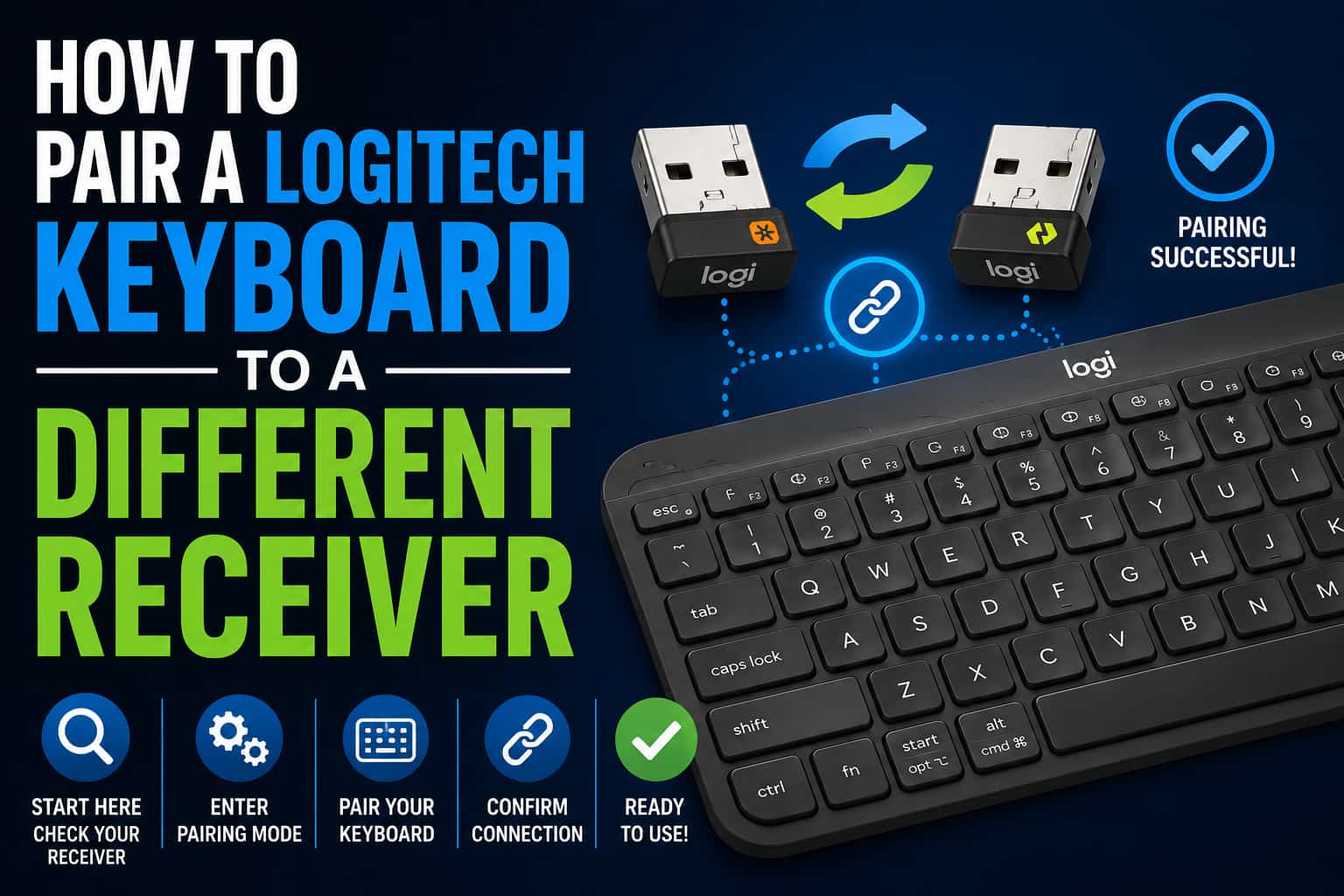
I bought a used Logitech keyboard at a garage sale last year – great condition, half the price, but no receiver. The seller had lost it years ago and assumed the keyboard was worthless without it. I knew better. Within 10 minutes of getting home, I had that keyboard paired to a spare Logitech receiver and working perfectly.
Let me show you exactly how to pair a Logitech keyboard to a different receiver, whether you lost your original or just want to consolidate devices.
Check What Type of Receiver Your Keyboard Uses
Before you can pair your keyboard to a different receiver, you need to know which receiver technology it supports.
Look for the Unifying logo:
- Check the bottom of your keyboard
- Look for an orange sunburst logo with “Unifying” text
- If present, your keyboard works with any Logitech Unifying receiver
- This is the most common and easiest to work with
Look for the Bolt logo:
- Newer Logitech keyboards use Bolt technology
- Check for a “Bolt” logo or mention on the keyboard
- Bolt receivers are USB-C instead of USB-A
- Requires Logi Options+ software to pair
Check your keyboard model:
- Model numbers are usually on the bottom or back
- Search your model on Logitech’s website
- The product page will list receiver compatibility
- Common models: K380, K780, K850, MX Keys, MX Mechanical
Proprietary receivers (the problem ones):
- Some budget keyboards use non-replaceable receivers
- No Unifying or Bolt logo
- These are paired to one specific receiver only
- Cannot be paired to different receivers
If your Logitech keyboard lost its original USB receiver, the first step is to check whether it uses Unifying, Logi Bolt, Bluetooth, or a proprietary receiver. These products cover the most common replacement and upgrade scenarios.
This is the main product to recommend for older Logitech keyboards and mice with the orange Unifying logo. It can connect compatible Logitech keyboards, mice, and other Unifying devices to one USB-A receiver.
Check Price on AmazonUse this for newer Logitech keyboards and mice that support Logi Bolt. It is not interchangeable with the older Unifying receiver, so readers should confirm their keyboard supports Bolt before buying.
Check Price on AmazonA strong upgrade option for readers who want a keyboard that works with both Logitech Unifying and Bluetooth. It is useful for switching between a computer, tablet, and phone without needing multiple keyboards.
Check Price on AmazonA premium upgrade for readers who want a modern Logitech keyboard with Bluetooth and Logi Bolt support. This is a good recommendation when an old keyboard is worn out or not worth repairing.
Check Price on AmazonA practical budget replacement when the old keyboard uses a proprietary receiver or when buying a separate receiver costs almost as much as a new keyboard. Good for basic home and office use.
Check Price on AmazonGet a Compatible Logitech Receiver
If you don’t already have a spare receiver, you’ll need to get one that matches your keyboard’s technology.
For Unifying keyboards (most common):
- Buy a Logitech Unifying Receiver ($10-15)
- Available on Amazon, Logitech.com, Best Buy
- Small USB-A dongle with orange Unifying logo
- Works with up to 6 Logitech devices
- One receiver can handle keyboard + mouse + more
For Bolt keyboards (newer models):
- Buy a Logitech Bolt Receiver ($20-25)
- USB-C connector
- Available from Logitech’s website
- More secure than Unifying
- Also connects up to 6 devices
Check if you have a spare receiver:
- Look for receivers from other Logitech devices
- Check desk drawers or tech boxes
- Ask family members with Logitech gear
- One Unifying receiver works for multiple devices
What NOT to buy:
- Generic “universal” USB receivers rarely work with Logitech
- Third-party receivers claiming Logitech compatibility are unreliable
- Save yourself the hassle and buy official Logitech receivers
Pairing with Logitech Unifying Software (Easy Method)
This is the simplest and most reliable way to pair a Logitech keyboard to a Unifying receiver.
Download the Unifying Software:
- Go to support.logitech.com
- Search for “Unifying Software”
- Download for Windows or Mac
- File size is small (about 8MB)
- Installation takes 1-2 minutes
Install and launch the software:
- Run the installer
- Follow the installation prompts
- No restart required
- Launch the Logitech Unifying Software when complete
Pair your keyboard:
- Plug the Unifying receiver into a USB port
- Open the Unifying Software
- Click “Next” to start pairing
- Turn off your keyboard
- Wait 5 seconds
- Turn your keyboard back on
- The software will search for your keyboard (10-15 seconds)
- When found, click “Next” to complete pairing
- Test that keys work
- Click “Exit” when finished
Troubleshooting the Unifying Software:
- If keyboard isn’t detected, try fresh batteries
- Make sure keyboard is within 3 feet of receiver during pairing
- Close and reopen the software
- Try a different USB port
- Restart your computer with receiver plugged in
Before buying a replacement receiver, check the logo on your keyboard. Logitech Unifying, Logi Bolt, and older proprietary 2.4 GHz receivers are not interchangeable.
The correct replacement receiver for many older Logitech keyboards and mice that show the orange Unifying logo. It can pair multiple compatible Logitech devices to one receiver.
Check Price on AmazonThe right choice for newer Logitech keyboards and mice that use the Logi Bolt system. Bolt is not backward-compatible with the older Unifying receiver.
Check Price on AmazonPairing with Logi Options+ (For Bolt Receivers)
Newer Logitech keyboards using Bolt receivers require different software.
Download Logi Options+:
- Go to logitech.com/options-plus
- Available for Windows and Mac
- Larger download (about 100MB)
- More features than old Unifying Software
Install Logi Options+:
- Run the installer
- Follow installation wizard
- May require restart (depends on system)
- Launch Logi Options+ after installation
Pair your keyboard:
- Plug in your Bolt receiver
- Open Logi Options+
- The software will auto-scan for devices
- Turn your keyboard off, then on
- Click “Add Device” if keyboard doesn’t appear automatically
- Select your keyboard from the list
- Follow on-screen pairing instructions
- Pairing completes in 5-10 seconds
Benefits of Logi Options+:
- Customize function keys
- Check battery status
- Update firmware
- Configure shortcut keys
- Manage multiple devices
Manual Pairing Method (Without Software)
Some Logitech keyboards can pair to a receiver using hardware buttons, though this is less common.
Check for a Connect button:
- Look on the bottom or back of your keyboard
- Some models have a small “Connect” or “Pair” button
- Usually recessed and requires a paperclip to press
- Not all keyboards have this feature
Look for a Connect button on the receiver:
- Some Unifying receivers have a tiny button
- Very rare on current models
- More common on older Logitech receivers
Pairing process (if buttons exist):
- Plug in the receiver
- Press and hold the Connect button on the receiver (if present)
- Press and hold the Connect button on the keyboard
- Hold both for 5-10 seconds
- LEDs should blink on both devices
- Release when pairing completes
- Test keyboard functionality
Reality check:
- Most modern Logitech keyboards require software pairing
- Hardware buttons are increasingly rare
- If you don’t see a Connect button, use the software method
Pairing Multiple Devices to One Receiver
One of the best features of Unifying and Bolt receivers is connecting multiple devices.
Why consolidate to one receiver:
- Frees up USB ports
- Less clutter
- Easier cable management
- One receiver for keyboard + mouse + numpad
- Works great for clean desk setups
How many devices per receiver:
- Unifying receivers: Up to 6 devices
- Bolt receivers: Up to 6 devices
- Mix and match keyboards, mice, trackpads, numpads
Pairing multiple devices:
- Install Logitech Unifying Software or Logi Options+
- Plug in your receiver
- Click “Add Device” for each device you want to pair
- Turn each device off and on when prompted
- Software will list all connected devices
- Each device pairs individually
Managing multiple devices:
- The software shows all paired devices
- You can see battery levels
- Remove devices you no longer use
- Rename devices for easy identification
- All devices work simultaneously
Some Logitech keyboards use a receiver that cannot be replaced or re-paired easily. In that case, replacing the keyboard may be cheaper and simpler than trying to find the exact original receiver.
A low-cost replacement when your existing Logitech keyboard uses a non-replaceable receiver. Good for basic home, school, and office use.
Check Price on AmazonA better option if you want a more comfortable full-size keyboard and mouse combo. This is a practical upgrade for users replacing an older Logitech keyboard.
Check Price on AmazonA compact keyboard and mouse combo that is useful for laptops, small desks, tablets, and multi-device setups. Good when you want to reduce dependence on a USB receiver.
Check Price on AmazonKeyboard-Specific Pairing Instructions
Different Logitech keyboard models have slight variations in pairing methods.
Logitech K380 Multi-Device Keyboard:
- Has three Easy-Switch buttons (1, 2, 3)
- Can pair to three different devices/receivers
- Press and hold Easy-Switch button for 3 seconds
- LED blinks rapidly when in pairing mode
- Use Unifying Software while LED is blinking
- Great for switching between computer, tablet, phone
Logitech MX Keys:
- Premium keyboard with backlight
- Uses both Unifying and Bolt receivers (depending on version)
- Has Easy-Switch buttons for multi-device
- Press Easy-Switch button + hold for 3 seconds to pair
- Use Logi Options+ for full functionality
- Can connect via Bluetooth as alternative
Logitech K780 Multi-Device:
- Full-size keyboard with number pad
- Supports Unifying receiver
- Three Easy-Switch buttons
- Each button can pair to different receiver or Bluetooth
- Hold Easy-Switch button during software pairing
Logitech MX Mechanical:
- Mechanical keyboard for productivity
- Uses Bolt receiver (USB-C)
- Also has Bluetooth option
- Requires Logi Options+ software
- Three device channels
Budget Logitech Keyboards (K270, K360, etc.):
- Often use proprietary receivers
- Look for Unifying logo – if absent, may not be reprogrammable
- Some work with Unifying receivers, some don’t
- Check Logitech’s website for your specific model
Switch from Bluetooth to Receiver (Or Vice Versa)
Many Logitech keyboards support both Bluetooth and receiver connections.
Keyboards with dual connectivity:
- K380
- K780
- K850
- MX Keys (all versions)
- MX Mechanical
- Most “Multi-Device” keyboards
Switching from Bluetooth to receiver:
- Install Unifying or Bolt receiver
- Download appropriate Logitech software
- Select an Easy-Switch channel that’s set for receiver mode
- Some channels are Bluetooth-only, others are receiver-capable
- Pair using the software
- Switch between Bluetooth and receiver using Easy-Switch buttons
Benefits of using a receiver over Bluetooth:
- Slightly lower latency (not noticeable for typing)
- No Bluetooth setup needed on new computers
- Plug-and-play convenience
- Uses less battery on some models
Benefits of Bluetooth over receiver:
- No USB port needed
- Works with tablets and phones
- No receiver to lose
- Built into most modern devices
Troubleshooting Common Pairing Problems
When pairing doesn’t work smoothly, these solutions usually fix the issue.
Keyboard not detected during pairing:
- Replace keyboard batteries with fresh ones
- Weak batteries prevent successful pairing
- Turn keyboard off, wait 10 seconds, turn on
- Move keyboard closer to receiver (within 3 feet)
- Try a different USB port for the receiver
- Restart pairing software
Pairing completes but keyboard doesn’t work:
- Check if receiver is properly recognized by computer
- Look in Device Manager (Windows) or System Report (Mac)
- Update USB drivers
- Disable USB Selective Suspend (Windows power settings)
- Try receiver in a different USB port
- Some USB 3.0 ports cause interference – try USB 2.0
Keyboard types wrong characters:
- Wrong keyboard layout selected in operating system
- Go to language settings
- Verify keyboard layout matches your physical keyboard
- Common issue: US vs UK layout
- Change in Windows Settings > Time & Language > Language
Some keys don’t work:
- Function keys may need Logi Options+ for full functionality
- Media keys especially require software
- Install Logi Options+ or Logitech Options
- Configure keys in the software
- Some keyboards have F-key toggle (Fn + Esc)
Receiver not recognized at all:
- Try every USB port on your computer
- Test receiver on a different computer
- Receiver might be defective
- Some USB hubs cause issues – plug directly into computer
- Update USB drivers in Device Manager
Keyboard keeps disconnecting:
- Interference from other wireless devices
- Try moving receiver away from Wi-Fi routers
- Metal objects between keyboard and receiver block signal
- Distance too far (Unifying range is about 30 feet)
- Low batteries cause intermittent connection
Understanding Logitech Receiver Technologies
Knowing the differences helps you choose the right solution.
Logitech Unifying Technology:
- Introduced 2009
- Orange sunburst logo
- 2.4 GHz wireless
- USB-A connector
- Most widespread Logitech receiver type
- Works with 1000+ Logitech device models
- Maximum 6 devices per receiver
- Range: Up to 10 meters (33 feet)
Logitech Bolt Technology:
- Introduced 2021
- Enhanced security features
- USB-C connector
- Uses Bluetooth Low Energy encryption
- Works with newer premium devices
- Also supports 6 devices per receiver
- Requires Logi Options+ software
- Better security for business environments
Logitech Lightspeed Technology:
- Used in gaming keyboards and mice
- Ultra-low latency (1ms)
- Black receiver with “G” logo
- Usually not compatible with Unifying
- Device-specific pairing
- Less flexible for multi-device setups
Proprietary Receivers:
- Budget keyboards often use these
- Paired to one device only
- Cannot be repurchased
- No logo or branding
- If lost, must buy new keyboard
Cost Analysis: Buying a Receiver vs New Keyboard
Understanding costs helps you make the best decision.
Logitech Unifying Receiver:
- Cost: $10-15
- Shipping: Usually free over $25
- Timeline: 2-5 days delivery
- Benefit: Keeps your existing keyboard
- Works if keyboard supports Unifying
Logitech Bolt Receiver:
- Cost: $20-25
- Ships from Logitech or Amazon
- Timeline: 2-5 days
- USB-C connector
- Only for Bolt-compatible keyboards
New Budget Keyboard:
- Cost: $20-40
- Includes receiver
- Fresh warranty
- Quick solution
- Makes sense if receiver costs $15+
New Premium Keyboard:
- Cost: $60-150
- Bluetooth + receiver included
- Upgrade features
- Better typing experience
- Makes sense if old keyboard is worn
My recommendation:
- If your keyboard is worth $50+, buy the receiver ($10-25)
- If your keyboard is basic ($30 or less), consider upgrading
- Always check for Unifying logo before buying receiver
- Premium keyboards like MX Keys are worth keeping
Pairing a Keyboard from Another Logitech Set
You can split up Logitech keyboard/mouse combos and pair devices to different receivers.
Scenario: You bought a combo set:
- Logitech MK270 (keyboard + mouse combo)
- Comes with one receiver for both
- You want to use keyboard with different receiver
Solution:
- If both devices have Unifying logo, you can split them
- Buy a second Unifying receiver
- Pair mouse to one receiver
- Pair keyboard to different receiver
- Now they work independently
Why do this:
- Use keyboard with desktop, mouse with laptop
- Give away one device, keep the other
- Replace broken mouse but keep keyboard
- Use with different computers in different rooms
Important note:
- Only works with Unifying or Bolt devices
- Proprietary combo sets cannot be split
- Check for orange Unifying logo on both devices
If your old Logitech keyboard cannot connect to a new receiver, upgrading to a modern Bluetooth or Bolt-compatible keyboard can be the cleaner fix.
A compact multi-device Bluetooth keyboard that works well with laptops, tablets, and phones. A good option if you want to avoid USB receiver compatibility issues entirely.
Check Price on AmazonA premium compact keyboard for users who want better typing feel, backlit keys, Bluetooth, and modern Logitech connectivity. Good for laptops and small desks.
Check Price on AmazonA better choice for users who want a compact Logitech keyboard with mechanical switches. Useful as a long-term upgrade from an older wireless keyboard.
Check Price on AmazonUsing Logitech Keyboards with Non-Logitech Receivers
This is the question everyone asks, and the answer is usually disappointing.
Can you use third-party receivers?
- Generally no
- Logitech uses proprietary protocols
- Generic USB receivers don’t work with Logitech keyboards
- Even receivers claiming “universal” compatibility fail
Why third-party receivers don’t work:
- Logitech keyboards use encrypted pairing
- Proprietary 2.4 GHz protocol
- Specific handshake required
- No documented way to pair with non-Logitech receivers
Don’t waste money on:
- “Universal” USB receivers
- Generic wireless adapters
- Bluetooth adapters for non-Bluetooth keyboards
- USB dongles claiming to work with “all brands”
The only solution:
- Official Logitech Unifying receiver
- Official Logitech Bolt receiver
- Or use Bluetooth if your keyboard supports it
Exception:
- Some very old Logitech keyboards used standard HID protocol
- Extremely rare
- Pre-2009 models
- Not worth trying to find compatible receiver
Step-by-Step: My Complete Pairing Process
Here’s exactly how I paired that garage sale keyboard.
My situation:
- Found Logitech K380 keyboard at garage sale ($10)
- No receiver included
- Had a spare Unifying receiver from old mouse
What I did:
- Checked bottom of keyboard for Unifying logo (it had one – perfect)
- Put fresh AAA batteries in keyboard
- Went to support.logitech.com on my computer
- Downloaded Logitech Unifying Software
- Installed it (took 90 seconds)
- Plugged my spare Unifying receiver into USB port
- Launched the Unifying Software
- Clicked “Next” to start pairing
- Turned off the K380 keyboard
- Waited 5 seconds
- Turned keyboard back on
- Software detected it in about 8 seconds
- Clicked “Next” to complete
- Tested typing – worked perfectly
- Clicked “Exit”
Total time: 8 minutes (including software download)
Total cost: $0 (used spare receiver)
Keyboards now working: K380 + my existing Logitech mouse on same receiver
What I learned:
- Always check for Unifying logo before buying used Logitech gear
- One receiver can handle multiple devices (freed up a USB port)
- The software makes pairing ridiculously easy
- Used Logitech keyboards are great deals if you have a receiver
Advanced: Pairing Without a Computer
In rare situations, you might need to pair a keyboard when you don’t have access to a computer.
Why this is difficult:
- Logitech Unifying Software only runs on computers
- Can’t install software on tablets or phones
- No mobile app for pairing receivers
- Hardware pairing buttons are rare
Possible workarounds:
- Borrow a friend’s computer temporarily
- Use a public computer (library, internet cafe)
- Boot a live Linux USB (if you’re technical)
- Some keyboards have Bluetooth as backup option
The Bluetooth alternative:
- If your keyboard supports Bluetooth
- You can pair directly to tablets/phones/computers
- No receiver or software needed
- Check for Easy-Switch buttons on keyboard
- Hold Easy-Switch button for 3 seconds to enter Bluetooth pairing mode
Reality:
- You’ll need a computer to use Unifying Software
- No way around this for receiver pairing
- Bluetooth is the only receiver-free option
Compatibility Matrix: Which Keyboards Work with Which Receivers
Here’s a quick reference guide.
Keyboards with Unifying (work with Unifying receivers):
- K380 Multi-Device
- K780 Multi-Device
- K850 Performance
- K800 Illuminated
- K750 Solar
- K360
- K270
- K400 Plus (keyboard/touchpad combo)
- Most Logitech keyboards 2009-2021
Keyboards with Bolt (need Bolt receivers):
- MX Keys S
- MX Mechanical
- MX Keys Mini for Business
- K860 Ergo (newer versions)
Keyboards with Both Unifying and Bluetooth:
- K380
- K780
- K850
- MX Keys (older version)
Keyboards with Both Bolt and Bluetooth:
- MX Keys S
- MX Mechanical
- MX Keys Mini
Keyboards with Proprietary Receivers (cannot use different receivers):
- Many K120, K200 budget models
- Older pre-2009 Logitech keyboards
- Gaming keyboards (most use Lightspeed)
Firmware and Software Updates
Keeping your keyboard firmware updated ensures the best pairing experience.
Why updates matter:
- Fix pairing bugs
- Improve connection stability
- Add new features
- Enhance battery life
- Security patches (especially for Bolt)
How to update firmware:
- Install Logi Options+ (for Bolt keyboards)
- Or install Logitech Options (for Unifying keyboards)
- Connect keyboard via receiver or Bluetooth
- Software will notify you of available updates
- Click “Update” and wait (2-5 minutes)
- Don’t disconnect during update
Receiver firmware updates:
- Unifying Software can update receiver firmware
- Plug in receiver
- Open Unifying Software
- Click the wrench icon (advanced settings)
- Check for updates
- Apply if available
When Pairing Isn’t Possible
Sometimes you’ll discover your keyboard can’t be paired to a different receiver.
Signs your keyboard uses proprietary receiver:
- No Unifying or Bolt logo anywhere
- Very cheap keyboard (under $15 retail)
- Came with non-Logitech branded receiver
- Pre-2009 manufacture date
Your options if pairing isn’t possible:
- Buy a new keyboard with Unifying support
- Look for the same keyboard model with receiver on eBay
- Contact Logitech support (they sometimes sell replacement receivers for specific models)
- Upgrade to a better keyboard with Bluetooth
Best replacement keyboards with Unifying:
- K380 ($30-40) – compact, portable, Bluetooth + Unifying
- K780 ($70-80) – full-size, multi-device, cradle for tablets
- MX Keys ($100+) – premium typing, backlit, multiple connectivity
Real-World Scenarios and Solutions
Learning from others’ experiences helps you avoid common pitfalls.
Office scenario:
- Worker has K270 keyboard
- Receiver stopped working (port damaged)
- Bought new Unifying receiver for $12
- Paired in 5 minutes using Unifying Software
- Back to work, problem solved
Home office scenario:
- User has MX Keys keyboard and MX Master mouse
- Each came with own receiver (2 USB ports used)
- Bought one Bolt receiver
- Paired both devices to single receiver
- Freed up USB port, cleaner setup
Garage sale scenario:
- Bought K380 keyboard without receiver
- Already owned K780 with Unifying receiver
- Used Unifying Software to pair K380
- Now uses K380 with laptop, K780 with desktop
- Both keyboards sharing was not possible, needed two receivers
Lost receiver scenario:
- K850 keyboard receiver went missing
- Checked if keyboard had Bluetooth (it does)
- Paired via Bluetooth instead
- Never bought replacement receiver
- Decided Bluetooth was better anyway
Gaming setup scenario:
- Tried to pair G915 gaming keyboard to Unifying receiver
- Didn’t work (G915 uses Lightspeed, not Unifying)
- Had to contact Logitech for replacement Lightspeed receiver
- Cost $20, arrived in 4 days
- Learned gaming peripherals often use proprietary tech
I’ve paired dozens of Logitech keyboards over the years, and the process keeps getting easier. The Unifying technology is brilliant – one $12 receiver can connect your entire Logitech setup. My current desk setup has a K380 keyboard, MX Master 3 mouse, and a Logitech wireless number pad, all connected to a single Unifying receiver. That’s three devices using one USB port. The key is always checking for that orange Unifying logo before assuming a device needs a specific receiver. It’s saved me money and USB ports countless times.