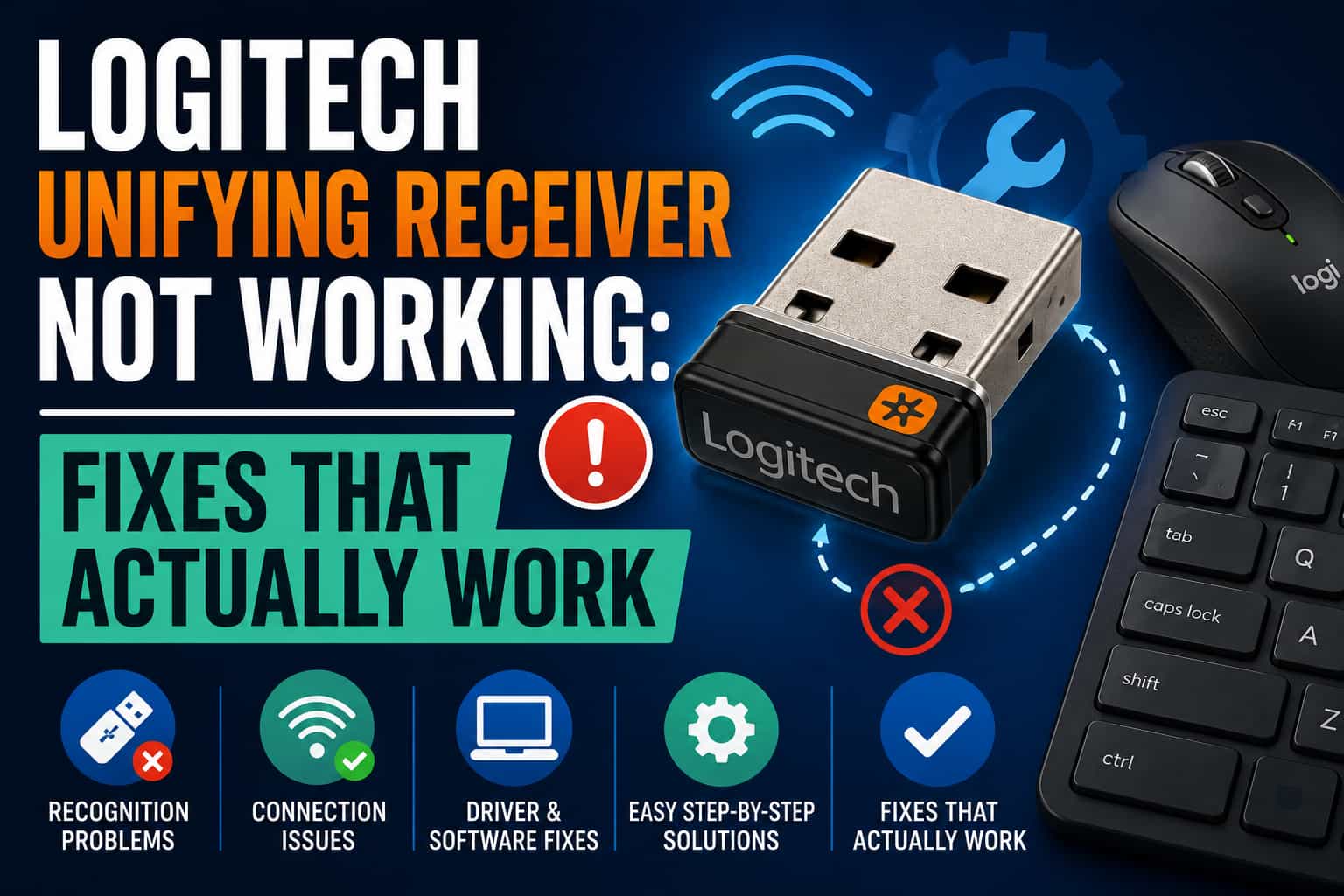
If your Logitech mouse or keyboard suddenly stops responding or your computer won’t detect the Unifying receiver, you’re not alone. The Logitech Unifying Receiver is extremely reliable, but issues can happen due to driver conflicts, USB power settings, interference, firmware problems, or pairing glitches.
This guide walks you through the most effective fixes, why the issue happens, and how to get your Logitech device working again.
What Is the Logitech Unifying Receiver?
The Logitech Unifying Receiver is a small USB dongle that connects up to six Logitech devices using the 2.4 GHz Unifying protocol. It’s identified by the orange six-point star icon.
It’s widely used because it’s simple, fast, and reliable — but since it’s an older protocol, device pairing and driver issues are becoming more common on modern systems.
⚠️ Why Your Logitech Unifying Receiver Stops Working
Common causes include:
- USB port power management shutting down the receiver
- Missing or corrupted drivers
- Outdated receiver firmware
- Pairing breaks after Windows/macOS updates
- RF interference from Wi-Fi, Bluetooth, or USB 3.0 devices
- Physical damage to the receiver
- Trying to pair a non-Unifying device
Knowing the cause helps you identify the right fix faster.
🛠️ Fix 1: Check Whether Your Device Supports the Unifying Receiver
Many users mistakenly try to pair devices that are not compatible with the Unifying protocol.
Look for the orange Unifying logo on:
- The device bottom
- Packaging
- Logitech support pages
If your device uses Bolt, Lightspeed, or basic wireless (non-Unifying), it will not pair.
🔌 Fix 2: Switch the Receiver to a Different USB Port
Try:
- A different USB port
- Switching from USB 3.0 to USB 2.0
- Avoiding USB hubs
- Plugging directly into the laptop or desktop
USB 3.0 ports often create RF interference, so USB 2.0 may work better.
🔄 Fix 3: Reinstall the Logitech Unifying Software
Reinstalling the software resets faulty pairings.
Steps:
- Download the Logitech Unifying Software
- Run the installer
- Open the software and repair your device
If the software doesn’t detect the receiver, move to the next fixes.
⚙️ Fix 4: Update or Reinstall Drivers
Windows may load the wrong driver after an update.
Steps:
- Open Device Manager
- Expand Keyboards, Mice, and USB controllers
- Right-click any Logitech or USB device and select Uninstall device
- Restart
- Plug in the receiver again
The correct driver will reinstall automatically.
🔋 Fix 5: Disable USB Power Management
Windows often shuts down USB ports to save energy.
Steps:
- Open Device Manager
- Go to USB Root Hub entries
- Open Properties → Power Management
- Uncheck:
Allow the computer to turn off this device to save power
Reboot afterward.
📡 Fix 6: Reduce Wireless Interference
Unifying uses 2.4 GHz — the same band used by Wi-Fi and Bluetooth. Interference can cause lag or disconnects.
Try:
- Moving the receiver closer with a USB extension cable
- Avoiding ports next to USB 3.0 hard drives
- Turning off unused Bluetooth devices
- Keeping Wi-Fi routers farther away
A simple extension cable fixes this issue for many users.
🔧 Fix 7: Update the Receiver Firmware
Use the Logitech Firmware Update Tool to update the receiver.
Firmware updates fix:
- Random disconnects
- Sleep mode issues
- Pairing bugs
🔁 Fix 8: Re-Pair After OS Updates
Windows and macOS updates occasionally break wireless profiles.
Use:
- Logitech Unifying Software
- Or Logi Options+ for newer devices
Remove and re-add each device.
🧪 Fix 9: Test the Receiver on Another Computer
If it works elsewhere, your current system likely has:
- Driver conflicts
- USB controller issues
- OS-level blocks
If it fails on another computer, the receiver is likely dead.
🧱 Fix 10: Replace a Faulty Receiver
If the receiver is physically damaged or electrically failed, replacement is the only option.
Make sure to buy a genuine Logitech Unifying Receiver — many cheap third-party ones cannot pair devices.
🏆 Final Thoughts
The Logitech Unifying Receiver is robust, but interference, software conflicts, and firmware bugs can cause pairing issues. Fortunately, most fixes take only a few minutes and restore connectivity quickly.
If none of the fixes work, the receiver is likely defective and should be replaced.
❓ Frequently Asked Questions (FAQ)
How do I know if my device supports the Unifying Receiver?
Look for the orange six-point Unifying star logo. If your device uses Bolt or Lightspeed, it will not pair.
Why does my receiver randomly disconnect?
Most often due to USB power management, RF interference, or outdated firmware.
Can I use a USB-C adapter with the Unifying Receiver?
Yes. Adapters work fine, as they only change the physical port, not the wireless protocol.
Why does the receiver stop working after Windows updates?
Updates sometimes overwrite drivers. Reinstalling Logitech software or drivers usually fixes this.
Is the Unifying Receiver being discontinued?
Logitech is shifting toward Bolt for security reasons, but Unifying is still supported for many existing devices.
Why does my receiver get hot?
Some USB ports deliver excess power or the receiver is overworking due to interference. Switching USB ports helps.
Can one receiver connect to multiple devices?
Yes — up to six compatible Logitech Unifying devices.