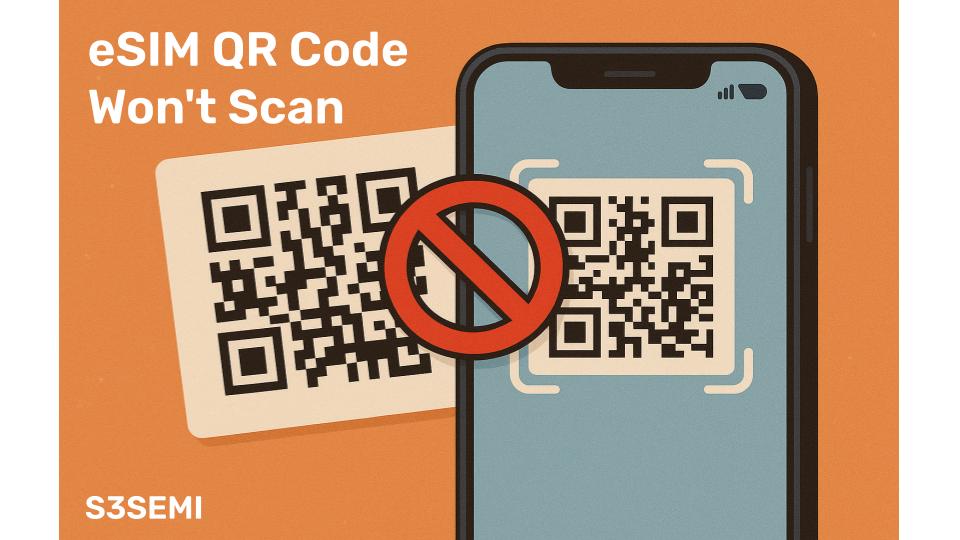
You’re holding your phone over the eSIM QR code, waiting for that satisfying confirmation that your digital SIM is activating. Instead, nothing happens. The camera focuses and refocuses, but your device refuses to recognize the code. Or worse, it scans successfully but throws an error during activation. eSIM QR code problems are frustrating, especially when you’re trying to get connected quickly for travel or a new carrier plan.
Why QR Codes Fail
eSIM QR codes are essentially gateways to your carrier profile, containing encrypted information that tells your device how to download and activate your mobile plan. When scanning fails, the problem usually lies in one of three areas: physical issues with the QR code itself, device camera or software problems, or carrier-side activation issues that prevent the profile from downloading even after a successful scan.
Check the QR Code Quality
Start with the simplest explanation. Is your QR code clearly visible and undamaged? Printed QR codes can suffer from smudges, creases, poor print quality, or fading that makes them unreadable. If you’re scanning from a screen (like a laptop or tablet), ensure the brightness is turned up and there’s no screen glare interfering with the scan.
QR codes displayed in emails or PDFs sometimes get compressed or resized, which can distort the code’s data pattern. If possible, view the QR code at 100% zoom or its original size. Screenshots of QR codes occasionally lose quality depending on how they’re captured and shared. Request a fresh, high-resolution QR code from your provider if the one you have looks questionable.
Camera Focus and Distance
Your phone’s camera needs the right conditions to read a QR code successfully. Hold your device steady, about 6 to 10 inches away from the QR code. Too close and the camera can’t focus properly; too far and the code becomes too small to decode. Give the camera a moment to focus before moving the phone around.
Lighting matters more than you might think. Dim lighting makes it difficult for the camera to distinguish the QR code’s black and white patterns. Strong backlighting or reflections can create the same problem. Try moving to a well-lit area with even lighting, avoiding direct sunlight or harsh overhead lights that create shadows.
If your camera lens is dirty or smudged, it won’t matter how perfect your QR code is. Clean your phone’s camera lens with a soft, lint-free cloth. You’d be surprised how often this simple step resolves scanning issues.
Using the Right Scanning Method
Not all QR code scanning methods work equally well for eSIM activation. While your phone’s native camera app might scan regular QR codes for websites, eSIM QR codes often require scanning through specific settings.
On iPhone, navigate to Settings > Cellular > Add Cellular Plan, then use the built-in scanner that appears. This scanner is specifically designed for eSIM activation and sometimes works when the regular camera app doesn’t. For Android devices, the path varies by manufacturer but typically involves Settings > Network & Internet > Mobile Network > Add Carrier, which launches the appropriate scanner.
Some carriers provide their own apps for eSIM activation. These apps often include optimized QR scanners that handle their specific codes better than generic scanners. Check whether your eSIM provider has a dedicated app and try scanning through it.
Manual Entry: The Reliable Alternative
When QR code scanning repeatedly fails, manual entry offers a foolproof alternative. Every eSIM QR code contains an activation code that you can type in manually. This code typically starts with “LPA:1$” followed by a long string of characters.
Your eSIM provider should supply this activation code along with the QR code, often in the same email or activation instructions. If you don’t have it, contact support and request the manual activation code. To use it on iPhone, go to Settings > Cellular > Add Cellular Plan > Enter Details Manually. On Android, look for “Enter activation code” or similar option in the eSIM setup process.
Manual entry takes longer than scanning but bypasses all QR code-related issues entirely. It’s especially useful when dealing with damaged codes, scanning in poor lighting conditions, or when your camera simply won’t cooperate.
Device-Specific Issues
Older devices sometimes struggle with eSIM QR codes even when everything else seems perfect. Check whether your phone actually supports eSIM technology. Not all models do, and among those that do, some require specific software versions. iPhone XS and later support eSIM, as do many recent Android flagships from Samsung, Google Pixel, and other manufacturers. However, regional variations exist, so verify your specific model’s compatibility.
Software bugs occasionally affect QR code scanning functionality. Ensure your device is running the latest operating system version. Apple and Google regularly release updates that fix eSIM-related bugs. Go to your device’s update section and install any pending updates, then restart your phone before trying to scan again.
Some devices have camera permissions that need enabling for eSIM scanning to work. Check Settings > Privacy > Camera (on iPhone) or Settings > Apps > Permissions > Camera (on Android) and make sure camera access is allowed for system settings or your carrier’s app.
The “Already Used” Error
One of the most common eSIM QR code problems isn’t actually a scanning issue at all. The code scans perfectly, but activation fails with an error like “This code has already been used” or “Invalid activation code.” This happens because most eSIM QR codes can only be used once for security reasons.
If you’ve previously attempted to install this eSIM and removed it, or if the installation partially completed before failing, the QR code might be exhausted. You’ll need to contact your carrier for a new activation code. Some providers generate new codes instantly through their website or app, while others require contacting customer support.
Carrier System Problems
Sometimes the QR code scans correctly, your device initiates the download, but the eSIM profile fails to install. Progress bars freeze, error messages appear, or the process simply times out. These symptoms often indicate carrier-side issues rather than problems with your device or the QR code itself.
Carrier servers can experience outages or slowdowns, particularly during peak hours or when launching new eSIM services. Try the activation at a different time, preferably during off-peak hours. Ensure you have a strong, stable internet connection – preferably WiFi – during activation, as downloading the eSIM profile requires data connectivity.
Some carriers have specific maintenance windows or known issues with eSIM provisioning systems. Check the carrier’s support pages or social media for service announcements. If widespread activation problems exist, you’ll need to wait for the carrier to resolve their technical issues.
Network Restrictions and VPNs
Active VPN connections can interfere with eSIM activation. The encrypted tunnel might prevent your device from communicating properly with the carrier’s provisioning servers. Disconnect any VPN before scanning your QR code and attempting activation. Similarly, aggressive firewall settings or network security policies on enterprise WiFi networks might block the necessary connections.
If you’re on a corporate or public WiFi network, try switching to mobile data from your existing SIM or use a different WiFi network. Some carrier eSIM systems have geographic restrictions that prevent activation outside certain regions, though this is less common for international eSIM providers.
Multiple Failed Attempts
If you’ve tried scanning the same QR code multiple times unsuccessfully, your device or the carrier’s system might have flagged it as problematic. Wait at least 30 minutes before trying again, giving both systems time to reset any temporary blocks or error states. During this waiting period, restart your device completely to clear any cached activation attempts.
After multiple failures, request a completely new eSIM profile from your carrier rather than just a new QR code for the same profile. Sometimes profiles become corrupted in the carrier’s system, and generating a fresh profile resolves persistent activation issues.
Screen-to-Screen Scanning Challenges
Scanning a QR code from one screen to another presents unique challenges. Screen refresh rates, pixel density mismatches, and screen protectors can all interfere with successful scanning. If you must scan from a screen, maximize the QR code size, set the displaying screen’s brightness to maximum, and remove any screen protector temporarily if scanning repeatedly fails.
Alternatively, print the QR code if you have access to a printer. Physical prints often scan more reliably than screen displays. If printing isn’t possible, try transferring the QR code image to a different device with a better screen quality.
Protecting Your QR Code
eSIM QR codes contain sensitive information that allows anyone to activate your mobile plan on their device. Never share your QR code publicly or with untrusted parties. If you’ve accidentally exposed your QR code (by posting it online or sending it to the wrong person), contact your carrier immediately to invalidate it and generate a new one.
Store your QR code securely but accessibly. Save it in a password-protected notes app or encrypted storage. Having a backup copy prevents the panic of losing your only copy before activation, but ensure that backup is secure.
When to Contact Support
If you’ve tried different lighting conditions, cleaned your camera, attempted manual entry, updated your software, and waited for system resets without success, it’s time to contact your eSIM provider’s support team. Prepare the following information before reaching out: your device model and operating system version, the exact error message you’re receiving (screenshot it if possible), when you purchased or received the eSIM, and what troubleshooting steps you’ve already attempted.
Many eSIM providers can remotely diagnose activation issues and either provision a new profile, fix backend problems, or guide you through device-specific solutions. Some can even activate your eSIM remotely without requiring QR code scanning at all.
Prevention for Future Activations
Once you successfully activate an eSIM, remember these practices for smoother future installations. Save both the QR code and manual activation code immediately upon receiving them. Store them in multiple secure locations. Test new eSIM activations before you urgently need them, especially for travel eSIMs – activate a day or two before departure rather than at the airport.
Understand your carrier’s QR code policies. Know whether codes can be reused if you need to reinstall, how long they remain valid, and whether you can generate new codes yourself or must contact support. This knowledge prevents frustration during time-sensitive situations.
eSIM QR code issues are almost always solvable, whether through better scanning technique, manual entry, or carrier assistance. The technology that makes eSIM activation quick and convenient occasionally requires patience, but the flexibility of digital SIM management makes the occasional troubleshooting worthwhile.