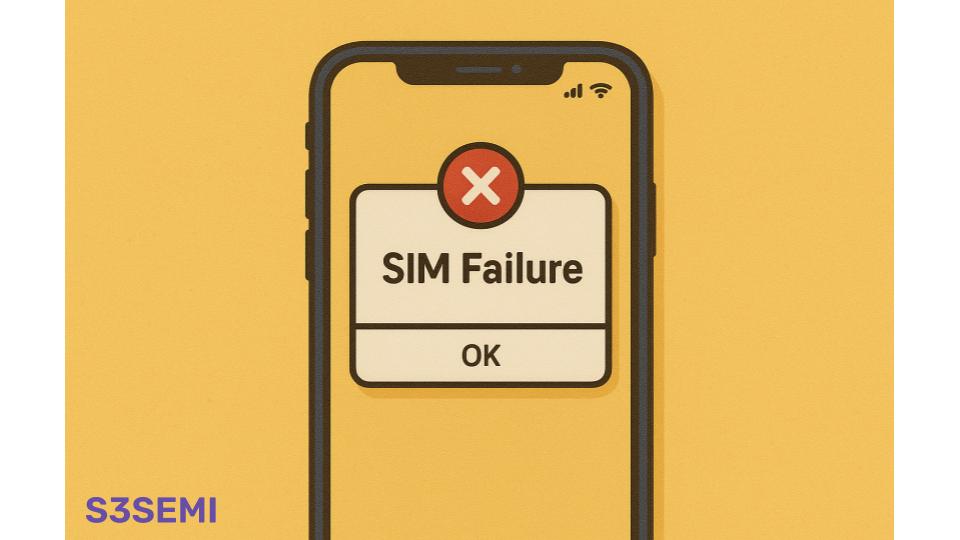
You glance at your iPhone and notice something’s wrong. Instead of your usual carrier name and signal bars, you see “SIM Failure” or “Invalid SIM” flashing in the status bar. Your phone has essentially lost its connection to the cellular network, leaving you unable to make calls, send texts, or use mobile data. This jarring message can appear suddenly, even on phones that were working perfectly moments before.
What SIM Failure Actually Means
When your iPhone displays a SIM failure message, it’s telling you there’s a communication breakdown between your phone and the SIM card—whether physical or eSIM. The iPhone expects to find a valid SIM with proper carrier authorization, but something in that chain has failed. This could be a hardware issue with the SIM card itself, a software glitch preventing proper recognition, a carrier network problem, or even damage to your iPhone’s SIM tray or internal components.
The message variations matter. “SIM Failure” typically indicates the phone can’t read the SIM at all. “Invalid SIM” suggests the phone detects a SIM but doesn’t recognize it as authorized for use. “No SIM” means the iPhone can’t detect any SIM card present. While these messages have slightly different causes, the troubleshooting approaches overlap significantly.
Start with the Simple Fix: Restart
Before panicking or disassembling your phone, restart it. Hold down the power button (or power button plus volume button on newer iPhones) and slide to power off. Wait 30 seconds, then turn your iPhone back on. This simple action resolves a surprising number of SIM failure messages by resetting the connection between iOS and the SIM card.
Sometimes iOS gets confused about SIM status after updates, dropped connections, or random software hiccups. A restart clears these temporary states and forces the phone to re-detect and authenticate the SIM from scratch. If the SIM failure was software-related, you’ll see your carrier name reappear within moments of restarting.
The Physical SIM Card Check
For iPhones with physical SIM cards (anything before iPhone 14 in the US, or most iPhones internationally), the SIM card itself often causes failure messages. Power off your iPhone completely before proceeding. Locate the SIM tray on the side of your device and use the SIM ejector tool (or a straightened paperclip) to pop it open.
Remove the SIM card and examine it carefully. Look for visible damage like cracks, chips, or bent corners. Check whether the gold contacts are dirty, corroded, or scratched. Even tiny amounts of dust or oils from handling can interfere with the connection. Gently clean the gold contacts with a soft, lint-free cloth. Don’t use water or cleaning solutions—dry cleaning is sufficient.
Inspect the SIM tray itself. Is it bent or damaged? Are there any obstructions in the tray slot? Sometimes debris gets lodged in the tray mechanism, preventing proper contact between the SIM and the phone’s internal reader.
Reinsert the SIM card, ensuring it sits flush in the tray and the tray clicks completely into place. A partially inserted SIM tray commonly triggers SIM failure messages. Power your iPhone back on and wait a minute or two for the carrier connection to establish.
Try a Different SIM Card
Testing with a different SIM card quickly determines whether the problem lies with your SIM or your iPhone. Borrow a SIM from a friend’s phone (ideally from the same carrier to avoid compatibility complications) and insert it into your iPhone. If the borrowed SIM works fine, your original SIM card is faulty and needs replacement.
Contact your carrier to request a new SIM card. Most carriers provide replacements for free or a minimal fee, either by mailing you a new card or allowing you to pick one up at a retail store. Your phone number and service plan transfer to the new SIM without issue.
If the borrowed SIM also shows a failure message, the problem is with your iPhone’s SIM reader or software, not the SIM card itself.
eSIM Failure Messages
iPhones with eSIM capability (iPhone XS and later) can display SIM failure messages related to their digital SIM profiles. These failures happen differently than physical SIM issues but produce similar error messages.
Navigate to Settings > Cellular (or Mobile Data) and check whether your eSIM plan appears and shows as active. If the plan is listed but showing errors, try turning it off and back on. Toggle the “Turn On This Line” switch off, wait a few seconds, then turn it back on.
If that doesn’t work, try removing and reinstalling the eSIM profile. Before doing this, ensure you have your eSIM activation details (QR code or activation code) readily available. Some carriers only allow one-time use of activation codes, so you might need to contact them for a fresh code before removing the old profile.
Go to Settings > Cellular > [Your Plan] > Remove Cellular Plan. Restart your iPhone, then reinstall the eSIM using your activation details. This often clears corrupted eSIM data causing failure messages.
iOS Updates and Carrier Settings
Outdated iOS versions or carrier settings files sometimes cause SIM recognition problems. Check for iOS updates by going to Settings > General > Software Update. Install any available updates, as Apple frequently releases fixes for cellular connectivity issues.
Carrier settings are small configuration files that optimize your iPhone for your specific carrier’s network. These usually update automatically, but you can check manually. Go to Settings > General > About and wait about 15 seconds. If a carrier settings update is available, a popup will appear asking you to install it. Accept the update and restart your phone.
Some users report SIM failure messages immediately after iOS updates. If this happens, the update may have temporarily disrupted carrier settings or SIM authentication. Wait a few hours and restart your phone periodically. If the problem persists beyond 24 hours, you’ll need to investigate further.
Network Settings Reset
When simpler solutions fail, resetting network settings often resolves persistent SIM failures. This action erases all saved WiFi passwords, Bluetooth pairings, VPN configurations, and cellular settings, returning everything to factory defaults. It’s a somewhat drastic step but doesn’t delete your personal data, apps, or media.
Go to Settings > General > Transfer or Reset iPhone > Reset > Reset Network Settings. Enter your passcode and confirm the reset. Your iPhone will restart automatically. After restarting, you’ll need to rejoin WiFi networks and re-pair Bluetooth devices, but your SIM should be recognized if the problem was software-related.
Hardware Problems: The SIM Tray and Reader
Physical damage to the SIM tray or internal SIM reader causes persistent SIM failure messages that software fixes can’t resolve. If you’ve dropped your iPhone, exposed it to water, or noticed the SIM tray doesn’t click into place properly, hardware damage is likely.
A bent SIM tray prevents the SIM card from making proper contact with the reader pins. Carefully examine the tray for any warping or bending. If damaged, you can purchase replacement SIM trays online relatively inexpensively, though installation requires care to avoid damaging the device further.
Water damage to the SIM reader creates corrosion that prevents proper electrical contact. Even if your iPhone dried out and seems to work otherwise, moisture can leave residue that affects the SIM reader specifically. If you suspect water damage, professional repair might be necessary.
The internal SIM reader itself can fail due to component damage or manufacturing defects. This requires professional repair or replacement. If your iPhone is under warranty or covered by AppleCare+, Apple will repair or replace it. Outside warranty, you’ll need to decide whether the repair cost justifies fixing the device versus replacing it.
Carrier and Account Issues
Sometimes “SIM Failure” messages stem from carrier-side problems rather than anything wrong with your phone or SIM. Your account might have been suspended due to payment issues, there could be network outages affecting authentication servers, or your SIM might have been deactivated in the carrier’s system.
Contact your carrier’s customer support. Explain the error message you’re seeing and verify your account is in good standing. Ask them to check whether your SIM is properly provisioned in their system. Carriers can refresh SIM authentication remotely, which sometimes clears failure messages caused by database issues.
Network outages occasionally prevent SIM authentication. Check your carrier’s website or social media for outage reports in your area. If widespread issues exist, you’ll need to wait for the carrier to resolve their technical problems.
The Activation Lock Connection
iPhones with Activation Lock enabled sometimes display SIM failure messages after being reset or restored if they’re not properly removed from the previous owner’s iCloud account. This typically happens with used or refurbished phones.
If you recently purchased a used iPhone and see persistent SIM failures, verify the device isn’t Activation Locked. The previous owner must remove the device from their iCloud account. You cannot bypass Activation Lock through any legitimate means, so ensure any used iPhone is properly released before purchase.
Regional and Carrier Lock Issues
Carrier-locked iPhones only work with SIMs from their designated carrier. If you’ve inserted a SIM from a different carrier into a locked iPhone, you’ll see SIM failure or “Invalid SIM” messages. Check whether your iPhone is carrier-locked by going to Settings > General > About and looking for “Carrier Lock” or “Network Provider Lock.” If it shows anything other than “No SIM restrictions,” your phone is locked.
Contact your carrier to request an unlock if you’ve fulfilled your contract obligations. Most carriers unlock devices after they’re fully paid off. Once unlocked, your iPhone will accept SIMs from other compatible carriers.
Regional variations also matter. Some iPhone models are manufactured for specific markets and may not support SIM cards or frequency bands from other regions. This is less common with recent models but can affect older iPhones or those purchased internationally.
When Multiple SIMs Conflict
iPhones supporting Dual SIM (one physical SIM plus one eSIM, or two eSIMs on newer models) occasionally show SIM failure for one line while the other works fine. This suggests the failing SIM has issues rather than a general phone problem.
Go to Settings > Cellular and check both lines. Try disabling the working line temporarily to see if the failing line then connects. Sometimes conflicts between dual SIMs cause authentication problems. If one line consistently fails while the other works, focus troubleshooting on that specific SIM or eSIM profile.
The Last Resort: DFU Restore
When absolutely nothing else works and you’ve exhausted all other options, a DFU (Device Firmware Update) restore might fix deep software corruption causing SIM failures. This process completely erases your iPhone and reinstalls iOS from scratch, going deeper than a standard restore.
Back up your iPhone first through iCloud or a computer. You’ll lose all data during this process. DFU mode requires precise timing: connect your iPhone to a computer with iTunes or Finder, then follow the specific button sequence for your iPhone model to enter DFU mode. iTunes will detect the phone in recovery mode and offer to restore it.
After restoration, set up your iPhone as new rather than restoring from backup initially. Test whether the SIM works. If it does, you can then restore from your backup. If SIM failure persists even after DFU restoration, the problem is definitely hardware-related.
Knowing When to Seek Professional Help
If you’ve tried restarting, cleaning the SIM and tray, testing different SIM cards, updating iOS, resetting network settings, and contacting your carrier without success, it’s time for professional diagnosis. Make an appointment at an Apple Store or authorized service provider.
Apple’s diagnostics can test your SIM reader hardware and identify specific component failures. If your iPhone is under warranty or AppleCare+, repairs may be covered. Outside warranty, you’ll receive a repair estimate and can decide whether to proceed.
Prevention and Best Practices
Prevent future SIM failures by handling your SIM card and tray carefully. When removing the SIM, do so gently without forcing anything. Keep the SIM tray clean and free of debris. Avoid exposing your iPhone to moisture, extreme temperatures, or physical impacts that could damage the SIM reader.
Keep iOS updated to benefit from bug fixes and improvements. Enable automatic updates if you prefer not managing them manually. Stay current with carrier settings updates as well.
For eSIM users, securely save your activation codes and QR codes. If your eSIM profile becomes corrupted, you’ll need these details to reinstall it.
SIM failure messages are alarming but usually fixable. Whether through simple restarts, SIM replacement, or software resets, most issues resolve without expensive repairs. Understanding the various causes helps you troubleshoot systematically and get back to using your iPhone’s cellular features quickly.