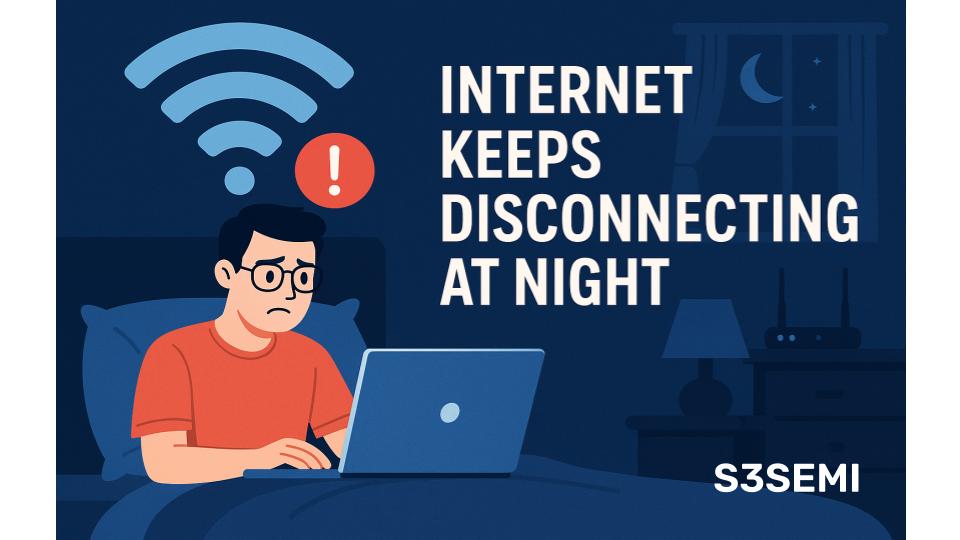
Your internet works perfectly all day. You stream videos, join video calls, and browse without issues. But as soon as evening arrives, the problems start. Buffering interrupts your shows. Video calls freeze and drop. Web pages load slowly or time out completely. Your connection drops repeatedly, forcing you to restart your router multiple times throughout the night.
This frustrating pattern repeats every evening, leaving you wondering why your internet specifically fails during the hours you most need it.
Why Nighttime Is Different
Nighttime internet problems aren’t random. Specific factors affecting your connection intensify during evening hours, creating the perfect conditions for connectivity failures.
Network congestion is the primary culprit. More people use the internet at night when they return home from work and school. Your neighbors stream Netflix, download games, video chat with family, and browse social media simultaneously. All this traffic flows through the same neighborhood infrastructure your connection uses. Internet Service Providers (ISPs) provision bandwidth based on expected average usage, not peak capacity. When everyone connects at once, available bandwidth gets overwhelmed.
Think of it like traffic on a highway. During midday, the road handles traffic easily. During rush hour, the same road becomes congested because too many vehicles compete for limited space. Your internet connection experiences the same phenomenon every evening.
ISP Network Congestion and Oversubscription
ISPs deliberately oversubscribe their networks, meaning they sell more total bandwidth than their infrastructure can simultaneously deliver. This business model works because not everyone uses maximum bandwidth at the same time. During the day, the oversubscription ratio isn’t a problem. At night, when usage peaks, the oversubscription becomes apparent through slow speeds and dropped connections.
Cable internet users experience this more severely than fiber users. Cable networks use shared infrastructure where your connection shares bandwidth with neighbors on the same cable segment. When multiple households on your segment use the internet heavily, everyone’s performance suffers. Fiber connections often have dedicated bandwidth per household, making them more resistant to neighborhood congestion.
DSL users face distance-related issues that worsen under load. DSL speed depends on your distance from the telephone company’s equipment. During peak hours, even moderate usage at greater distances can cause unstable connections as the signal struggles to maintain consistency over long copper lines.
Check whether your connection problems correlate with peak usage times:
- Problems starting around 6-7 PM when people return home
- Issues intensifying around 8-10 PM during prime streaming hours
- Problems lessening after midnight when usage decreases
- Minimal issues during daytime or early morning hours
This pattern strongly indicates network congestion as your primary problem.
Test Your Connection Speed Throughout the Day
Document your connection performance at different times to identify patterns. Run speed tests using services like Speedtest.net, Fast.com, or your ISP’s speed test tool.
Create a testing schedule:
- Test at 8 AM before peak hours
- Test at 12 PM during midday
- Test at 3 PM during afternoon hours
- Test at 6 PM when evening usage begins
- Test at 8 PM during peak hours
- Test at 11 PM as usage declines
- Test at 2 AM during minimum usage periods
Record the results:
- Download speed (Mbps)
- Upload speed (Mbps)
- Ping or latency (milliseconds)
- Any packet loss indicated
Compare your speeds to what you’re paying for. If you have a 200 Mbps plan but only get 30 Mbps at night, congestion is throttling your service. If speeds remain consistent throughout the day, the problem lies elsewhere.
Take screenshots of your speed tests. This documentation becomes valuable evidence when contacting your ISP about service issues.
Router Overheating and Hardware Issues
Routers generate heat during operation. After running all day, accumulated heat can cause performance degradation or complete failures, particularly during evening hours when the router handles peak traffic loads.
Check for overheating signs:
- Router feels hot to the touch
- Router case is warmer than room temperature
- Device sits in an enclosed space with poor ventilation
- Router is stacked with other electronic equipment
- Direct sunlight hits the router during afternoon hours
Improve router cooling:
- Move router to an open, well-ventilated location
- Remove any objects stacked on top of the router
- Ensure air vents on all sides have clearance
- Position the router vertically if it has a vertical stand
- Keep router away from heat sources like radiators or heating vents
- Consider adding a small fan nearby to improve air circulation
- Elevate the router off surfaces that retain heat
Test whether cooling helps:
- Power off your router for 30 minutes to let it fully cool
- Check if performance immediately after restart is better
- Note how long until problems return
- If issues appear after several hours of operation, overheating is likely
Older routers suffer more from heat-related problems. If your router is more than 3-4 years old, age-related hardware degradation combined with heat stress might be causing failures.
WiFi Interference Increases at Night
Wireless interference intensifies during evening hours as more devices compete for radio spectrum. Your neighbors’ WiFi networks, their wireless devices, and various household electronics all create interference that degrades your connection.
The 2.4 GHz WiFi band is particularly congested:
- Most routers default to 2.4 GHz
- 2.4 GHz has only three non-overlapping channels in North America
- Microwave ovens, cordless phones, baby monitors, and Bluetooth devices use 2.4 GHz
- 2.4 GHz signals penetrate walls, so you’re affected by neighbors’ networks
Evening interference increases because:
- Neighbors return home and turn on their devices
- Multiple households stream video simultaneously
- Smart home devices activate on evening schedules
- People use wireless keyboards, mice, and game controllers
Check WiFi interference on your network:
- Download a WiFi analyzer app (WiFi Analyzer for Android, Airport Utility for iPhone)
- Scan for nearby networks during evening hours
- Count how many networks appear on the same channel as yours
- Note signal strength of overlapping networks
Reduce WiFi interference:
- Switch to the 5 GHz band if your devices support it
- 5 GHz has more channels and less congestion
- 5 GHz doesn’t penetrate walls as well, reducing neighbor interference
- Change your 2.4 GHz channel to one with less overlap
- Use WiFi analyzer to find the least congested channel
- Try channels 1, 6, or 11 (the only non-overlapping channels in 2.4 GHz)
Access your router to change channels:
- Open a web browser and type your router’s IP address (commonly 192.168.1.1 or 192.168.0.1)
- Log in with your router admin credentials
- Find Wireless Settings or WiFi Settings
- Locate the Channel selection option
- Switch from “Auto” to a specific channel
- Save settings and restart your router
Scheduled Router or Modem Issues
Some routers and modems have internal processes that run on schedules, potentially causing disruptions during evening hours.
Automatic firmware updates:
- Many routers check for and install updates automatically
- Updates often occur during evening hours
- During updates, internet connectivity drops temporarily
- Check your router settings for automatic update schedules
- Disable automatic updates or schedule them for very late night hours
- Manually update during times you won’t need internet
ISP maintenance windows:
- ISPs perform network maintenance during off-peak hours
- “Off-peak” to ISPs often means late evening or night
- Maintenance can cause brief disconnections
- Check your ISP’s website for scheduled maintenance in your area
- Contact support if disconnections align with regular maintenance times
Power saving features:
- Some routers have power saving modes that reduce performance
- These features might activate based on time schedules
- Check router settings for any power management options
- Disable power saving features if present
Electrical Interference and Power Issues
Evening hours bring increased electrical usage in your home and neighborhood. This affects your internet connection through your power supply.
Household electrical load changes:
- Evening cooking activates high-power appliances
- HVAC systems run more during temperature extremes
- Lighting loads increase after sunset
- These create electrical noise on your power lines
- Power fluctuations affect sensitive networking equipment
Test for electrical interference:
- Plug your modem and router into a high-quality surge protector or UPS
- Ensure they’re not on the same circuit as high-power appliances
- Move networking equipment away from fluorescent lights and dimmer switches
- Avoid power strips shared with TVs, refrigerators, or air conditioners
Check for voltage problems:
- Dimming lights when appliances turn on indicate voltage drops
- Flickering lights suggest unstable power
- Contact an electrician if you suspect household electrical issues
- Consider a UPS (Uninterruptible Power Supply) for your networking equipment
- UPS provides clean, regulated power and protects against brownouts
Powerline network adapters are particularly sensitive to electrical noise:
- If you use powerline adapters, try switching to WiFi or Ethernet
- Evening electrical noise degrades powerline adapter performance significantly
- Test whether problems disappear without powerline adapters
Too Many Connected Devices
Modern households have numerous devices connecting to WiFi. As family members return home in the evening, device count spikes, overwhelming your router.
Count your connected devices:
- Access your router’s admin interface
- Find “Connected Devices” or “Device List”
- Count how many devices are actively connected during problem hours
- Don’t forget: smartphones, tablets, laptops, smart TVs, streaming devices, gaming consoles, smart home devices, security cameras, smart speakers, printers, smart appliances
Budget routers struggle with more than 15-20 simultaneous connections. If you have 30-40 devices, your router can’t handle the load.
Reduce device load:
- Disconnect devices you’re not actively using
- Turn off WiFi on devices that don’t need constant internet
- Use Ethernet connections for stationary devices like desktop computers and gaming consoles
- This frees WiFi capacity for mobile devices
- Disable automatic updates on devices to prevent background downloads during peak hours
- Schedule smart home device updates for low-usage periods
Implement Quality of Service (QoS):
- Access your router settings
- Find QoS or Traffic Prioritization settings
- Prioritize important devices or applications
- Deprioritize background tasks and less critical devices
- This ensures video calls and streaming get bandwidth priority
Background Downloads and Updates
Devices often schedule large downloads and updates for evening hours when they assume you’re not actively using them.
Common culprits:
- Gaming consoles download game updates automatically
- Smart TVs download firmware and app updates
- Computers schedule Windows or Mac updates for evening
- Streaming devices update overnight
- Smartphones backup to cloud services during charging
- Security cameras upload footage to cloud storage
Identify bandwidth hogs:
- Check your router’s bandwidth usage statistics if available
- Note which devices consume the most data during problem periods
- Access individual device settings to find update schedules
Control automatic updates:
- Manually schedule updates for low-usage hours (2-5 AM)
- Disable automatic game updates on consoles
- Turn off automatic app updates on smart TVs
- Configure computers to ask before downloading updates
- Pause cloud backups during peak usage hours
- Schedule security camera uploads for daytime hours
Streaming and Video Quality Settings
Multiple household members streaming high-definition video simultaneously saturates available bandwidth.
Calculate streaming bandwidth requirements:
- SD streaming uses about 3 Mbps per stream
- HD (720p) streaming uses about 5 Mbps per stream
- Full HD (1080p) streaming uses about 8 Mbps per stream
- 4K/UHD streaming uses 25 Mbps or more per stream
If three people watch 4K content simultaneously, that’s 75 Mbps just for streaming, before considering any other internet usage.
Reduce streaming bandwidth:
- Lower video quality settings on streaming services
- Netflix, YouTube, and others let you cap maximum quality
- Set limits to 720p or 1080p instead of 4K
- The visual difference on smaller screens is minimal
- Download content during daytime for evening viewing
- Most streaming services allow offline downloads
- Schedule downloads when bandwidth is available
DNS Server Problems
DNS (Domain Name System) servers translate website names into IP addresses. Slow or overloaded DNS servers cause websites to load slowly or not at all, particularly during peak usage hours.
Your ISP’s DNS servers might become congested at night when everyone in your area is online. Switching to alternative DNS servers often improves reliability.
Switch to public DNS servers:
For Google DNS:
- Access your router settings
- Find DNS settings (sometimes under Internet or WAN settings)
- Change Primary DNS to: 8.8.8.8
- Change Secondary DNS to: 8.8.4.4
- Save settings and restart router
For Cloudflare DNS:
- Change Primary DNS to: 1.1.1.1
- Change Secondary DNS: 1.0.0.1
For OpenDNS:
- Change Primary DNS to: 208.67.222.222
- Change Secondary DNS to: 208.67.220.220
Alternative DNS servers are often faster and more reliable than ISP-provided DNS, especially during peak hours.
Outdated Router Firmware
Router manufacturers release firmware updates that fix bugs, improve performance, and enhance stability. Running outdated firmware can cause connection problems that manifest during high-usage periods.
Check for firmware updates:
- Log into your router’s admin interface
- Find “Firmware Update” or “System Update” section
- Check current firmware version
- Compare against latest version on manufacturer’s website
- Some routers have automatic update checking built in
Update router firmware:
- Download latest firmware from manufacturer’s website
- Follow manufacturer’s specific update instructions
- Never interrupt firmware updates (they typically take 5-10 minutes)
- Router will restart after update completes
After updating, test whether evening disconnections improve. Firmware updates often resolve stability issues under heavy load.
Contact Your ISP
If you’ve tried these solutions without improvement, contact your ISP with your documented evidence.
Prepare before calling:
- Have your account information ready
- Document your speed test results from different times
- Note specific times when disconnections occur
- Describe troubleshooting steps you’ve already attempted
Request from your ISP:
- Ask them to check for congestion in your area
- Request a line quality test from their end
- Ask about upgrades to your neighborhood infrastructure
- Inquire about higher-tier service plans with priority bandwidth
- Request a technician visit if remote diagnostics don’t solve the issue
ISPs can:
- Identify issues with your modem or their equipment
- Check signal quality to your home
- Verify your service is provisioned correctly
- Identify neighborhood congestion problems
- Sometimes provide upgraded equipment
- Offer business-class service with SLA guarantees
Be persistent if first-level support doesn’t help. Request escalation to technical support or supervisor levels if necessary.
Consider Upgrading Your Equipment
If your router is more than 4-5 years old, it might simply lack the capacity to handle modern household internet demands.
Signs you need a new router:
- Router is more than 4 years old
- You have more than 15-20 devices
- Router doesn’t support WiFi 5 (802.11ac) or WiFi 6 (802.11ax)
- Current router was provided by ISP years ago
- Router lacks dual-band (2.4 GHz and 5 GHz) support
When shopping for a new router:
- Choose WiFi 6 (802.11ax) for future-proofing
- Get dual-band or tri-band capability
- Ensure it supports enough simultaneous connections for your household
- Look for models with good reviews for stability under load
- Consider mesh WiFi systems for larger homes
- Check that it has sufficient processor and memory for your needs
Mesh WiFi systems help with:
- Large homes where single router doesn’t provide full coverage
- Multiple story homes with dead zones
- Homes with thick walls or interference issues
- Households with 30+ connected devices
Upgrade Your Internet Plan
Sometimes your internet plan simply doesn’t provide enough bandwidth for your household’s evening usage.
Calculate your needs:
- Add up all simultaneous internet activities during peak hours
- Multiple video streams
- Gaming
- Video calls
- Downloads
- Smart home devices
- Add 25-30% overhead for buffer
If your calculation exceeds your current plan’s speed, you need more bandwidth.
Consider business-class internet:
- Costs more but provides guaranteed speeds
- Often includes Service Level Agreements (SLAs)
- Better support response times
- Less oversubscription and congestion
- Worth it for households working from home
Alternative Connection Methods
If your ISP can’t solve persistent evening congestion problems, explore alternatives.
Fixed wireless internet:
- Uses cellular networks instead of cable/DSL
- Less susceptible to neighborhood congestion
- Companies like T-Mobile Home Internet and Verizon 5G Home
Fiber internet if available:
- Dedicated bandwidth per household
- Symmetrical upload/download speeds
- More resistant to congestion
- Check providers like Verizon Fios, AT&T Fiber, Google Fiber
Satellite internet:
- Available anywhere
- Modern services like Starlink offer good speeds
- Higher latency than terrestrial connections
- More expensive but reliable alternative
Bonded connections:
- Combine multiple internet connections
- Requires special equipment
- Expensive but provides redundancy and increased capacity
Evening internet disconnections are frustrating but usually solvable. Whether through reducing congestion, upgrading equipment, optimizing settings, or switching providers, you can achieve stable connectivity during the hours you need it most. Start with simple solutions like changing WiFi channels and reducing connected devices, then progress to more involved fixes like contacting your ISP or upgrading equipment if needed.