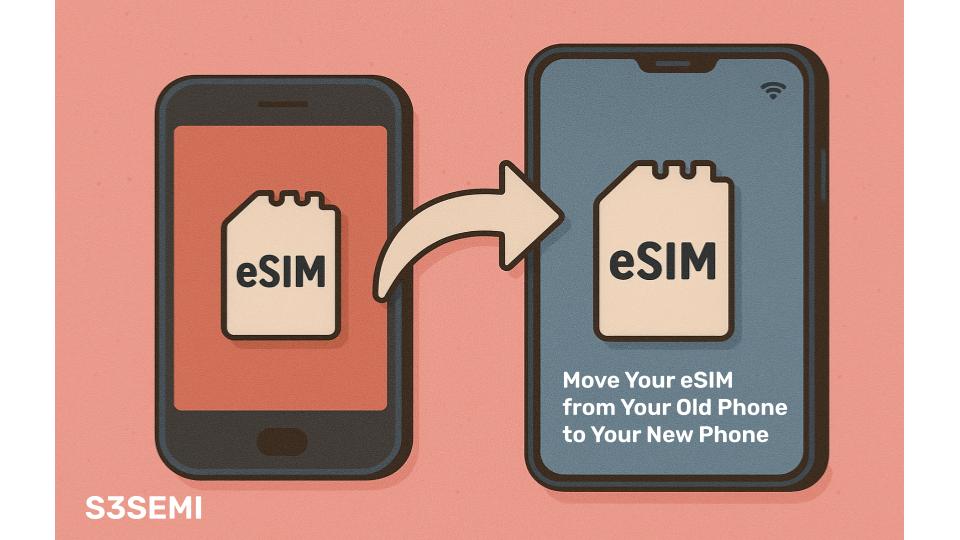
Getting a new phone is exciting until you remember that transferring everything over can be a headache. With physical SIM cards, you could simply pop the card out and slide it into your new device.
eSIMs don’t work that way. Moving an eSIM to a new phone requires a different approach, and the exact process depends on your device, carrier, and whether you want to transfer or duplicate your eSIM profile.
Understanding eSIM Transfer vs. New Installation
Before diving into the how-to, understand what actually happens when you move an eSIM. Unlike physical SIMs that physically relocate, eSIMs involve either transferring the digital profile from one device to another or installing a fresh eSIM profile on your new phone while deactivating the old one.
Some carriers and devices support direct eSIM transfer, where the profile moves from your old phone to your new one through Bluetooth or your carrier account. Others require you to request a new eSIM QR code and install it fresh on your new device. The good news is that modern iPhones and some Android devices have made this process significantly easier than it used to be.
iPhone to iPhone: The Easy Way
Apple introduced eSIM Quick Transfer with iOS 16, making iPhone-to-iPhone transfers remarkably simple. This feature works when both phones are nearby, signed into the same Apple ID, and running compatible iOS versions.
Start the setup process on your new iPhone. When you reach the “Set Up Cellular” screen during initial setup, you’ll see your existing eSIM plans listed. Select the plan you want to transfer and follow the prompts. Your old iPhone will receive a notification asking to confirm the transfer. Approve it, and the eSIM profile moves to your new device automatically. The entire process takes just a few minutes.
If you’ve already set up your new iPhone and skipped the cellular setup, you can still transfer afterward. On your new iPhone, go to Settings > Cellular > Add eSIM. Select “Transfer From Nearby iPhone” and choose which eSIM plan to move. Again, confirm on your old device, and the transfer completes.
This direct transfer method works for carrier eSIMs from major providers like AT&T, T-Mobile, and Verizon in the US, as well as many international carriers. The beauty of this approach is that you don’t need to contact your carrier or scan new QR codes. The eSIM profile literally moves from one device to the other.
Converting Physical SIM to eSIM During Transfer
If you’re upgrading from an iPhone with a physical SIM to a newer model (like iPhone 14 or later in the US, which are eSIM-only), Apple’s Quick Transfer can convert your physical SIM to an eSIM during setup. The process is similar: during new iPhone setup, select your current carrier plan. The system will offer to convert your physical SIM to an eSIM on the new device.
Your carrier must support this conversion feature, and you’ll need both phones nearby with Bluetooth enabled. Once converted, your physical SIM in the old phone stops working, and your new phone operates with the eSIM version of your plan.
Android eSIM Transfer
Android eSIM transfer is less standardized than iPhone’s approach because Android encompasses many manufacturers with different implementations. Google Pixel phones (Pixel 7 and later) support eSIM transfer through Google Fi and some other carriers, but the feature isn’t as universal as Apple’s solution.
For most Android-to-Android transfers, you’ll need to contact your carrier or use their app to deactivate the eSIM on your old phone and install a new eSIM profile on your new device. Samsung, Google, and other manufacturers each have slightly different processes, so checking your specific device’s support documentation is essential.
Some carriers provide apps that simplify this process. T-Mobile’s app, for example, allows you to manage eSIM transfers directly without calling customer support. You log in, select your device, and request an eSIM transfer or new eSIM installation.
Cross-Platform Transfer: iPhone to Android or Vice Versa
Moving from iPhone to Android or Android to iPhone always requires installing a fresh eSIM on your new device. The direct transfer features only work within the same ecosystem. Contact your carrier to request a new eSIM QR code or activation code for your new phone.
Before deactivating your eSIM on the old phone, ensure you have the new eSIM working on your new device. This prevents being without service during the transition. Most carriers allow you to have the eSIM active on both devices temporarily, making the switch seamless.
Carrier-Specific Transfer Methods
Major carriers have developed their own eSIM management systems that sometimes work better than device-native transfer features.
Verizon customers can use the My Verizon app to transfer eSIMs. Open the app, navigate to Devices, select your new device, and choose “Activate” or “Switch Device.” Follow the prompts to move your eSIM. You can also manage transfers through Verizon’s website.
AT&T offers eSIM transfer through their mobile app or by visiting an AT&T store. The app provides a QR code for your new device, while in-store representatives can handle the entire transfer process.
T-Mobile users can manage eSIM transfers through the T-Mobile app under “Network” settings. Select “Use eSIM” and follow the instructions to either transfer to a new device or install a fresh eSIM profile.
International carriers vary widely in their eSIM transfer support. Some provide instant QR codes through their apps or websites, while others require contacting customer support. Check your specific carrier’s eSIM policies before starting the transfer process.
Travel and Third-Party eSIM Transfer
If you use third-party eSIM providers like Airalo, Holafly, or Nomad for travel, transferring to a new phone typically requires purchasing a new eSIM plan. Most travel eSIM providers don’t support transferring existing plans between devices for security reasons.
Before your trip or immediately after getting a new phone, purchase fresh eSIM data plans for your destinations. Some providers offer account systems where you can manage multiple devices, but the eSIM profiles themselves don’t transfer—you install new ones on each device.
Save your travel eSIM QR codes and activation details securely. While you generally can’t reinstall the same eSIM multiple times, having the information helps when contacting customer support for assistance or replacement codes.
Step-by-Step: Manual eSIM Transfer Process
When direct transfer features aren’t available, follow this manual process:
First, gather your carrier account information and ensure you can access your carrier’s website or app. You’ll need this to request a new eSIM.
On your old phone, go to eSIM settings and note which plans you have installed. Don’t delete them yet. Take screenshots of your eSIM details, including carrier names and phone numbers, for reference.
Contact your carrier through their app, website, or customer support. Request an eSIM transfer to your new device. They’ll either initiate a transfer on their end or provide a new eSIM QR code.
On your new phone, navigate to eSIM settings (Settings > Cellular > Add eSIM on iPhone, or Settings > Network & Internet > Mobile Network on Android). Scan the QR code provided by your carrier or use the manual activation code.
Wait for the eSIM profile to download and activate. This can take from a few seconds to several minutes depending on your carrier’s systems and network speed. Once activated on your new phone, the eSIM on your old phone should automatically deactivate.
Test your new phone by making a call, sending a text, and using mobile data to confirm everything works properly. Only after confirming the new eSIM works should you delete the eSIM profile from your old phone.
Managing Multiple eSIM Profiles
If you have multiple eSIM profiles (work and personal, or domestic and international), transfer them one at a time. Attempting to transfer multiple eSIMs simultaneously can create confusion and activation errors.
Prioritize transferring your primary line first. Get that working completely before moving secondary eSIMs. This ensures you maintain at least one working phone line throughout the transfer process.
Some users maintain eSIM profiles on both old and new phones temporarily, which is fine if your carrier allows it. However, remember that having the same eSIM active on multiple devices simultaneously can cause calling and messaging issues. Only one device should actively use each phone number.
Troubleshooting Transfer Problems
If your eSIM transfer fails or gets stuck, start by restarting both phones. Many transfer issues resolve with a simple reboot. Ensure both devices have strong WiFi or cellular connections, as poor connectivity commonly causes transfer failures.
Check that your new device is compatible with eSIM technology and your specific carrier. Not all phone models support eSIM, and regional variations exist. Verify your exact model number’s eSIM capabilities.
If you see error messages like “eSIM Cannot Be Added” or “Cellular Plan Cannot Be Activated,” contact your carrier immediately. These errors often indicate account-level issues that only the carrier can resolve, such as eSIM provisioning problems or account restrictions.
What Happens to Your Old Phone
After successfully transferring your eSIM to your new phone, your old device loses cellular connectivity unless you install a different eSIM or physical SIM. The transferred eSIM profile becomes invalid on the old phone.
If you plan to keep your old phone as a backup device, consider installing a backup eSIM or maintaining it on WiFi-only mode. Some people install low-cost data-only eSIMs on old phones to keep them functional for emergency situations.
Before selling or giving away your old phone, delete all eSIM profiles manually. Go to cellular settings and remove each eSIM plan. This prevents any potential issues with the next owner and ensures your account information is completely removed.
Preparing for Your Next Transfer
Make future eSIM transfers easier by organizing your eSIM information now. Create a secure note or password manager entry containing your carrier account details, eSIM activation codes, and customer support contacts.
Take screenshots of your current eSIM settings showing plan names, phone numbers, and data allocations. These serve as quick references when setting up a new device.
Understand your carrier’s eSIM policies before needing to transfer. Know whether they support Quick Transfer, how to request new QR codes, and whether transfers incur fees. Some carriers charge for eSIM reissues or have limits on how frequently you can transfer.
Keeping Both Phones Active
Sometimes you want both your old and new phones operational simultaneously. This is possible by requesting an additional eSIM from your carrier rather than transferring. Many carriers support multiple devices on the same phone number through features like NumberSync or similar multi-device services.
Alternatively, request a completely new line for your new phone while keeping your old line active on your existing device. This works well during transition periods when you’re not quite ready to fully commit to the new phone.
The Future of eSIM Transfer
eSIM transfer technology continues improving. Apple’s Quick Transfer represents the direction the industry is heading—seamless, user-initiated transfers that don’t require carrier involvement. As more carriers adopt standardized eSIM management protocols, transfers should become increasingly simple across all platforms.
Moving your eSIM to a new phone doesn’t have to be complicated. Whether you’re using Apple’s Quick Transfer, your carrier’s app, or manual activation methods, the process takes just minutes once you understand your options. The slight learning curve is worth it for the flexibility and convenience eSIM technology provides.