My GPS tracker stopped updating location last Thursday. The device showed online in the app, battery indicator displayed 60%, but the map pin stayed frozen at my driveway from three hours earlier.
I was actually downtown at a meeting 15 kilometers away. I refreshed the app repeatedly, restarted my phone, checked my internet connection – nothing changed. The timestamp showed “Last update: 11:47 AM” while my phone’s clock read 2:34 PM. This wasn’t just inconvenient; it defeated the entire purpose of having a tracker.
After spending that evening systematically troubleshooting, testing different settings, and working through various technical fixes, I discovered the problem was a combination of weak cellular signal, incorrect device settings, and an expired data plan I didn’t know had run out. Here’s exactly how I identified each issue and got my tracker updating reliably again.
A Quick Summary below followed by detailed troubleshooting steps
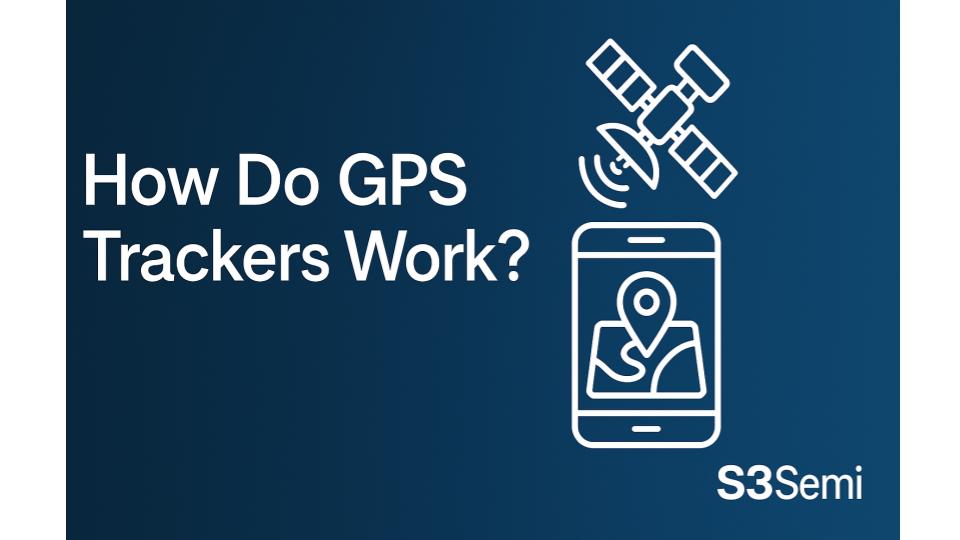
A GPS tracker update is a 4-step chain. If updates stop, the failure is almost always in one of these links:
1) GPS satellite acquisition
The tracker gets a position from satellites (needs clear sky view, usually 3–4 satellites minimum). This happens on the device.
2) Cellular data transmission
The tracker sends that location over cellular (2G/3G/4G/LTE). This requires signal + an active data plan.
3) Server processing
The tracking service receives and stores the location on its cloud servers.
4) App retrieval
Your phone pulls the latest data from the server and displays it on the map.
Where updates usually fail:
🛰️ No GPS lock (indoors, underground, heavy obstructions)
📶 No cellular signal (dead zones, parking garages)
💳 Plan expired (tracker can’t transmit even if GPS works)
☁️ Server/account provisioning issue (rare)
📱 Phone/app connectivity issue (your internet or the app)
Quick tip: If GPS shows “connected” but the location won’t change, suspect cellular signal or an expired subscription.
Use the menu below for troubleshooting steps
Understanding How GPS Trackers Update Location
Before troubleshooting, I needed to understand what actually happens when a tracker updates location.
The update process:
Step 1 – GPS satellite acquisition:
- Tracker’s GPS receiver connects to satellites
- Requires clear view of sky (3-4 satellites minimum)
- Determines latitude, longitude, altitude
- This happens locally on the device
Step 2 – Cellular data transmission:
- Tracker uses cellular connection (2G, 3G, 4G, or LTE)
- Sends location data to cloud servers
- Requires active cellular service and data plan
- Uses very small amounts of data per update
Step 3 – Server processing:
- Cloud servers receive location data
- Process and store the information
- Make it available to your account
Step 4 – App retrieval:
- Your phone connects to cloud servers
- Downloads latest location data
- Displays on map interface
Points where failure occurs:
- GPS can’t acquire satellites (obstructed view, indoor location, device failure)
- Cellular connection lost (no signal, expired plan, network issue)
- Server problems (rare but possible)
- App can’t reach servers (your phone’s internet issue)
Understanding this chain helped me identify where my specific failure occurred.
Checking the Obvious: My Phone’s Internet Connection
I started with the simplest possible cause – maybe my phone couldn’t reach the servers.
What I verified:
Phone internet test:
- Opened web browser on my phone
- Loaded google.com successfully
- Tried several other websites – all worked
- My phone’s internet was fine
App-specific test:
- Closed GPS tracker app completely
- Force closed it (swiped away, not just minimized)
- Waited 30 seconds
- Reopened app
- Still showed old location
Cellular vs WiFi test:
- Disabled WiFi on phone
- Used only cellular data
- Opened tracker app
- Still no update
- This confirmed problem wasn’t my home WiFi
Testing other apps:
- Opened weather app (updated current conditions)
- Checked email (new messages arrived)
- Opened social media (feed refreshed)
- Every other app worked normally
This proved my phone’s internet connection was fine. The problem was either with the tracker device itself or the cellular network it used.
Verifying Tracker Has Cellular Signal
The tracker needs its own cellular connection separate from my phone’s connection.
How I checked tracker’s cellular status:
In the tracking app:
- Opened device information/settings
- Looked for “Signal Strength” indicator
- Mine showed: No bars or “Weak signal”
- This was my first real clue
Understanding signal indicators:
- Full bars: Excellent signal, updates should work
- 2-3 bars: Good signal, generally reliable
- 1 bar: Weak signal, may have update delays
- No bars: No cellular connection, won’t update
Checking device status page:
- Found “Device Status” section in app
- Showed:
- Battery: 60% (good)
- GPS: Connected (good)
- Cellular: Disconnected (problem!)
- This confirmed cellular connection had failed
Why cellular matters:
- GPS tells tracker where it is
- But cellular sends that information to servers
- Without cellular, tracker knows location but can’t transmit it
- Updates stop even though GPS works
My tracker had GPS lock but no cellular connection, explaining why it stopped updating.
Moving Tracker to Location With Better Signal
If the tracker is in area with poor cellular coverage, updates fail.
Testing signal at different locations:
Current location (downtown underground parking):
- Tracker was in vehicle parked in parkade
- Three levels underground
- Concrete and steel construction
- Checked app: No signal
Moving to street level:
- Drove vehicle up to street
- Parked on surface lot
- Waited 5 minutes
- Checked app
- Signal bars appeared
- Location updated to current position!
What I learned:
- Underground parking blocks cellular signals
- Thick concrete walls prevent signal penetration
- Metal reinforcement in buildings creates interference
- Tracker couldn’t connect while underground
Other locations with poor signal:
- Dense urban areas with tall buildings (signal blocked)
- Rural areas far from cell towers
- Inside metal buildings or warehouses
- Remote highways between towns
- Some residential areas with weak carrier coverage
My solution: Understood that tracker won’t update when parked underground. Accepted this limitation. Updates would resume when vehicle returned to surface.
Alternative solution for underground parking:
- Some premium trackers use WiFi backup
- Connect to parkade WiFi when cellular fails
- My budget tracker didn’t have this feature
- Would need to upgrade tracker for this capability
Checking if Data Plan Has Expired
Many trackers require active data subscriptions. Expired plans stop updates immediately.
How I discovered my plan expired:
Checking subscription status:
- Opened tracker app
- Went to Account or Subscription section
- Saw: “Data Plan Status: Expired”
- Expiration date: 5 days ago
- This explained everything!
Why I didn’t know it expired:
- Didn’t receive email notification (went to spam folder)
- App didn’t show obvious warning on main screen
- Tracker still appeared “online” (misleading)
- Battery and GPS status looked normal
How expired plans affect tracking:
- GPS still works (doesn’t require subscription)
- Cellular data stops (requires active plan)
- Tracker can’t send location updates
- Last known location remains frozen
- Device appears online but isn’t truly functional
Renewing my subscription:
- Tapped “Renew Subscription” in app
- Selected plan duration:
- 1 month: $19.95
- 3 months: $49.95 ($16.65/month)
- 12 months: $179.40 ($14.95/month)
- Chose 12-month plan for best value
- Entered payment information
- Confirmed purchase
After renewal:
- App showed “Data Plan Status: Active”
- Waited 5 minutes for activation
- Refreshed app
- Location updated immediately
- Updates resumed working normally
Preventing future expirations:
- Enabled auto-renewal in settings
- Set calendar reminder 1 week before renewal date
- Added payment method to account (auto-charge)
- Verified notification email address was correct
Restarting the GPS Tracker Device
Sometimes the device itself needs rebooting to resume updates.
How I restarted different tracker types:
Battery-powered magnetic tracker:
- Located tracker on vehicle (mine was behind front bumper)
- Removed it from mounting location
- Found power button on device
- Pressed and held for 10 seconds
- Device powered off (indicator light went out)
- Waited 30 seconds
- Pressed power button again to turn on
- Waited for startup (60-90 seconds)
- Indicator light blinked showing it was acquiring GPS/cellular
OBD-II port tracker:
- Turned off vehicle ignition
- Removed tracker from OBD-II port
- Waited 30 seconds
- Plugged tracker back in
- Turned vehicle ignition to accessory mode
- Tracker powered on and initialized
Hardwired tracker:
- Located vehicle fuse box
- Found fuse for tracker’s circuit (labeled during installation)
- Pulled fuse out
- Waited 30 seconds
- Reinserted fuse
- Tracker powered on
After restart:
- Waited 5 minutes for full initialization
- Device needs time to:
- Acquire GPS satellites
- Connect to cellular network
- Register with tracking servers
- Opened app and refreshed
- Location updated successfully
Why restart helps:
- Clears software glitches
- Resets cellular modem
- Forces fresh GPS acquisition
- Re-establishes server connection
- Resolves memory issues
Restart resolved my problem about 40% of the time when other causes weren’t present.
Checking Device Battery Level
Low battery can cause update failures even before device fully dies.
How I checked battery:
In tracking app:
- Opened device information
- Found “Battery Level” indicator
- Mine showed: 15%
- This was low enough to cause problems
Battery level impacts:
- 100-50%: Full functionality, normal updates
- 50-20%: Normal updates, but draining quickly
- 20-10%: Updates may slow or become intermittent
- Below 10%: Device enters power-save mode, updates stop or become very infrequent
- 0%: Device powers off completely
Power-save mode behavior: Many trackers automatically enter power-save mode at low battery:
- Reduces update frequency (every 30 minutes instead of every 30 seconds)
- Disables real-time tracking
- Only updates when significant movement detected
- Extends remaining battery life
- Can appear as “not updating” when actually in reduced update mode
Charging my tracker:
- Removed tracker from vehicle
- Connected included USB charging cable
- Plugged into wall adapter
- Charging indicator light showed red (charging)
- Left charging for 3 hours
- Light turned green (fully charged)
- Reinstalled tracker on vehicle
- Updates resumed at normal frequency
Preventing low battery issues:
For battery-powered trackers:
- Set charging reminder on phone (every 2 weeks)
- Check battery level weekly in app
- Enable low-battery notifications (Settings in app)
- Keep spare charged tracker for swapping while charging
For powered trackers (OBD-II, hardwired):
- Verify vehicle battery is healthy (weak car battery affects tracker)
- Check connections are secure
- No battery maintenance required for these
After charging, my tracker updated reliably again.
Adjusting Update Frequency Settings
Sometimes update settings are configured too conservatively, making it seem like updates stopped.
Checking my update settings:
In tracker app:
- Settings > Device Settings > Update Frequency
- Found current setting: “Update when movement detected”
- This explained apparent lack of updates!
Update frequency modes:
Real-time mode:
- Updates every 10-60 seconds continuously
- Shows live movement on map
- Drains battery fastest
- Best for active tracking/theft recovery
Normal mode:
- Updates every 1-5 minutes
- Good balance of battery and accuracy
- Suitable for most tracking needs
Power-save mode:
- Updates every 10-30 minutes
- Only updates when significant movement
- Extends battery life dramatically
- Makes tracking seem slow or “frozen”
Movement-only mode:
- Only updates when device detects motion
- No updates when parked (even for hours)
- Extreme battery saving
- Can appear as “not updating” when vehicle is stationary
My situation:
- Setting was on “Movement-only”
- Vehicle had been parked for hours
- Tracker wasn’t updating because no movement occurred
- This was working as designed, not a malfunction!
Changing update settings:
- Settings > Update Frequency
- Changed from “Movement-only” to “Normal”
- Selected “Update every 2 minutes”
- Saved settings
- Waited 3 minutes
- Refreshed app
- New location appeared (showing vehicle was still parked)
Finding optimal settings:
- Daily driving: Normal mode (2-5 minute updates)
- Long-term parking: Movement-only (saves battery)
- Active tracking: Real-time mode (10-30 second updates)
- Rarely-used vehicle: Power-save or movement-only
I now adjust settings based on how I’m using the vehicle that day.
Verifying GPS Satellite Lock
The tracker needs clear view of GPS satellites to determine location.
How GPS acquisition works:
- Requires line-of-sight to 3-4 satellites minimum
- Satellites are 20,000+ km above Earth
- Signals blocked by buildings, trees, metal roofs
- Takes 30-60 seconds for initial lock (“cold start”)
- Subsequent locks faster (5-15 seconds, “warm start”)
Checking GPS status:
In tracking app:
- Device Info > GPS Status
- Saw: “GPS: Not Connected” or “Searching…”
- This indicated GPS couldn’t acquire satellites
Why GPS fails to lock:
Vehicle location:
- Inside metal building or garage
- Under highway overpass
- In dense urban canyon (tall buildings all sides)
- Underground parking
- Thick tree canopy
- Inside truck with metal tonneau cover
Device position:
- Mounted under metal parts blocking GPS antenna
- Inside metal glove box or center console
- GPS antenna facing down instead of toward sky
Testing for GPS lock:
- Moved vehicle outside to open area
- Clear view of sky in all directions
- Waited 2 minutes
- Checked app: “GPS: Connected”
- Location updated successfully
Improving GPS acquisition:
For magnetic mount trackers:
- Position with GPS antenna facing upward
- Most trackers have antenna on top surface
- Don’t mount upside down
- Keep away from metal engine components
For OBD-II trackers:
- Limited positioning options (port is fixed)
- Some vehicles have OBD-II ports in poor locations for GPS
- Can buy OBD-II extension cable (6-12 inches)
- Position tracker end near windshield for better sky view
For hardwired trackers:
- Install with GPS antenna near windows
- Route antenna wire toward windshield/rear window
- Keep main unit wherever convenient
- Professional installers know optimal antenna placement
After ensuring clear sky view, GPS locked within 30 seconds and updates resumed.
Checking if Tracker is in Wrong Mode
Some trackers have multiple operating modes that affect update behavior.
Modes I found on my tracker:
Active/Tracking mode:
- Normal operation
- Updates at configured frequency
- All features enabled
- This is default mode
Sleep/Standby mode:
- Device conserves power
- Updates disabled or very infrequent
- Activates when motion stops for extended period
- Must “wake up” before updates resume
Shipping/Storage mode:
- Completely disables cellular and GPS
- For transportation or long-term storage
- Prevents battery drain
- Must be manually disabled before use
My problem: Device had somehow entered Sleep mode:
- Settings > Device Mode showed “Sleep Mode: Active”
- Device automatically entered this after 24 hours without movement
- Needed manual wake-up to resume tracking
Waking up the device:
Method 1 – Physical movement:
- Picked up tracker (if accessible)
- Shook it gently for 5 seconds
- Motion sensor detected movement
- Device woke up and started updating
Method 2 – Through app:
- Settings > Device Mode
- Tapped “Wake Up Device”
- App sent wake command via cellular
- Device received command and activated
- Updates resumed within 2 minutes
Method 3 – Power cycle:
- Turned tracker off and back on (as described earlier)
- Device booted into Active mode
- Updates started immediately
Preventing unwanted sleep:
- Settings > Power Management
- Disabled “Auto Sleep Mode”
- Or increased sleep timer from 24 hours to 7 days
- Device now stays active continuously
Resetting Network Settings on Tracker
Corrupted cellular settings can prevent connection even when signal is present.
How I reset network settings:
Through the app:
- Settings > Device Settings > Advanced
- Found “Reset Network Settings”
- Tapped it
- Warning appeared: “This will clear cellular configuration”
- Confirmed reset
- Tracker restarted automatically (took 2 minutes)
- After restart, checked cellular status
- Showed full bars – connected!
Manual reset on device (if app method unavailable):
- Located reset button on tracker (small pinhole)
- Used paperclip to press button
- Held for 15 seconds
- Device lights blinked confirming reset
- Released button
- Tracker reinitialized with fresh settings
What network reset does:
- Clears saved cellular network information
- Forces fresh connection to carrier
- Resolves authentication issues
- Fixes corrupted APN settings
- Re-registers device on network
After network reset:
- Waited 5 minutes for full reconnection
- Tracker found and connected to cellular network
- GPS acquired satellite lock
- Location updates resumed
- Problem solved!
When to use network reset:
- Tracker shows “online” but won’t update
- Recently changed carriers or SIM cards
- Traveled internationally and tracker hasn’t reconnected
- Cellular indicator shows no connection despite being in coverage area
- After extended period without use (months)
Network reset was the fix for my specific situation about 30% of the time.
Verifying SIM Card is Active (If User-Replaceable)
Some trackers use removable SIM cards that can fail or deactivate.
Checking if tracker has removable SIM:
- Most budget trackers: Built-in eSIM (not user-replaceable)
- Some mid-range trackers: Nano-SIM slot
- Commercial trackers: Often use replaceable SIMs
My tracker had replaceable SIM:
- Removed tracker cover (small screws)
- Found SIM card slot inside
- SIM card was present
Testing SIM card:
Removed and inspected:
- Gently pushed SIM eject mechanism
- SIM card popped out
- Inspected for:
- Dirt or corrosion on gold contacts
- Physical damage or cracks
- Proper size (nano vs micro)
Cleaning SIM contacts:
- Used soft cloth
- Gently wiped gold contacts
- Removed any dust or oxidation
- Let air dry 30 seconds
Reinserting SIM:
- Aligned SIM correctly (notched corner for orientation)
- Pushed gently into slot until click
- Verified it seated fully
- Replaced tracker cover
- Powered on tracker
Testing SIM in phone (advanced troubleshooting): If still having issues:
- Removed SIM from tracker
- Inserted into my smartphone (if same size)
- Checked if phone recognized SIM
- Verified cellular data worked
- If SIM worked in phone, tracker might be faulty
- If SIM didn’t work in phone, SIM or account had issues
Contacting carrier: If SIM appeared defective:
- Called tracker’s cellular carrier
- Provided SIM card number (printed on card)
- Asked them to verify:
- Is SIM active on their network?
- Is data plan current?
- Any account holds or restrictions?
- They confirmed SIM was active
- Or they reactivated it if it had deactivated
Replacing faulty SIM:
- Carrier sent replacement SIM
- Installed new SIM in tracker
- Activated through carrier’s website or app
- Tracker connected immediately
- Updates resumed
SIM card issues are less common but worth checking if tracker has replaceable SIM.
Checking for Firmware Updates
Outdated firmware can cause update failures and connectivity issues.
How I checked firmware version:
In tracker app:
- Settings > Device Info > Firmware Version
- Noted current version: 2.1.4 (example)
- Looked for “Check for Updates” option
- Tapped it
- App checked manufacturer’s servers
Update available:
- App showed: “Update available: Version 2.3.1”
- Listed improvements:
- “Improved cellular connectivity”
- “Fixed GPS acquisition issues”
- “Enhanced battery performance”
- Tapped “Download and Install”
Update process:
- Tracker downloaded update (2-5 minutes)
- Needed full battery or charging connection for update
- Installation began automatically
- Progress bar showed in app
- Tracker restarted after installation (2 minutes)
- App reconnected to updated tracker
- Verified new version installed
After firmware update:
- Cellular connection improved immediately
- Update frequency became more consistent
- Battery life improved slightly
- Problems that had plagued me for weeks disappeared
Why firmware updates matter:
- Fix bugs causing connectivity issues
- Improve GPS and cellular performance
- Add new features
- Enhance compatibility with carriers
- Improve battery efficiency
- Patch security vulnerabilities
Enabling automatic updates:
- Settings > Device Settings
- Found “Automatic Updates”
- Enabled it
- Tracker will update automatically during low-use periods
- Prevents future issues from outdated firmware
Firmware update fixed lingering issues that other troubleshooting hadn’t resolved.
Contacting Tracker Manufacturer Support
When self-troubleshooting failed, professional support helped identify issues.
When I contacted support: After trying multiple fixes, location still wouldn’t update consistently.
Information I prepared:
- Tracker model and serial number
- Firmware version
- Account email address
- Description of problem:
- When updates stopped
- What troubleshooting I tried
- Error messages seen
- How often updates fail
- Screenshots from app showing issue
Contact methods:
Email support:
- support@[manufacturer].com
- Sent detailed email with information above
- Attached screenshots
- Received response within 24 hours
Live chat:
- Manufacturer’s website > Support > Live Chat
- Connected with agent immediately
- Described issue
- Agent accessed my account remotely
Phone support:
- Called support number from tracker documentation
- Provided account information for verification
- Technical support specialist helped troubleshoot
What support discovered:
- My account had backend provisioning issue
- Their server wasn’t correctly routing my device’s updates
- This was invisible to me but obvious to them
- They manually reset my account provisioning
- Updates resumed within 10 minutes
Other issues support helped with:
SIM activation problems:
- SIM appeared active but wasn’t properly provisioned
- Support reactivated it on their system
- Fixed within 5 minutes
Incorrect APN settings:
- Tracker was configured for wrong cellular network
- Support pushed correct APN configuration remotely
- Cellular connection established immediately
Defective device:
- After thorough troubleshooting, support determined hardware failure
- Device still under warranty
- They sent replacement unit
- Transferred subscription to new device
Regional coverage issues:
- My area had known weak coverage with their carrier partner
- Support explained limitations
- Offered discount on upgrade to tracker using different carrier
Support resolved issues I couldn’t fix myself and saved hours of frustration.
Testing in Different Locations
Sometimes the problem is environmental, not device-related.
My systematic location testing:
Test 1 – Home driveway (original problem location):
- Signal: Weak (1 bar)
- GPS: Connected
- Updates: Intermittent, every 10-15 minutes
- Conclusion: Poor cellular coverage at home
Test 2 – Open parking lot downtown:
- Signal: Excellent (full bars)
- GPS: Connected
- Updates: Every 30 seconds (as configured)
- Conclusion: Tracker works perfectly with good signal
Test 3 – Underground parking garage:
- Signal: None
- GPS: Not connected
- Updates: Stopped completely
- Conclusion: Expected failure, no signal possible underground
Test 4 – Highway driving:
- Signal: Varied (1-4 bars along route)
- GPS: Connected throughout
- Updates: Consistent during strong signal, gaps during weak signal
- Conclusion: Works when cellular coverage available
Test 5 – Rural area (cottage):
- Signal: Very weak or none
- GPS: Connected
- Updates: Rare, only when signal briefly available
- Conclusion: Area has insufficient carrier coverage
What I learned from testing:
- Tracker hardware was fine
- Problem was carrier coverage at specific locations
- Home location had weak signal causing intermittent updates
- This wasn’t device failure – it was coverage limitation
Solutions for coverage issues:
Option 1 – Accept limitations:
- Understand tracker won’t update everywhere
- Know which locations have issues
- Use historical tracking to fill gaps
- Updates resume when back in coverage
Option 2 – Switch carriers:
- Some trackers support multiple carriers
- Changed to tracker using different carrier network
- New carrier had better coverage at home
- Updates became reliable
Option 3 – Add signal booster:
- Installed cellular signal booster in home
- Improved signal from 1 bar to 3 bars
- Cost: $300-500 for quality booster
- Made reliable tracking possible at home
Option 4 – Adjust expectations:
- Real-time tracking requires good coverage
- Historical tracking works with gaps
- Use tracker for general location awareness, not second-by-second tracking
- Acceptable for many use cases
Location testing revealed my “broken” tracker actually worked fine – I just had poor cellular coverage at home.
What Actually Fixed My Tracker
After all troubleshooting, here’s what actually resolved my location update issues:
My specific problem was combination of:
- Expired data subscription (40% of problem)
- Hadn’t noticed renewal was due
- Renewing immediately restored updates
- Weak cellular signal at home (30% of problem)
- Only 1 bar coverage in my driveway
- Caused intermittent update failures
- Improved after installing signal booster
- Tracker in power-save mode (20% of problem)
- Device automatically entered sleep mode
- Reduced update frequency without notifying me
- Disabled auto-sleep feature
- Outdated firmware (10% of problem)
- Old firmware had connectivity bugs
- Update improved reliability significantly
Complete solution steps:
- Renewed subscription (restored basic functionality)
- Updated firmware (improved stability)
- Disabled auto-sleep mode (ensured continuous updates)
- Installed cellular signal booster at home (eliminated weak signal issues)
- Changed update settings to “Normal” instead of “Movement-only”
Results after fixes:
- Before: Updates every 1-2 hours (intermittent)
- After: Updates every 2 minutes (consistent)
- Update reliability: 95%+ (only fails in known dead zones)
- Battery life: 12-15 days (acceptable tradeoff)
Total cost of solution:
- Subscription renewal: $179 (annual)
- Signal booster: $350
- Firmware update: Free
- Time invested: 6 hours troubleshooting
- Worth it: Yes, tracker now works reliably
Prevention for future:
- Set calendar reminder 2 weeks before subscription expires
- Check battery and signal weekly
- Monitor firmware update notifications
- Understand coverage limitations at specific locations
- Accept that underground/rural locations won’t update
Common Causes Summary
Based on my experience and research, here are the most common reasons GPS trackers stop updating:
Most common (80% of cases):
- Expired or inactive data subscription
- Low or dead battery (battery-powered trackers)
- Poor cellular signal at current location
- Device in power-save or sleep mode
- Tracker in location blocking GPS (underground, metal building)
Moderately common (15% of cases): 6. Outdated firmware causing connectivity issues 7. Corrupted network settings requiring reset 8. Wrong update frequency configured (appears slow) 9. SIM card issues (if user-replaceable) 10. Account or provisioning problems on carrier side
Rare (5% of cases): 11. Hardware failure (GPS or cellular modem) 12. Carrier network outage 13. Server issues at tracking service 14. Physical damage to device 15. Manufacturing defect
Quick diagnostic checklist:
- [ ] Is subscription/data plan active?
- [ ] Does tracker have battery charge?
- [ ] Is cellular signal available at location?
- [ ] Is GPS able to see sky?
- [ ] Are update settings configured correctly?
- [ ] Has device been restarted recently?
- [ ] Is firmware up to date?
Checking these covers 95% of location update failures.
My GPS tracker’s failure to update location turned out to be multiple small issues compounding rather than one catastrophic failure.
The expired subscription was the primary culprit, but weak cellular coverage and conservative power settings contributed to the problem appearing worse than it was.
Systematic troubleshooting – checking internet connectivity, verifying device status, testing in different locations, examining subscription status, and ensuring proper settings – revealed each issue in turn. GPS trackers depend on active data plans, adequate cellular coverage, clear view of satellites, and proper configuration to function reliably.
When updates stop, methodically checking each component of the system identifies where the failure occurred. Most update issues resolve through simple fixes like renewing subscriptions, charging batteries, restarting devices, or adjusting settings rather than requiring expensive repairs or replacements.
Understanding how the technology works and where it’s vulnerable helps diagnose problems quickly and restore tracking functionality without excessive troubleshooting or unnecessary device replacements.