My home office was a nightmare of connectivity issues last year. My Bluetooth headphones stuttered during calls, my wireless mouse lagged constantly, and my Wi-Fi kept dropping.
I had no idea these problems were all connected until I discovered they were fighting over the same radio frequency. After spending a weekend understanding 2.4 GHz interference and implementing fixes, everything works perfectly now.
Let me show you how to identify and fix Bluetooth and 2.4 GHz interference problems that are making your wireless devices unreliable.
📌 TL;DR – Bluetooth & 2.4 GHz Interference Explained
Bluetooth, Wi-Fi (2.4 GHz), wireless keyboards/mice, microwaves, baby monitors, and smart home devices all share the same crowded frequency band. When too many devices compete for limited spectrum, you get:
- Choppy Bluetooth audio
- Mouse/keyboard lag
- Dropped connections
- Slow Wi-Fi and video call freezes
The #1 fix: Move your devices to 5 GHz Wi-Fi. It eliminates most interference instantly because it uses a completely different frequency.
Other top fixes:
- Pick Wi-Fi channels 1, 6, or 11
- Keep router 3–6 ft away from Bluetooth devices
- Plug wireless receivers into USB 2.0, not USB 3.0
- Update router, Wi-Fi, Bluetooth, and device firmware
- Reduce clutter: turn off unused wireless devices
Interference isn’t a hardware problem, it’s a spectrum congestion problem. Organize devices, separate frequencies, and update your network – your wireless performance will dramatically improve.
Understanding Bluetooth and 2.4 GHz Interference
Before fixing the problem, it helps to understand why it happens.
Why Bluetooth and 2.4 GHz devices interfere:
- Both use the same 2.4 GHz frequency band
- Limited spectrum space (only 11 Wi-Fi channels in US)
- Bluetooth uses 79 channels within 2.4 GHz band
- They compete for the same airspace
- All signals interfere with each other
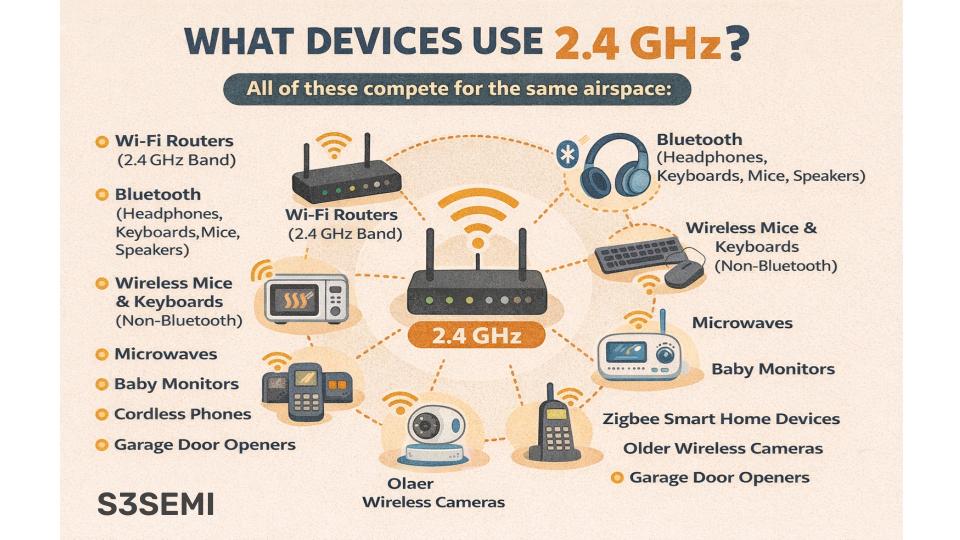
Common devices using 2.4 GHz:
- Wi-Fi routers (2.4 GHz band)
- Bluetooth devices (mice, keyboards, headphones, speakers)
- Wireless mice and keyboards (non-Bluetooth)
- Microwave ovens
- Baby monitors
- Cordless phones
- Zigbee smart home devices
- Older wireless security cameras
- Garage door openers
- Some wireless game controllers
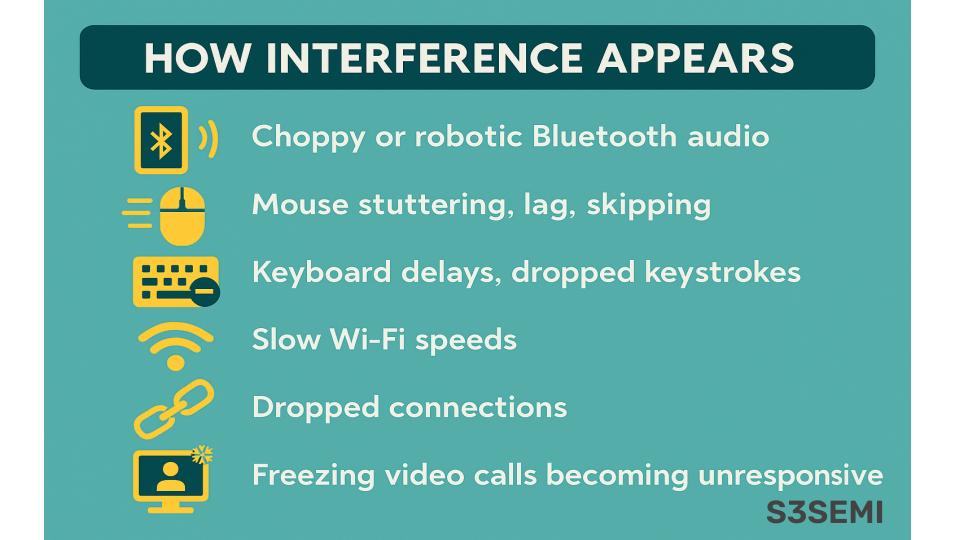
How interference manifests:
- Choppy Bluetooth audio
- Stuttering or lagging wireless mouse
- Keyboard input delays or dropped keystrokes
- Dropped Bluetooth connections
- Slow Wi-Fi speeds
- Video call freezing or audio drops
- Smart home devices becoming unresponsive
Why this is getting worse:
- More wireless devices in every home
- Apartment buildings with dozens of networks
- Neighbors’ devices add to congestion
- Limited spectrum hasn’t changed
- More IoT devices every year
Identify Which Devices Are Causing Problems
Before you can fix interference, you need to know what’s causing it.
Create a device inventory:
- List all 2.4 GHz Wi-Fi devices
- List all Bluetooth devices
- List all other 2.4 GHz devices (wireless mice, baby monitors, etc.)
- Note which devices are on constantly
- Identify which devices you use simultaneously
Test interference patterns:
- Turn on your Bluetooth headphones
- Note if connection is stable
- Turn on microwave
- Does Bluetooth get worse?
- Turn on additional devices one by one
- Document which combinations cause problems
Use Wi-Fi analyzer apps:
- Download WiFi Analyzer (Android) or similar app
- Scan for nearby Wi-Fi networks
- See which channels are crowded
- Identify overlapping networks
- Check signal strength of each network
Check device placement:
- Note where each wireless device is located
- Measure distances between devices
- Identify physical obstacles (walls, metal objects)
- Check if devices are clustered together
- Proximity increases interference
Move to 5 GHz Wi-Fi (The #1 Solution)
Switching your Wi-Fi to 5 GHz is the single most effective fix.
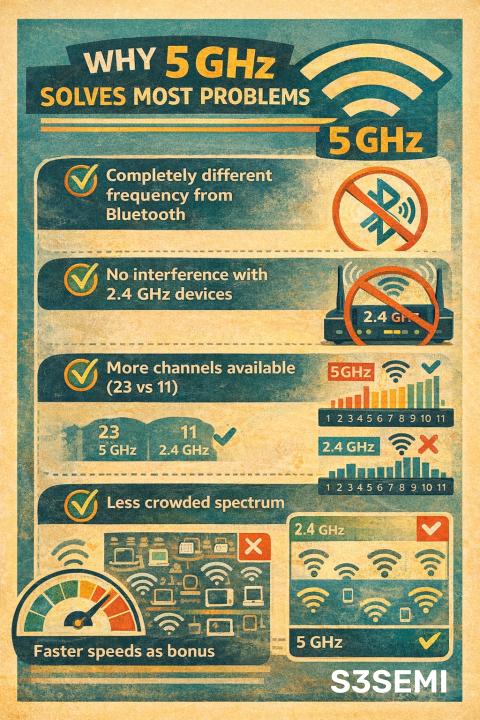
Why 5 GHz solves most problems:
- Completely different frequency from Bluetooth
- No interference with 2.4 GHz devices
- More channels available (23 vs 11)
- Less crowded spectrum
- Faster speeds as bonus
How to switch to 5 GHz:
- Log into your router settings
- Find Wi-Fi settings page
- Look for 5 GHz network option
- Enable 5 GHz if disabled
- Give it a different name (SSID)
- Connect your devices to 5 GHz network
Router login instructions:
- Common router addresses: 192.168.1.1 or 192.168.0.1
- Check router label for default login
- Username often “admin”
- Default password on router sticker
Which devices to move to 5 GHz:
- Laptops and computers (if they support 5 GHz)
- Smartphones and tablets
- Streaming devices (Roku, Fire TV, Apple TV)
- Smart TVs
- Gaming consoles
- Any device within router range
Devices that must stay on 2.4 GHz:
- Older devices without 5 GHz support
- Smart home devices (most only support 2.4 GHz)
- Devices far from router (5 GHz has shorter range)
- Some IoT devices
- Budget wireless devices
Dual-band strategy:
- Keep both 2.4 GHz and 5 GHz active
- Use 5 GHz for high-bandwidth devices
- Use 2.4 GHz only for devices that need it
- Reduces congestion on 2.4 GHz band
- Bluetooth interference decreases dramatically
Optimize Your Wi-Fi Channel Selection
Choosing the right Wi-Fi channel reduces interference significantly.
Understanding Wi-Fi channels:
- 2.4 GHz has 11 channels (US)
- Only channels 1, 6, and 11 don’t overlap
- Most routers auto-select channels
- Auto-selection often picks wrong channel
- Manual selection usually better
Find the best channel:
- Use Wi-Fi analyzer app on phone
- Scan for all nearby networks
- See which channels are most crowded
- Choose least crowded channel
- Prefer channels 1, 6, or 11
Change your Wi-Fi channel:
- Log into router settings
- Find wireless settings
- Look for “Channel” setting
- Change from “Auto” to specific channel
- Select least crowded channel (1, 6, or 11)
- Save settings
- Router will restart briefly
- Test if interference improves
For 5 GHz networks:
- Many more channels available
- Less interference overall
- Auto-selection works better
- Can manually select if needed
- DFS channels provide even more options
Channel width settings:
- 2.4 GHz: Use 20 MHz width (not 40 MHz)
- 40 MHz width causes more interference
- Covers more spectrum
- Interferes with more devices
- 20 MHz is more “neighborly”
Relocate Your Router and Devices
Physical placement dramatically affects interference.
Optimal router placement:
- Center of your home
- Elevated position (on shelf or mounted)
- Away from metal objects
- Away from microwaves
- Away from cordless phone bases
- Not in closets or cabinets
- Not behind TV or computer
Distance from Bluetooth devices:
- Keep router 3-6 feet from Bluetooth devices
- More distance reduces interference
- But maintain good Wi-Fi signal
- Find sweet spot for your space
USB receiver placement:
- For wireless mice/keyboards
- Don’t plug receiver into back of desktop
- Use USB extension cable
- Place receiver on desk, closer to mouse
- Reduces distance, improves signal
- Away from router if possible
Device separation strategy:
- Spread devices out when possible
- Don’t cluster all wireless devices together
- Separate Bluetooth speakers from Wi-Fi router
- Keep wireless mouse receiver away from Wi-Fi adapter
- More space = less interference
Avoid metal obstacles:
- Metal filing cabinets block signals
- Metal desks cause reflections
- Keep devices away from metal surfaces
- Wood and plastic are better
Update Firmware and Drivers
Outdated software can make interference worse.
Update router firmware:
- Log into router settings
- Look for “Firmware Update” or “Router Update”
- Check for available updates
- Download and install
- Router will restart
- Updates often improve wireless performance
Update Bluetooth drivers:
- Windows: Device Manager > Bluetooth > Update driver
- Mac: Software Update handles this automatically
- Look for Intel, Realtek, or Broadcom Bluetooth updates
- Latest drivers have better interference mitigation
Update wireless adapter drivers:
- Device Manager > Network adapters
- Find your Wi-Fi adapter
- Right-click and update driver
- Or download from manufacturer’s website
- Dell, HP, Lenovo have driver pages
Update device firmware:
- Bluetooth headphones often have apps with firmware updates
- Wireless mice/keyboards: Check Logitech Options+, Razer Synapse, etc.
- Smart home devices: Update through their apps
- Gaming controllers: Update through console or software
Why updates help:
- Improved coexistence algorithms
- Better frequency hopping
- Enhanced interference avoidance
- Bug fixes for connection issues
Use USB 2.0 Ports Instead of USB 3.0
USB 3.0 creates interference with 2.4 GHz devices.
Why USB 3.0 causes interference:
- USB 3.0 operates at 5 Gbps
- Creates radio frequency noise
- Noise is in the 2.4 GHz range
- Interferes with nearby wireless devices
- Well-documented issue
How to identify USB 3.0 ports:
- Usually blue inside
- USB 2.0 ports are black or white
- Look for “SS” (SuperSpeed) symbol
- Check computer specifications
Solution:
- Plug wireless receivers into USB 2.0 ports (black ports)
- Avoid USB 3.0 ports for 2.4 GHz devices
- This especially affects wireless mice and keyboards
- Bluetooth adapters too
If you must use USB 3.0:
- Use shielded USB cables
- Keep cables as short as possible
- Position receiver away from USB 3.0 devices
- Use USB extension cable to create distance
Test the difference:
- Plug wireless mouse receiver into USB 3.0 (blue)
- Note any lag or stuttering
- Move to USB 2.0 (black)
- Usually immediate improvement
Use Wired Connections When Possible
Sometimes the best solution is avoiding wireless altogether.
Devices that should be wired:
- Desktop computers (use Ethernet)
- Gaming consoles (for best performance)
- Streaming devices near router
- Work laptops at desk
- Smart home hubs
Benefits of wired connections:
- No interference whatsoever
- Lower latency
- More reliable
- Faster speeds
- Frees up wireless spectrum for devices that need it
Partial wired solution:
- Wire high-bandwidth devices
- Keep wireless for mobile devices
- Reduces overall 2.4 GHz congestion
- Remaining wireless devices work better
Ethernet over powerline:
- If running Ethernet is difficult
- Powerline adapters use electrical wiring
- Creates wired connection through walls
- Good alternative to Wi-Fi
- Doesn’t use 2.4 GHz spectrum
Disable or Remove Unused Wireless Devices
Every active wireless device adds to interference.
Identify unused devices:
- Old Bluetooth speakers not in use
- Forgotten wireless keyboards
- Unpaired devices still broadcasting
- Guest devices
- Abandoned smart home gadgets
Turn off or remove:
- Power off devices you’re not using
- Unpair Bluetooth devices you don’t need
- Turn off Wi-Fi on devices with Ethernet
- Remove batteries from unused wireless devices
- Factory reset abandoned smart home devices
Manage device connections:
- Don’t leave Bluetooth on all the time
- Turn off Wi-Fi when using Ethernet
- Disable Bluetooth on devices that don’t need it
- Schedule smart home devices to only be active when needed
Benefits:
- Less congestion on 2.4 GHz band
- Better performance for active devices
- Easier to troubleshoot remaining issues
- Improved battery life on devices
Use Bluetooth 5.0 Devices
Newer Bluetooth versions handle interference better.
Bluetooth version comparison:
- Bluetooth 4.2 and older: More susceptible to interference
- Bluetooth 5.0: Improved coexistence with Wi-Fi
- Bluetooth 5.1/5.2/5.3: Even better interference mitigation
- Newer versions use advanced frequency hopping
Check your device versions:
- Windows: Device Manager > Bluetooth adapter properties
- Mac: Option+click Bluetooth icon > check version
- Phone: Settings > About > Bluetooth version
- Peripheral devices: Check specifications online
Upgrade strategy:
- Replace Bluetooth 4.x adapters with 5.0+ adapters
- USB Bluetooth 5.0 adapters cost $10-20
- Upgrade headphones/speakers to Bluetooth 5.0+
- Newer laptops have Bluetooth 5.0+ built-in
Why it helps:
- Better adaptive frequency hopping (AFH)
- Dynamically avoids crowded channels
- More efficient spectrum usage
- Lower power consumption
- Better range and stability
Adjust Bluetooth and Wi-Fi Power Settings
Power management can worsen interference issues.
Disable USB selective suspend:
- Control Panel > Power Options
- Change advanced power settings
- USB settings > USB selective suspend
- Set to “Disabled”
- Prevents Windows from powering down USB devices
Disable Wi-Fi power saving:
- Device Manager > Network adapters
- Find your Wi-Fi adapter
- Properties > Power Management tab
- Uncheck “Allow computer to turn off this device”
- Improves stability
Disable Bluetooth power saving:
- Device Manager > Bluetooth
- Find your Bluetooth adapter
- Properties > Power Management
- Uncheck “Allow computer to turn off this device”
Set to High Performance power plan:
- Control Panel > Power Options
- Select “High Performance”
- Or customize Balanced plan with no power saving
- Prevents aggressive power management
Mac power settings:
- System Settings > Battery
- Uncheck “Put hard disks to sleep when possible”
- Prevents peripheral disconnections
Use Quality Shielded Cables
Poor quality cables radiate interference.
Cable issues:
- Cheap USB cables lack shielding
- Unshielded cables act as antennas
- Radiate interference in 2.4 GHz range
- Especially USB 3.0 cables
Solution – use shielded cables:
- Buy cables specifically marked “shielded”
- Look for ferrite beads on cables
- Higher quality cables have better shielding
- More expensive but worth it
Add ferrite cores:
- Buy clip-on ferrite cores ($5-10)
- Attach to USB cables near connectors
- Attach to power cables
- Reduces radio frequency interference
- Especially helpful on USB 3.0 cables
HDMI cables matter too:
- Cheap HDMI cables radiate interference
- Use certified high-speed HDMI cables
- Look for proper shielding
- Keep HDMI cables away from wireless devices
Separate Networks for Different Devices
Creating multiple networks can reduce interference.
Guest network strategy:
- Enable guest network on router
- Put IoT/smart home devices on guest network
- Keep main network for computers/phones
- Separates traffic and reduces interference
Multiple SSIDs:
- Create separate 2.4 GHz and 5 GHz networks
- Give them different names
- Manually connect devices to appropriate network
- Prevents devices from switching between bands
QoS (Quality of Service) settings:
- Prioritize important devices in router settings
- Video calls and gaming get priority
- Background devices get lower priority
- Reduces perceived interference
VLAN for advanced users:
- Segment network into virtual LANs
- Separates device traffic
- Reduces broadcast traffic
- Requires advanced router
Reduce Microwave Interference
Microwaves are major 2.4 GHz interference sources.
Why microwaves interfere:
- Operate at 2.45 GHz (same as Wi-Fi/Bluetooth)
- Leak some radiation even when shielded
- Very powerful signal
- Completely overwhelms nearby devices
Solutions for microwave interference:
- Move router away from microwave (at least 10 feet)
- Don’t use Bluetooth devices in kitchen while cooking
- Replace old microwave (better shielding)
- Avoid using wireless devices during microwave use
Test microwave interference:
- Start streaming audio to Bluetooth headphones
- Turn on microwave
- Listen for stuttering or dropouts
- If present, microwave is causing interference
Other microwave tips:
- Keep microwave door closed and clean
- Damaged door seals increase leakage
- Don’t place router on top of or next to microwave
- Some microwaves worse than others
Manage Bluetooth Device Connections
How you connect Bluetooth devices matters.
Limit simultaneous connections:
- Don’t connect to multiple Bluetooth devices at once
- Each connection increases interference potential
- Disconnect devices when not in use
- Many devices support multi-point but it adds latency
Bluetooth pairing proximity:
- Pair devices close together
- Move to final position after pairing
- Initial pairing at close range establishes better connection
- Reduces errors
Forget and re-pair problematic devices:
- Remove device from Bluetooth settings
- Restart both devices
- Re-pair from scratch
- Often fixes connection issues
Use Bluetooth codec optimization:
- In developer options (Android)
- Choose more stable codec (SBC) over high-quality (aptX, LDAC)
- High-quality codecs more susceptible to interference
- SBC more robust in crowded environments
Position Devices Strategically
Intentional placement prevents many interference issues.
Keep Bluetooth devices close:
- Bluetooth range is 30 feet in ideal conditions
- Real-world range much shorter with obstacles
- Keep phone and headphones within 6-10 feet
- Reduces need for high power, less interference
Router positioning rules:
- Central location in home
- Elevated (shelf, wall mount)
- Away from exterior walls
- Not near windows
- Away from other electronics
Line of sight helps:
- Direct line of sight between devices is best
- Walls, especially concrete/metal, block signals
- Avoid putting devices in different rooms if possible
- Glass and mirrors reflect signals
Vertical separation:
- Router on shelf above desk
- Bluetooth devices on desk
- Vertical separation reduces interference
- Better than horizontal separation
Use Interference Detection Tools
Software tools help identify and solve interference.
Wi-Fi analyzer apps:
- WiFi Analyzer (Android – free)
- NetSpot (Windows/Mac – free version available)
- Shows all nearby networks
- Displays channel usage
- Recommends best channels
Spectrum analyzer apps:
- More advanced than Wi-Fi analyzers
- Show all 2.4 GHz activity
- Require special hardware (RTL-SDR dongles, $25-40)
- Can see non-Wi-Fi interference
- Shows Bluetooth activity
Router diagnostic tools:
- Many routers have built-in diagnostics
- Show connected devices
- Display signal strength
- Identify interference sources
Windows network diagnostics:
- Command prompt:
netsh wlan show networks mode=bssid - Shows all networks and signal strength
- Identifies channel overlap
- Free built-in tool
Time-Based Solutions
Sometimes timing devices reduces interference.
Schedule high-bandwidth tasks:
- Large downloads during off-peak hours
- Video streaming when fewer devices active
- Backups at night
- Reduces congestion
Coordinate device use:
- Don’t run microwave during video calls
- Pause smart home updates during gaming
- Disconnect unused Bluetooth devices
- Reduces simultaneous interference sources
Smart home scheduling:
- Schedule device updates for 3am
- Stagger sensor check-ins
- Reduce simultaneous transmissions
- Most smart home apps support scheduling
Upgrade Your Router
Modern routers handle interference much better.
Features to look for:
- Wi-Fi 6 (802.11ax) or Wi-Fi 6E
- Better coexistence with Bluetooth
- More efficient spectrum usage
- Improved scheduling
Mesh networking:
- Multiple access points
- Devices connect to nearest node
- Reduces power needed
- Less interference per node
Tri-band routers:
- Have dedicated 5 GHz band for backhaul
- Keep device traffic separate
- Reduce 2.4 GHz congestion
Router upgrade benefits:
- Better processing power
- More sophisticated interference avoidance
- Support for more simultaneous devices
- Worth investment if router is 5+ years old
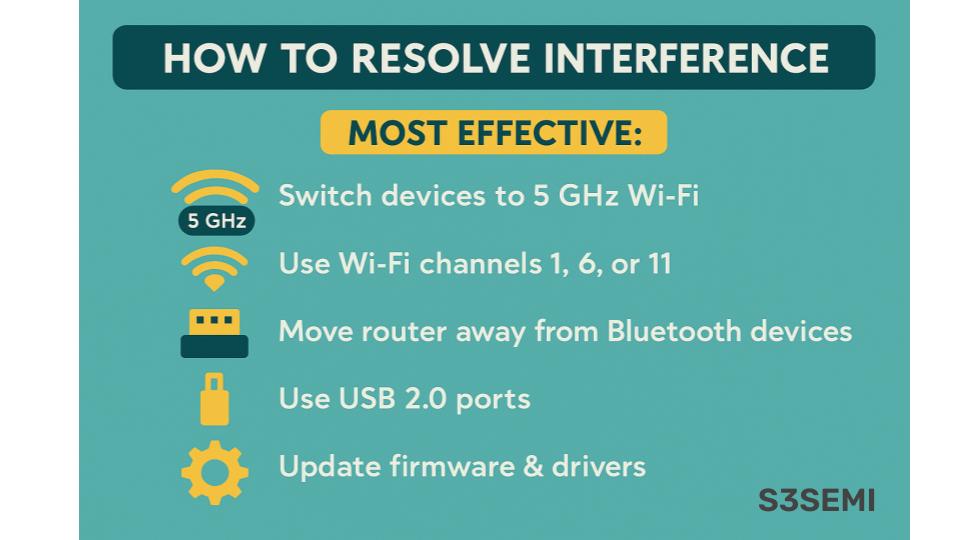
Quick Fixes Summary
Here’s a rapid-fire list of solutions ranked by effectiveness.
Most effective (do these first):
- Move to 5 GHz Wi-Fi for capable devices
- Change Wi-Fi channel to 1, 6, or 11
- Move router away from Bluetooth devices (3-6 feet)
- Use USB 2.0 ports instead of USB 3.0
- Update all firmware and drivers
Moderately effective: 6. Turn off unused wireless devices 7. Use wired connections where possible 8. Disable power saving on USB/Bluetooth 9. Add ferrite cores to USB cables 10. Keep microwave away from wireless devices
Helpful for stubborn issues: 11. Replace Bluetooth 4.x with 5.0+ devices 12. Use USB extension cables for receivers 13. Upgrade to modern router 14. Use Wi-Fi analyzer to find best channel 15. Separate 2.4 GHz and 5 GHz into different SSIDs
Real-World Interference Scenarios and Solutions
Let me share how I solved specific interference problems.
My home office setup (before fix):
- Router on desk
- Bluetooth headphones for calls
- Wireless mouse (2.4 GHz)
- Wireless keyboard (2.4 GHz)
- All within 2 feet of each other
- Constant stuttering and lag
What I did:
- Moved router to shelf 5 feet away
- Switched laptop to 5 GHz Wi-Fi
- Used USB extension cable for mouse receiver
- Moved receiver 3 feet from router
- Updated Bluetooth drivers
- Changed Wi-Fi from channel 6 to channel 1 (less crowded)
Results:
- Zero Bluetooth stuttering
- No mouse lag
- Faster Wi-Fi speeds
- All devices work perfectly together
Neighbor’s experience – apartment building:
- Could see 40+ Wi-Fi networks
- Bluetooth basically unusable
- Wi-Fi constantly slow
Solution for crowded environments:
- Upgraded to Wi-Fi 6 router (better at handling congestion)
- Used 5 GHz exclusively (wife’s devices too)
- Switched to wired mouse and keyboard
- Used wired headphones for critical calls
- Kept Bluetooth for music only (not critical use)
Gamer’s solution:
- Wireless headset lag during competitive play
- Mouse occasionally stuttered
Gaming-specific fixes:
- Dedicated 5 GHz network for PC only
- Wired mouse (no lag ever)
- Wireless headset uses proprietary dongle, not Bluetooth
- All other devices on separate 2.4 GHz network
- USB receiver on extension cable away from PC
I spent way too much money on “better” Bluetooth headphones before I realized the issue wasn’t the headphones at all – it was my cluttered 2.4 GHz environment.
Moving my laptop to 5 GHz Wi-Fi solved 80% of my problems instantly. The remaining 20% was fixed by moving my router just 4 feet away from my desk. Now my $40 Bluetooth earbuds work flawlessly, better than the $200 pair I bought thinking they’d solve the problem.
The lesson: interference issues aren’t about expensive equipment, they’re about understanding how these wireless technologies share limited spectrum space.