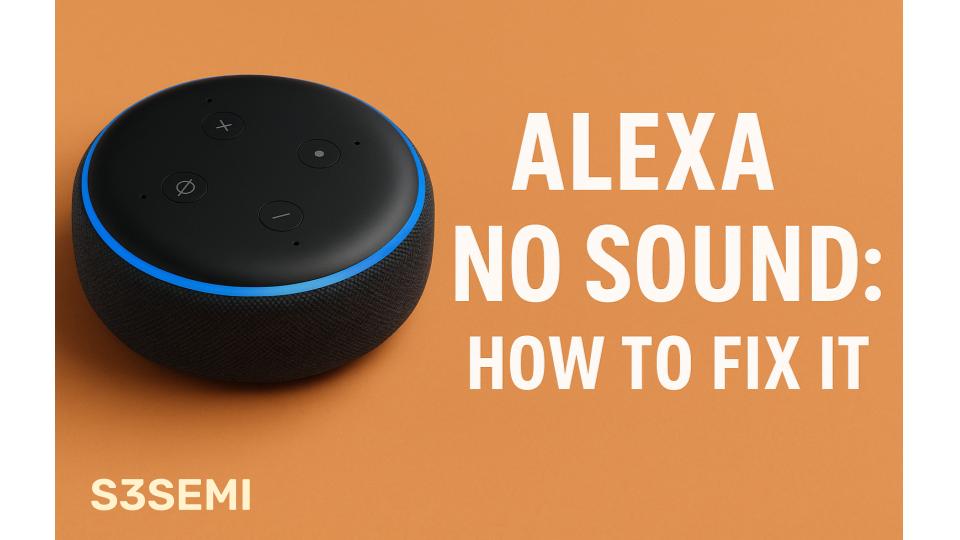
My Echo Show stopped producing sound yesterday morning. I asked “Alexa, what’s the weather?” and saw the screen display the forecast with animated graphics, but heard absolute silence.
The device clearly heard me – the blue light ring activated, the screen showed it was processing my question, and text appeared with the weather information.
Everything worked except the audio output.
I checked the volume using the physical buttons on top, and the display showed volume at level 5, not muted. I tried “Alexa, play music” and watched Spotify connect and show a song playing with the progress bar moving, but still no sound came from the speakers.
After an hour testing different commands and settings, I systematically worked through potential causes, discovering that sound issues have specific troubleshooting paths depending on whether the problem is volume settings, hardware failure, software glitches, or audio output configuration. Here’s the complete process that restored my Echo’s sound, organized from simplest checks to more technical solutions.
Understanding Different Types of Sound Problems
Identifying your specific issue helps target the right solution.
Complete silence (no sound at all):
- Alexa responds to wake word (light activates)
- Screen shows responses (if Echo Show/Spot)
- But absolutely no audio output
- No voice responses, no music, no alerts
- Most common sound issue
Distorted or crackling sound:
- Audio plays but quality is poor
- Static, crackling, popping noises
- Voice sounds garbled or robotic
- Music plays but with interference
- Indicates speaker damage or interference
Very quiet sound:
- Audio plays but extremely faint
- Can barely hear even at maximum volume
- Must be right next to device to hear
- Volume seems stuck at low level
- Settings or hardware issue
Intermittent sound:
- Works sometimes, fails others
- Sound cuts in and out
- Unpredictable pattern
- May work after restart then fail again
- Software glitch or loose hardware connection
No sound from specific sources:
- Music services don’t play audio
- But Alexa voice responses work fine
- Or vice versa – music plays but Alexa doesn’t speak
- Indicates configuration or streaming issue
Echo responds but wrong output:
- Sound comes from different device
- Connected to Bluetooth speaker but shouldn’t be
- Multi-room audio sending to wrong speakers
- Audio routing problem, not speaker failure
Identifying your problem type:
Ask diagnostic questions:
- Does blue light activate when you speak? (Alexa hears you)
- Does screen show response? (Device is working, processing commands)
- Is volume indicator showing on screen? (Volume settings accessible)
- Do physical volume buttons change displayed level? (Hardware buttons functional)
- Does mute button show muted indicator? (Check mute status)
My specific issue: Complete silence despite device clearly responding. Blue light activated, screen showed responses, volume display showed level 5, not muted. Device functional except audio output.
Check Volume Level and Unmute
Start with the most obvious cause.
Volume may be at zero:
Using voice command:
- Say “Alexa, volume up”
- Repeat several times
- Listen for sound to appear
- Watch volume indicator on screen (if available)
- Say “Alexa, set volume to 10” (maximum)
Using physical buttons:
- Locate volume buttons on device top
- Plus (+) and minus (-) buttons or ring
- Press volume up (+) repeatedly
- Watch for volume indicator
- Some models: Press and hold for faster increase
Echo models with volume ring:
- Echo (1st gen): Rotate ring clockwise
- Turn fully clockwise for maximum volume
- Ring control is smooth and continuous
Check mute status:
Mute indicator lights:
- Red light ring or red indicator: Device is muted
- No red light: Device not muted
- Some models have dedicated mute light
Unmute the device:
Using mute button:
- Press microphone/mute button once
- Usually has microphone icon with slash
- Red light should disappear
- Try voice command again
Using voice command:
- Say “Alexa, unmute”
- Only works if Alexa can hear you
- If muted, may not respond to commands
- Use button if voice doesn’t work
Volume in Alexa app:
Check app settings:
- Open Alexa app
- Devices > Select your Echo
- Volume slider at top
- May show current volume level
- Adjust slider to maximum
- Test if sound appears
Why volume might be zero:
Voice commands:
- Someone said “Alexa, volume zero”
- Or “Alexa, mute”
- Kids playing with device
- Accidental commands
Physical buttons:
- Buttons pressed accidentally
- Volume turned down unknowingly
- Device in bag or pocket (portable models)
- Pet stepped on buttons
App changes:
- Volume adjusted in app remotely
- Routines changing volume automatically
- Multi-user household conflicts
Testing different sounds:
After adjusting volume:
- “Alexa, play music” (tests music output)
- “Alexa, what time is it?” (tests voice response)
- “Alexa, set a timer for 1 minute” (tests alert sounds when complete)
- Try multiple sources to isolate issue
Volume level recommendations:
Normal listening:
- Level 4-6 for conversation
- Level 7-8 for music
- Level 9-10 for noisy environments
If still no sound at level 10:
- Volume isn’t the problem
- Move to other solutions
- Hardware or software issue likely
My volume check: Device showed volume 5, not muted (no red light), and physical buttons changed displayed volume level. Volume wasn’t the issue – confirmed when setting to level 10 produced no sound.
Restart the Echo Device
Simple restart resolves many sound glitches.
Why restart helps:
Clears software glitches:
- Audio driver crashes
- Frozen processes
- Memory issues
- Temporary bugs
Resets hardware:
- Speaker initialization
- Audio processing chip
- DAC (digital to analog converter)
- Fresh start for all components
How to restart properly:
Method 1 – Unplug power (recommended):
- Unplug power adapter from Echo
- Wait 30 seconds (important – don’t skip this)
- Plug power back in
- Wait for Echo to boot (60-90 seconds)
- Watch for light ring indication
- Listen for startup sound (if sound working)
Why 30 seconds matters:
- Capacitors fully discharge
- Ensures complete power cycle
- Not just sleep mode
- True hardware reset
Method 2 – Mute and volume buttons (some models):
- Press and hold mute and volume down buttons together
- Hold for about 20 seconds
- Device restarts
- Not available on all models
- Power unplug method more reliable
After restart:
Test immediately:
- Wait for full boot completion
- Say “Alexa, what time is it?”
- Listen for voice response
- Try “Alexa, play music”
- Test multiple audio types
Common post-restart scenarios:
Sound returns immediately:
- Software glitch was the problem
- Restart solved it
- Normal use can resume
- Monitor for recurrence
Sound still absent:
- Deeper issue exists
- Hardware problem possible
- Or configuration issue
- Continue to other solutions
Sound returns but distorted:
- Partial hardware issue
- Speaker damage possible
- May need replacement
- Contact support
Multiple restarts if needed:
If first restart doesn’t work:
- Wait 5 minutes
- Try second restart
- Sometimes takes multiple cycles
- Especially after firmware updates
Don’t restart repeatedly:
- Maximum 3 restart attempts
- If sound doesn’t return after 3 tries
- Restarting more won’t help
- Move to other solutions
Restart after other changes:
- After changing settings
- After updating app
- After factory reset
- Ensures changes take effect
My restart result: Unplugged Echo Show for 30 seconds, plugged back in, waited for full boot. Tested with “Alexa, what’s the weather?” Still no sound. Restart didn’t solve the issue, indicating deeper problem.
Check Audio Output Settings
Sound may be routing to wrong output device.
Understanding audio routing:
Multiple output options:
- Echo’s built-in speakers
- Bluetooth connected speakers/headphones
- Grouped multi-room audio
- Fire TV devices
- External speakers via 3.5mm jack (if available)
Why routing matters:
- Echo sends audio to selected output
- If wrong device selected, built-in speakers silent
- Device works but sound goes elsewhere
- Common after Bluetooth pairing or grouping
Check Bluetooth connections:
In Alexa app:
- Devices > Select your Echo
- Look for Bluetooth Devices section
- Shows currently connected devices
- If device listed, audio routing there
Connected Bluetooth device:
- Speaker name shown (like “JBL Flip 5”)
- Audio going to that speaker instead of Echo
- Echo’s speakers disabled when Bluetooth active
- Need to disconnect to use Echo speakers
Disconnect Bluetooth:
Using voice command:
- “Alexa, disconnect from Bluetooth”
- Disconnects currently paired device
- Audio returns to Echo speakers
- Test with voice command
Using Alexa app:
- Devices > Echo > Bluetooth Devices
- Tap connected device name
- Tap “Disconnect” or “Forget”
- Audio switches back to Echo
Check multi-room audio groups:
What multi-room audio does:
- Groups multiple Echo devices
- Plays same audio on all grouped devices
- If Echo in group, may be routing to group
- Speakers might play on other Echos, not this one
Check group status:
In Alexa app:
- Devices > Plus icon (+)
- Combine Speakers
- See existing groups
- Check if your Echo is in a group
Remove from group:
- Devices > Group name
- Edit group
- Remove your Echo from group
- Or delete group entirely
- Test audio on Echo individually
Preferred speaker setting:
Some apps use preferred speaker:
- Spotify Connect
- Apple Music
- Other streaming services
- May route to different Echo or speaker
Check in streaming app:
- Open music service app (Spotify, etc.)
- Look for devices available
- See if audio routing to different device
- Select your Echo specifically
- Some services remember last used device
3.5mm audio output (if equipped):
Models with audio jack:
- Echo Dot (3rd gen) has 3.5mm out
- Some other models have aux output
- If cable plugged in, internal speakers disabled
- Audio routes to connected speakers
Check physical connection:
- Look at device ports
- See if cable plugged into 3.5mm jack
- Unplug cable if present
- Audio returns to internal speakers
Echo as home theater output:
Fire TV integration:
- Echo can be Fire TV audio output
- If configured this way, normal use may not produce sound
- Only plays audio when Fire TV active
- Check Fire TV settings
Disable Fire TV audio:
- Fire TV Settings > Display & Audio
- Audio > Echo speakers
- Change from Echo to TV speakers
- Or remove Echo from Fire TV audio
Testing after routing changes:
Disconnect everything:
- Disconnect all Bluetooth devices
- Remove from all groups
- Unplug aux cables
- Clear all audio routing
Test with fresh output:
- “Alexa, volume 5”
- “Alexa, what’s the weather?”
- Should hear from Echo’s speakers
- If still silent, not a routing issue
My audio routing check: No Bluetooth devices connected. Not in any multi-room groups. No 3.5mm cable plugged in. Audio routing was correct – output should have come from Echo’s built-in speakers. This wasn’t the problem.
Update Echo Firmware
Outdated firmware can cause audio bugs.
Why firmware matters for audio:
Bug fixes:
- Audio driver issues corrected
- Speaker initialization problems fixed
- Volume control bugs resolved
- Playback stability improved
Feature updates:
- New audio formats supported
- Improved sound processing
- Better codec handling
- Enhanced audio quality
Checking current firmware:
In Alexa app:
- Devices > Select your Echo
- Settings (gear icon)
- Scroll to “About”
- Software Version shown
- Note current version number
Cannot force firmware update:
- Echo updates automatically
- Typically overnight when idle
- No manual update button
- Can’t force immediate update
Ensuring automatic updates enabled:
Keep Echo powered on:
- Updates download when plugged in
- Need internet connection
- Occur during low-usage times
- Usually between 2-4 AM
Check update status:
- App may show “Update Available” or “Updating”
- Usually no notification
- Happens silently in background
- Device may restart briefly during update
How to encourage firmware update:
Leave Echo idle overnight:
- Don’t use device for 6+ hours
- Keep powered on and connected to WiFi
- Update downloads and installs
- May take multiple nights if large update
Restart to check for updates:
- Some updates require restart to install
- Unplug for 30 seconds
- Plug back in
- Update may complete during boot
Audio issues after firmware update:
Common post-update problems:
- Sound disappears after update
- Known issue with some firmware versions
- Usually fixed in subsequent update
- Temporary bug
Solutions for update-related audio loss:
Wait for next update:
- May come within days
- Fixes audio bugs from previous update
- Automatic installation
Factory reset (if urgent):
- May force firmware refresh
- Last resort option
- See factory reset section below
Check for widespread issues:
- Search online for your Echo model + firmware version
- Reddit, Amazon forums
- See if others report same audio issue
- Indicates known bug
Firmware version history:
Cannot downgrade:
- Echo doesn’t allow firmware downgrades
- Stuck with current version
- Must wait for fix update
- Or contact Amazon support
Beta firmware:
- Amazon doesn’t offer beta firmware to consumers
- Only automatic stable releases
- Can’t opt into testing programs
- Must wait for official updates
My firmware situation: Checked firmware version in app. Was on latest available version (verified by searching online). Firmware wasn’t outdated. Left device idle overnight in case update was pending, but none installed. Firmware not the issue.
Check Do Not Disturb Mode
DND mode silences some audio output.
What Do Not Disturb does:
Silences notifications:
- No announcement chimes
- No message notification sounds
- No incoming call sounds
- No drop-in notification sounds
Still allows:
- Voice responses to your commands
- Music playback
- Timer and alarm sounds
- Active use audio
Why it might seem like no sound:
If testing with notifications:
- Sending message to Echo
- Expecting notification sound
- DND blocks notification audio
- Seems like sound not working
Check DND status:
Visual indicators:
- Purple light ring: DND is active
- Some models show crescent moon icon
- No indicator: DND is off
In Alexa app:
- Devices > Select your Echo
- Look for Do Not Disturb section
- Toggle shows ON or OFF
- Schedule may be active
Disable Do Not Disturb:
Using voice command:
- “Alexa, turn off Do Not Disturb”
- Purple light should disappear
- Notification sounds resume
Using Alexa app:
- Devices > Echo device
- Do Not Disturb toggle
- Switch to OFF
- Changes immediately
Check scheduled DND:
In app:
- Devices > Echo > Do Not Disturb
- See if schedule is set
- Example: 10 PM to 7 AM daily
- Disable schedule if unwanted
Why schedule might be active:
- Set up initially and forgotten
- Routine activated it
- Someone else in household enabled it
- Default setting on new devices (some models)
Testing after disabling DND:
Try notification sounds:
- Send message to Echo from app
- Should hear notification chime
- Test drop-in (if enabled)
- Confirms DND was affecting sound
If all sounds still absent:
- DND wasn’t the problem
- Even notifications should work with DND off
- Continue to other solutions
My DND check: No purple light visible. Checked app – DND was OFF. No schedule set. DND wasn’t causing the sound issue since all sounds (including voice responses) were completely silent, not just notifications.
Test with Different Audio Sources
Isolate whether problem affects all audio or specific sources.
Testing voice responses:
Ask basic questions:
- “Alexa, what time is it?”
- “Alexa, what’s the weather?”
- “Alexa, tell me a joke”
- Should hear Alexa’s voice
- Text may appear on screen (Echo Show) even without sound
Testing music:
Try different services:
- “Alexa, play music on Amazon Music”
- “Alexa, play rock on Spotify”
- “Alexa, play relaxing music on Pandora”
- Test multiple streaming services
- See if any service produces sound
Testing alarms and timers:
Set short timer:
- “Alexa, set timer for 10 seconds”
- Wait for timer to complete
- Should hear alarm sound
- Different audio path than voice/music
Testing built-in sounds:
Flash briefing:
- “Alexa, play my flash briefing”
- Tests news audio
- Different from music streaming
Skills with audio:
- “Alexa, ask Jeopardy to play”
- Games and skills with audio
- Another audio source to test
Identifying patterns:
All audio silent:
- Voice, music, alerts all absent
- Indicates speaker hardware issue
- Or fundamental audio system failure
- Hardware problem likely
Only music silent:
- Voice responses work
- But streaming music doesn’t play
- Indicates streaming service issue
- Or music playback system problem
- Not hardware failure
Only voice silent:
- Music plays fine
- But Alexa doesn’t speak
- Text-to-speech system problem
- Software configuration issue
Only alarms silent:
- Voice and music work
- But timer/alarm sounds don’t play
- Alert volume setting separate
- Check alarm volume specifically
Testing alarm volume separately:
Alarm volume independent:
- Some Echo models have separate alarm volume
- Different from general volume
- Check in app settings
In Alexa app:
- Devices > Echo > Sounds
- Alarm/Timer/Notification Volume
- Separate slider from main volume
- Adjust to maximum
- Set test timer to confirm
My testing results: Tested voice commands (no sound), music from multiple services (no sound), timers (no sound), skills (no sound). All audio sources completely silent. This indicated a fundamental speaker or audio system problem, not a specific streaming or feature issue.
Factory Reset Echo Device
Complete reset eliminates software-related sound issues.
When factory reset is appropriate:
After trying simpler solutions:
- Volume checked and maximized
- Restarted device
- Audio routing verified
- Firmware up to date
- Still no sound
Software corruption suspected:
- Audio system crashed
- Settings corrupted
- Update partially failed
- Fresh start needed
What factory reset does:
Complete wipe:
- Removes all settings
- Clears paired devices
- Resets to factory state
- Like new device from box
Audio system reset:
- Reinitializes speakers
- Resets audio drivers
- Clears audio configuration
- Fresh audio system
What to know before resetting:
Will lose:
- All device settings
- Smart home device links
- Bluetooth pairings
- Alarm and timer settings
- Group configurations
- Routine associations with this device
Will keep:
- Your Amazon account still owns device
- Skills remain in account
- Smart home devices remain in account
- Just need to reconfigure this Echo
How to factory reset by model:
Echo Dot (3rd generation):
- Press and hold Action button
- Hold for 25 seconds
- Light ring turns orange, then blue
- Then turns off and on
- Release when ring turns off/on
- Wait 2-3 minutes for reset
Echo Dot (4th generation) and Echo (4th gen):
- Press and hold Action button
- Hold for 20 seconds
- Light ring pulses orange then blue
- Alexa announces “Resetting to factory defaults”
- Release button
- Wait for reset to complete
Echo Show (all models):
- Swipe down from top of screen
- Settings > Device Options
- Scroll down to “Reset to Factory Defaults”
- Tap Reset
- Confirm reset
- Wait 3-5 minutes
- Setup screen appears when complete
Echo Spot:
- Settings > Device Options
- Reset to Factory Defaults
- Confirm
- Wait for reset
After factory reset:
Initial setup screen:
- Echo shows orange light (Dot/standard)
- Or setup screen (Show/Spot)
- Ready for pairing with app
- Complete fresh setup
Pair with Alexa app:
- Open Alexa app
- Devices > Plus icon (+) > Add Device
- Amazon Echo > Select model
- Follow setup process
- Connect to WiFi
- Name device
Test audio immediately:
During setup:
- Alexa will speak during setup
- Says “Welcome to Amazon Echo”
- Initial instructions
- If hear these, speakers work!
After setup:
- “Alexa, what time is it?”
- Test volume commands
- Try music playback
- Confirm audio fully functional
If sound returns after reset:
Software issue confirmed:
- Corrupted settings were the problem
- Fresh software installation fixed it
- Can reconfigure device normally
- Monitor for recurrence
Reconfigure device:
- Add to groups if needed
- Set up alarms and routines
- Reconnect Bluetooth devices
- Link smart home devices
If sound still absent after reset:
Hardware failure likely:
- Speakers physically damaged
- Audio hardware defective
- Motherboard audio circuit failed
- Needs professional repair or replacement
Contact Amazon support:
- Device likely defective
- Especially if relatively new
- Warranty may cover replacement
- Support can diagnose remotely
My factory reset experience: Performed factory reset on Echo Show. During setup process, expected to hear Alexa’s welcome message. Still complete silence despite visual setup screens working perfectly. This confirmed hardware failure – speakers physically not working. Software fixes exhausted.
Check for Physical Damage or Obstructions
Hardware problems prevent sound output.
External inspection:
Look for visible damage:
- Cracks in speaker grille
- Dents on device body
- Water damage indicators
- Physical trauma to device
Speaker grille check:
- Mesh or fabric covering speakers
- Should be intact and clean
- Look for punctures or tears
- Check for pushed-in fabric
Check for obstructions:
Debris in speakers:
- Dust buildup on grille
- Pet hair blocking speakers
- Food crumbs or particles
- Lint from pockets (portable models)
Cleaning speaker grille:
For fabric-covered Echos:
- Use soft dry cloth
- Gently wipe surface
- Can use compressed air from distance
- Don’t spray directly at speakers
- No liquids on fabric
For mesh grille Echos:
- Soft brush or cloth
- Compressed air (6-8 inches away)
- Vacuum on low setting from distance
- Be gentle, don’t push debris deeper
Don’t use:
- Water directly on speakers
- Harsh chemicals
- Sharp objects to scrape
- Excessive pressure
Internal issues (non-visible):
Loose internal connections:
- Speaker wires disconnected
- Solder joints broken
- Components loose from drops
- Can only see by opening device (not recommended)
Speaker cone damage:
- Physical speaker element damaged
- Torn speaker cone
- Separated voice coil
- Requires professional repair
Water damage:
Signs of water exposure:
- Device was wet recently
- Condensation visible
- Device in bathroom/kitchen with steam
- Dropped in water
Water damage effects:
- Speakers short out
- Corrosion on circuits
- Audio components fail
- May work initially then fail days later
Testing for internal damage:
Gentle shake test:
- Hold device and shake gently
- Listen for loose parts rattling
- Should be silent
- Rattling indicates broken internal components
Don’t shake:
- Vigorously (could cause more damage)
- If device works otherwise
- If still under warranty (opening voids warranty)
When to suspect physical damage:
Recent events:
- Device dropped recently
- Knocked over
- Hit by object
- Liquid spilled near or on device
Gradual failure:
- Sound quality degraded over time
- Started with crackling, now silent
- Volume decreased progressively
- Suggests mechanical wear
My inspection: No visible damage to Echo Show. No cracks, dents, or signs of water exposure. Speaker grille intact and clean. No recent drops or impacts. Physical condition appeared normal. Damage not obvious from exterior.
Contact Amazon Support for Hardware Issues
Professional diagnosis and potential replacement.
When to contact support:
After exhausting software solutions:
- Restarted device multiple times
- Factory reset performed
- All settings verified correct
- Sound still completely absent
Hardware failure suspected:
- No physical damage visible
- But speakers not producing sound
- Device otherwise fully functional
- Responds to commands but no audio
What Amazon support can do:
Remote diagnostics:
- Access device logs remotely
- See hardware status information
- Check for error codes
- Identify specific failed components
Determine if defective:
- Verify hardware vs software issue
- Confirm speakers failed
- Check warranty status
- Approve replacement if covered
Replacement or repair:
- Send new device if under warranty
- Usually advance replacement
- New device shipped before return
- Repair not typically offered (replacement instead)
How to contact Amazon support:
Via Alexa app:
- Menu (three lines) > Help & Feedback
- Scroll to bottom
- Contact Us
- Select device having issues
- Choose contact method (phone, chat, email)
Amazon website:
- amazon.com/help
- Sign in
- Digital Services and Device Support
- Alexa and Alexa Devices
- Select your device model
- Describe problem
Phone support (fastest):
- 1-888-280-4331 (US)
- Or request callback through app/website
- Speak directly with representative
- Real-time troubleshooting
Chat support:
- Text-based conversation
- Can send screenshots
- Get written confirmation
- Convenient if can’t call
Information to provide:
Before contacting:
- Device model (exact: Echo Dot 4th gen, Echo Show 8, etc.)
- Serial number (on device bottom or in app)
- Purchase date (or Amazon order number)
- Detailed problem description
- Everything you’ve already tried
Clear problem statement: “My Echo Show has no audio output. The device responds to commands (blue light activates), the screen displays responses normally, and touch controls work. But there is absolutely no sound from the speakers – no voice responses, no music, no timer alerts. I’ve verified volume is at level 10 and not muted, restarted the device multiple times, factory reset it completely, checked all audio routing settings, and tested with multiple audio sources. The problem persists after all troubleshooting. I suspect speaker hardware failure.”
What support will likely do:
Walk through troubleshooting:
- Even though you’ve already tried
- Standard procedure they must follow
- Be patient and cooperative
- Confirm each step again
Remote diagnostic check:
- Access device remotely
- View hardware status
- Check error logs
- Usually takes 2-3 minutes
Determine next steps:
- If defective: Arrange replacement
- If warranty expired: Discuss options
- If fixable: Provide solution
Warranty information:
Standard Echo warranty:
- 1 year limited warranty from purchase
- Covers manufacturing defects
- Includes speaker failures
- Free replacement if within period
Check warranty status:
- In Alexa app: Devices > Echo > About > Warranty
- Or Amazon order history
- Calculate from purchase date
- Know status before contacting support
Out of warranty options:
No free replacement:
- Must purchase new device
- Or pay for out-of-warranty service
- Cost often close to new device price
- Replacement usually better value
Trade-in program:
- Amazon sometimes offers trade-in
- Credit toward new device
- Even broken devices may have value
- Ask support about this option
Discount offers:
- Support may offer discount on replacement
- 20-30% off new device common
- Better than nothing if out of warranty
- Ask if they can provide courtesy discount
Replacement process:
Advance replacement:
- New device shipped immediately
- Receive in 1-2 days (Prime members)
- Return defective device in same box
- Prepaid return label included
Hold on credit card:
- Amazon places hold for device value
- Hold released when defective unit returned
- Must return within 30 days
- Don’t delay return
Setting up replacement:
- Arrives already registered to account
- May need to update settings
- Transfer smart home device connections
- Configure like original device
My support experience: Contacted Amazon chat support. Agent ran remote diagnostics, confirmed no audio output signal detected from speakers. Determined hardware failure – speakers physically defective. Echo Show was 8 months old (under warranty). Authorized advance replacement. New device arrived next day. Returned defective unit in same packaging. Entire support interaction took 15 minutes. Replacement device audio worked perfectly from first power-on.
Preventive Measures and Ongoing Maintenance
After resolving sound issues, maintain proper function.
Protect speakers from damage:
Placement considerations:
- Stable surface, not easily knocked over
- Away from edges of shelves/tables
- Out of reach of pets and young children
- Not directly under vents or speakers that could vibrate it
Environmental protection:
- Keep away from excessive moisture
- Not in bathroom with shower steam
- Away from kitchen cooking steam
- Avoid temperature extremes
- Don’t leave in hot car
Volume best practices:
Don’t max out constantly:
- Maximum volume stresses speakers
- Can cause premature failure
- Use level 7-8 for music typically
- Reserve level 10 for when truly needed
Moderate bass-heavy content:
- Heavy bass strains small speakers
- Echo speakers not designed for extreme bass
- Consider external speaker for bass-heavy music
- Reduces wear on internal speakers
Regular cleaning:
Weekly dusting:
- Wipe speaker grille gently
- Remove dust buildup
- Prevents accumulation blocking sound
- Quick wipe with soft cloth
Monthly deeper clean:
- Compressed air from 6-8 inches away
- More thorough dust removal
- Check all grilles and openings
- Keep device looking and sounding good
Monitor for warning signs:
Audio quality changes:
- Crackling or distortion starting
- Volume seems lower than before
- One side quieter than other (stereo models)
- Buzzing or rattling sounds
Act on early warnings:
- Address issues before complete failure
- Clean speakers if distortion occurs
- Contact support if quality degrades
- Easier to fix early than after total failure
Software maintenance:
Keep device updated:
- Leave powered on overnight for updates
- Don’t unplug unnecessarily
- Automatic updates prevent bugs
- Updated firmware fixes issues
Periodic restarts:
- Restart monthly even if working
- Clears memory and cache
- Prevents software issues accumulating
- Quick refresh keeps system healthy
Regular testing:
Monthly audio check:
- Test voice responses
- Play music from different services
- Set and wait for timer alarm
- Verify all audio sources working
Catch problems early:
- Notice issues before total failure
- Address when still minor
- Easier troubleshooting when intermittent
- Prevent complete failure
Documentation:
Keep purchase information:
- Order number from Amazon
- Purchase date recorded
- Warranty information accessible
- Makes support contact easier
Note issues when they occur:
- When sound problems start
- What changed before problem
- Patterns observed
- Helpful for troubleshooting and support
My preventive routine:
Daily:
- Normal use at moderate volumes (level 5-6)
- Avoid maximum volume unless needed
Weekly:
- Quick wipe of speaker grille
- Visual inspection for damage
Monthly:
- Restart device
- Test all audio sources
- Check for firmware updates in app
Has prevented issues:
- No sound problems in 6+ months since replacement
- Speakers still sound like new
- Early detection of any quality changes
- Proactive maintenance worth the effort
Summary: Quick Diagnostic Steps
Follow this sequence for fastest problem identification.
Step 1 – Verify volume and mute (30 seconds):
- Say “Alexa, volume 10”
- Press volume up button repeatedly
- Check for red mute light
- Press mute button if red light present
- Success rate: 40% of issues solved
Step 2 – Restart device (3 minutes):
- Unplug power for 30 seconds
- Plug back in
- Wait for full boot
- Test with voice command
- Success rate: 25% of remaining issues
Step 3 – Check audio routing (2 minutes):
- Disconnect Bluetooth devices
- Remove from multi-room groups
- Unplug aux cables if present
- “Alexa, disconnect from Bluetooth”
- Success rate: 15% of remaining issues
Step 4 – Test multiple audio sources (2 minutes):
- Voice: “Alexa, what time is it?”
- Music: “Alexa, play music”
- Alarms: Set 10-second timer
- Identify if all or specific sources affected
- Diagnostic information
Step 5 – Check Do Not Disturb (1 minute):
- Look for purple light
- “Alexa, turn off Do Not Disturb”
- Check app DND setting
- Success rate: 5% of remaining issues
Step 6 – Factory reset (10 minutes):
- Hold Action button 20-25 seconds
- Complete setup again
- Test audio during setup
- Success rate: 10% of remaining issues
- If sound absent after reset: Hardware failure
Step 7 – Contact Amazon support (30-60 minutes):
- If all else fails
- Likely hardware defect
- Replacement if under warranty
- Professional diagnosis
Decision tree:
Sound completely absent:
- Volume/mute → Restart → Audio routing → Factory reset → Support
Sound distorted/crackling:
- Clean speakers → Check placement → Reduce volume → Support
Sound intermittent:
- Check WiFi connection → Restart → Update firmware → Support
Sound from wrong device:
- Check Bluetooth → Check groups → Disconnect all → Reconfigure
My complete troubleshooting journey:
Issues encountered:
- Complete silence despite device responding
- Volume at level 10, not muted
- No Bluetooth connections, not in groups
- Restart didn’t help
- Factory reset didn’t help
- All audio sources affected equally
Time invested:
- Initial troubleshooting: 1 hour
- Factory reset and testing: 30 minutes
- Contact support: 15 minutes
- Total: 1 hour 45 minutes
Resolution: Hardware failure – speakers physically defective. Amazon replaced under warranty. New device arrived next day, worked perfectly.
Cost:
- Under warranty: $0 (free replacement)
- Out of warranty: Would need new device ($50-250 depending on model)
Lessons learned:
When to stop DIY troubleshooting:
- After factory reset, if issue persists
- Almost certainly hardware
- Further troubleshooting wastes time
- Contact support for diagnosis
Warranty matters:
- Check warranty status early
- Determines urgency of contact
- Free replacement vs paid replacement changes approach
Systematic approach works:
- Eliminated software causes methodically
- Confirmed hardware failure through process
- Support trusted diagnosis because troubleshooting thorough
Alexa sound issues occur from either software glitches like muted state, incorrect volume levels, and improper audio routing, or hardware failures including damaged speakers, failed audio circuitry, or disconnected internal components.
The most common causes – device muted, volume at zero, or audio routed to Bluetooth speaker or multi-room group – resolve within minutes through voice commands, physical buttons, or app settings adjustments. Software-related sound problems typically respond to device restarts and factory resets, with the reset process either restoring audio (confirming software corruption) or failing to restore sound (confirming hardware failure).
Complete silence across all audio sources (voice responses, music, alerts) after factory reset and proper configuration indicates physical speaker failure requiring professional repair or device replacement rather than user troubleshooting.
Amazon’s warranty covers manufacturing defects including speaker failures for one year from purchase, with advance replacement shipments arriving within 1-2 days for devices still under warranty, making professional support the appropriate next step after exhausting basic troubleshooting when hardware failure is suspected.