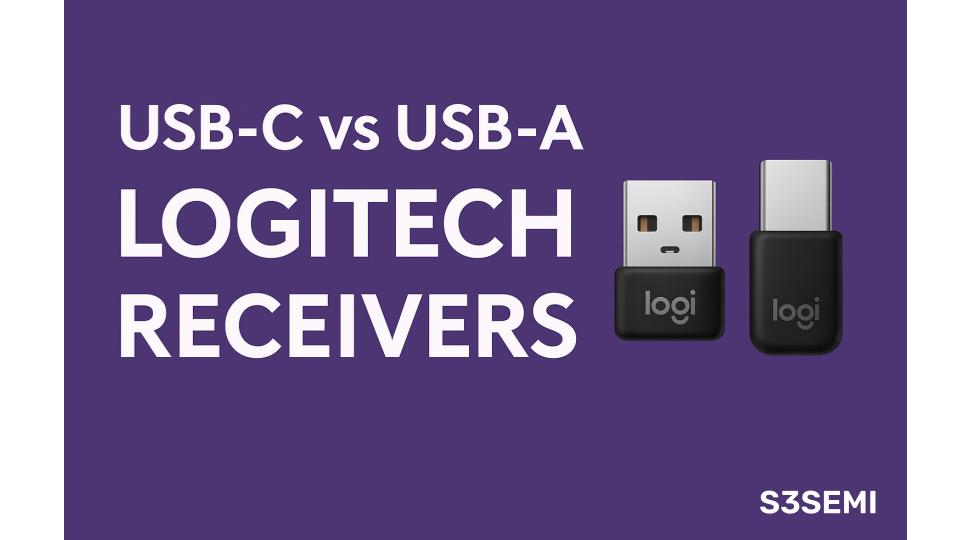
Logitech has started offering more devices with USB-C receivers, especially in the Bolt lineup and newer MX series accessories. But many users still rely on traditional USB-A Unifying or Bolt receivers.
If you’re wondering whether it’s worth upgrading to USB-C, or whether USB-C performs differently, this guide explains everything in a simple, practical way so you know exactly which receiver is right for your setup.
🔌 What Are Logitech USB-A Receivers?
USB-A receivers have been Logitech’s default for more than a decade. They include:
- The Logitech Unifying Receiver (orange star logo)
- The Logitech Bolt Receiver (secure, modern protocol)
- Lightspeed receivers for gaming mice and keyboards
Where USB-A receivers excel
- Works with almost every computer
- Perfect for older desktops and laptops
- Huge accessory ecosystem
- Consistent low-latency performance
- Supports pairing multiple devices (Bolt/Unifying)
Limitations
- Requires a USB-A port
- New ultrabooks often have only USB-C
- Might require an adapter
- Slightly bulkier form factor
🔌 USB-C Logitech Receivers: What They Are
USB-C receivers are Logitech’s newer, modern option. They are designed for thin-and-light laptops and tablets that have moved entirely to USB-C.
Devices using USB-C receivers include newer:
- MacBooks
- Windows ultrabooks
- Tablets with desktop modes
- Modern docking stations
Logitech USB-C receivers exist for Bolt and select Lightspeed devices.
Benefits of USB-C receivers
- No adapter needed on modern laptops
- Cleaner, tighter fit
- Great for travel setups
- More future-proof as USB-A declines
- Fully compatible with Bolt or Lightspeed protocols
Limitations
- Smaller accessory ecosystem
- Some devices still ship only with USB-A receivers
- Not ideal if you frequently switch between older devices
⚙️ Performance Differences Between USB-C and USB-A
The key takeaway:
Performance is identical.
Whether the receiver is USB-A or USB-C, the wireless protocol determines performance, not the port.
- Same latency
- Same wireless range
- Same stability
- Same pairing and device support
Lightspeed remains the lowest-latency gaming protocol Logitech offers, and Bolt remains the most secure – regardless of port type.
🔐 Security Differences
Security is tied to the receiver technology, not the connector.
| Receiver Type | USB-A Version | USB-C Version | Security |
|---|---|---|---|
| Unifying | Yes | No | Older encryption, not FIPS certified |
| Bolt | Yes | Yes | Modern, FIPS-validated |
| Lightspeed | Yes | Some devices | Secure gaming protocol |
If security matters, choose Bolt — whether USB-A or USB-C.
🖥️ Compatibility and Real-World Use
USB-A receivers are best for:
- Desktop computers
- Older laptops
- Multi-device Bolt or Unifying users
- Accessories released before 2022
USB-C receivers are best for:
- New laptops with only USB-C
- Clean, minimalist setups
- Frequent travelers
- New MX and Bolt devices
📊 USB-C vs USB-A Comparison Table
| Feature | USB-A Logitech Receiver | USB-C Logitech Receiver |
|---|---|---|
| Compatible Ports | Standard USB-A ports | USB-C ports |
| Wireless Protocols Supported | Unifying, Bolt, Lightspeed | Bolt, some Lightspeed |
| Performance | Identical to USB-C (protocol-based) | Identical to USB-A (protocol-based) |
| Security | Depends on protocol; Unifying = older | Bolt receivers available; more secure |
| Accessory Ecosystem | Very large | Smaller but growing |
| Ideal Users | Desktop users, legacy devices | Modern laptops, USB-C workflows |
| Adapters Required? | No (unless laptop is USB-C only) | Sometimes (for older devices) |
| Future-Proofing | Moderate | High |
| Port Availability | Declining on new laptops | Standard on new laptops/tablets |
🔄 Do You Need to Upgrade?
Here’s a quick decision guide:
Choose USB-C if:
- Your laptop has USB-C only
- You want a clean, adapter-free setup
- You’re buying new Bolt-enabled Logitech devices
- You travel or use a portable workstation
Stick with USB-A if:
- You already own several Unifying or Bolt devices
- Your desktop has plenty of USB-A ports
- You want maximum accessory compatibility
- You’re not upgrading your hardware anytime soon
📦 Logitech Products With USB-C Receiver Options
Some Logitech product lines now offer USB-C Bolt receivers, such as:
- MX Keys S
- MX Master 3S
- MX Anywhere 3S
- Certain Lightspeed gaming mice (newer models)
Expect future releases to include USB-C receivers by default as Logitech transitions away from USB-A and phases out Unifying.
🏆 Final Verdict: Which Receiver Type Should You Choose?
The simple answer:
- USB-C is ideal for modern laptops, portability, and future-proofing.
- USB-A is ideal for compatibility, desktops, and existing Logitech ecosystems.
Since performance, latency, and security come from Bolt or Lightspeed, not from USB-A vs USB-C, your decision should depend on:
- Which ports your computer has
- Whether you want a cleaner setup
- How many legacy Logitech devices you own
- Whether you’re building a future-proof workstation
If possible, choose Bolt-compatible devices, since Unifying receivers are being phased out.
❓ Frequently Asked Questions (FAQ)
Do USB-C receivers perform better than USB-A?
No – performance is identical. The wireless protocol (Bolt, Lightspeed, Unifying) determines speed and latency, not the port type.
Will my older Logitech mouse or keyboard work with a USB-C receiver?
It depends on the protocol.
Unifying devices require a Unifying receiver (USB-A only).
Bolt devices require a Bolt receiver (USB-A or USB-C).
Lightspeed devices usually pair only with their own dongle.
Is Logitech phasing out USB-A receivers?
Not immediately, but USB-A is slowly disappearing from laptops, and Logitech is shifting toward Bolt over USB-C for future devices.
Are USB-C receivers more secure?
Security depends on the protocol:
- Unifying → older encryption
- Bolt → modern, FIPS-validated
USB-C receivers use the same security standards as their USB-A equivalents.
Can I use a USB-C to USB-A adapter?
Yes. Both receivers work normally through adapters because the adapter only affects the physical connector, not the wireless signal.
Which one should I buy if I travel a lot?
USB-C receivers are preferred for travel setups because newer laptops tend to have fewer ports and no USB-A.
Do USB-C receivers work with iPads or tablets?
Some tablets with full desktop USB-C support can use them, but it varies by model. Logitech officially supports laptops/desktops first.
🛒 Buyer Guide: Which Receiver Should YOU Choose?
Choose a USB-C Logitech receiver if:
- You use a MacBook, Surface, or modern ultrabook
- You prefer a clean, adapter-free workspace
- You’re buying newer Logitech MX or Bolt-enabled devices
- You want a future-proof setup
Best for: Students, remote workers, mobile professionals, modern laptop users.
Choose a USB-A Logitech receiver if:
- Your computer still has multiple USB-A ports
- You already own older Unifying devices
- You use a desktop or workstation
- Maximum backwards compatibility is important
Best for: Desktop users, office setups, multi-device pairings.
🎯 Choose based on Protocol First
If you want the most secure and modern experience, choose:
- Bolt (USB-C or USB-A) for security + enterprise environments
- Lightspeed for gaming latency
- Unifying only if you own older legacy peripherals
The protocol matters more than the port shape.