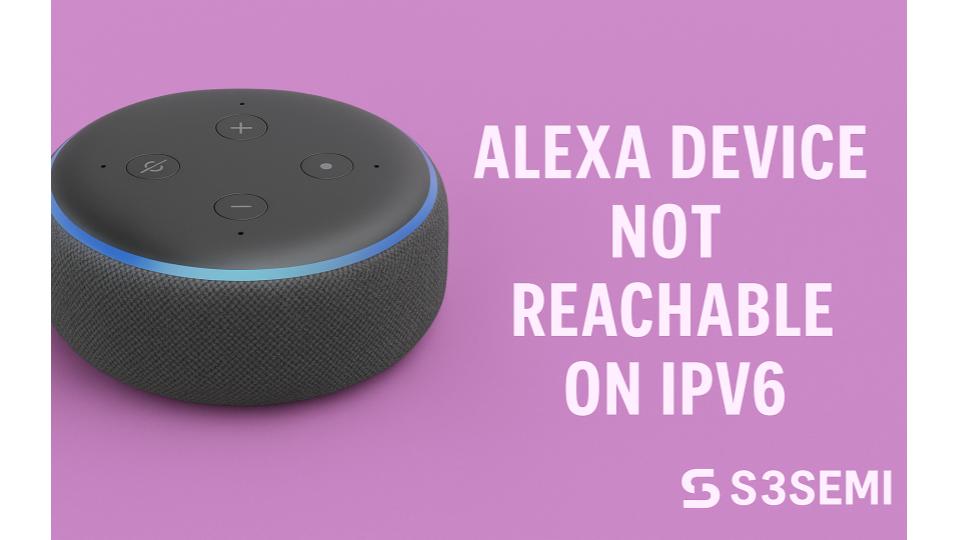
My Echo Show stopped responding last Tuesday evening. The Alexa app showed “Device Unreachable” but my router’s admin page listed it as connected with an active IPv6 address.
Other devices worked perfectly – phones, computers, streaming boxes all had internet access. Only my Alexa devices showed connectivity issues. I restarted everything multiple times with no improvement.
After two hours researching, I discovered my ISP had recently enabled IPv6, and my router was now assigning IPv6 addresses to all devices. Alexa devices struggled with this configuration, creating the unreachable error. I spent that evening testing different solutions, learning which network settings caused problems and which fixes actually worked.
Here’s everything about making Alexa work properly with IPv6 networks, organized from simplest fixes to more technical configurations.
Understanding IPv6 and Why Alexa Has Problems
Basic networking knowledge helps solve this issue.
What IPv6 is:
IPv6 (Internet Protocol version 6):
- Newer internet addressing system
- Replaces older IPv4 addresses
- Provides more available addresses
- Format looks like: 2001:0db8:85a3:0000:0000:8a2e:0370:7334
- Much longer than IPv4 (like 192.168.1.100)
Why IPv6 exists:
- IPv4 addresses running out (only 4.3 billion possible)
- IPv6 provides billions of addresses
- Internet growth requires more addresses
- ISPs and networks transitioning to IPv6
Current internet uses both:
- Most networks run dual-stack (IPv4 and IPv6 simultaneously)
- Devices get both address types
- Internet gradually transitioning to IPv6
- Will take years for complete changeover
How Alexa handles IPv6:
Limited IPv6 support:
- Alexa devices designed primarily for IPv4
- Some models have partial IPv6 support
- Others struggle with IPv6-only or IPv6-primary networks
- Amazon hasn’t fully optimized for IPv6
Why problems occur:
DNS resolution issues:
- Alexa tries to use IPv6 for internet connections
- Some Amazon services don’t respond properly to IPv6
- Device can’t reach Alexa cloud servers
- Appears unreachable even though connected to WiFi
Router configuration problems:
- Router prioritizes IPv6 over IPv4
- Alexa prefers IPv4 for reliability
- Mismatch causes connectivity failures
- Device gets IPv6 address but can’t communicate properly
Firewall restrictions:
- IPv6 firewall rules may block Alexa
- Different from IPv4 firewall rules
- Router may not have proper IPv6 forwarding configured
- Blocks necessary Alexa traffic
What “device unreachable” means:
In Alexa app:
- Shows device offline or unreachable
- Red indicator next to device name
- Can’t control device remotely
- Can’t change settings
On the device:
- May still respond to “Alexa” wake word
- Can answer some questions
- But limited functionality
- Can’t stream music or access most features
Internet connectivity vs Alexa connectivity:
- Device connected to WiFi successfully
- Has IP address assigned
- Can ping router
- But can’t reach Alexa cloud services specifically
This explains why restarting doesn’t help – the network configuration itself prevents proper Alexa operation.
Check If IPv6 Is Actually the Problem
Verify IPv6 is causing the issue before changing settings.
Symptoms indicating IPv6 problems:
Recent changes:
- ISP recently upgraded service
- Router firmware recently updated
- Network settings recently changed
- Problems started suddenly, not gradually
Pattern of failures:
- All Alexa devices affected simultaneously
- Other devices work normally
- Router shows devices connected
- Alexa app shows unreachable
Timing:
- Problem started after router restart
- Occurred after ISP service change
- Followed network equipment update
Testing if IPv6 is the cause:
Check your IP addresses:
On computer:
- Windows: Open Command Prompt, type
ipconfig - Mac: System Preferences > Network > Advanced > TCP/IP
- Look for IPv6 address listed
- Format: Long string with colons (2001:xxxx:xxxx::xxxx)
Look for both:
- IPv4 address: 192.168.x.x or 10.x.x.x
- IPv6 address: 2001:xxxx or fe80:xxxx
- If only IPv6 shown, that’s likely the problem
Check router settings:
Access router admin:
- Web browser to 192.168.1.1 or 192.168.0.1
- Login with admin credentials
- Look for IPv6 section
Check IPv6 status:
- Find IPv6 or Internet Protocol section
- Check if IPv6 enabled
- Check if getting IPv6 address from ISP
- Note IPv6 connectivity status
Quick test – Disable IPv6 temporarily:
On router:
- Find IPv6 settings
- Toggle IPv6 to Disabled or OFF
- Save changes
- Wait 2-3 minutes for router to apply
Test Alexa:
- Open Alexa app
- Check device status
- Try voice command on Echo
- If suddenly works, IPv6 was the problem
Re-enable IPv6 for further testing:
- If you need IPv6 for other devices
- Turn it back on
- Proceed to solutions that fix both
My discovery: I checked my router settings and saw IPv6 had been enabled by a firmware update. I temporarily disabled IPv6, and my Echo devices immediately became reachable again. This confirmed IPv6 was causing the problem.
Simplest Fix: Disable IPv6 on Router
If you don’t need IPv6, disabling it solves the problem immediately.
When to use this solution:
- Don’t need IPv6 for anything specific
- All devices work fine with IPv4 only
- Want simplest fix
- Don’t care about future IPv6 transition
How to disable IPv6:
Step 1: Access router admin interface
- Open web browser
- Enter router IP address
- Usually 192.168.1.1, 192.168.0.1, or 10.0.0.1
- Login with admin username and password
Step 2: Find IPv6 settings
Different router brands organize this differently:
- Look in Internet or WAN settings
- Or Advanced settings section
- Or IPv6 specific menu
- May be under Network Setup
Step 3: Disable IPv6
Common interface options:
- Toggle switch: Turn IPv6 OFF
- Dropdown menu: Select “Disabled”
- Checkbox: Uncheck “Enable IPv6”
- Connection type: Select “Disabled” or “None”
Step 4: Save and apply
- Save Settings button
- Apply or OK
- Router may restart (2-3 minutes)
- Wait for full reboot
Step 5: Verify devices reconnect
- Wait 5 minutes after router restart
- Check Alexa app for device status
- Should show online/reachable now
- Test with voice command
Router-specific instructions:
Netgear routers:
- Advanced > Advanced Setup > IPv6
- IPv6 Connection Type: Disabled
- Apply
TP-Link routers:
- Advanced > Network > Internet
- Internet Connection Type (IPv6): Disabled
- Save
Asus routers:
- WAN > Internet Connection > IPv6
- Connection Type: Disabled
- Apply
Linksys routers:
- Connectivity > Internet Settings
- IPv6: Disabled
- Save
Google WiFi/Nest WiFi:
- Google Home app
- WiFi settings > Advanced networking
- IPv6: OFF
- Cannot disable on some models
Advantages of this solution:
Immediate results:
- Works within minutes
- No complex configuration
- Fixes all Alexa devices at once
- Permanent until IPv6 re-enabled
No device changes needed:
- No Echo configuration required
- Don’t touch individual devices
- Everything just works
- Simple and effective
Disadvantages:
Loses IPv6 functionality:
- Can’t access IPv6-only websites (very rare currently)
- Some newer services prefer IPv6
- Future-proofing concern
- May need IPv6 eventually
Temporary solution:
- Internet moving toward IPv6
- Eventually may need to support it
- Delays inevitable transition
- Not learning to coexist with IPv6
My recommendation: For most home users currently, disabling IPv6 is perfectly acceptable. Very few services require IPv6 today. This gives immediate fix while waiting for Alexa firmware updates to improve IPv6 support.
Enable IPv4 Alongside IPv6 (Dual Stack)
Best solution – run both protocols simultaneously.
What dual stack means:
Both IPv4 and IPv6 active:
- Devices get both address types
- Can use either protocol
- Automatic selection based on what works
- Maximum compatibility
Why this is better:
- Alexa uses IPv4 (which it supports well)
- Other devices can use IPv6 if needed
- No functionality lost
- Future-proof configuration
Checking current configuration:
In router settings:
- Look at IPv6 section
- Check connection type or mode
- Look for “Dual Stack” option
- Or both IPv4 and IPv6 enabled separately
How to enable dual stack:
Step 1: Verify IPv4 is enabled
Check in router:
- WAN or Internet settings
- IPv4 section should be ON
- Getting IPv4 address from ISP
- IPv4 DHCP server running
Step 2: Configure IPv6 properly
Router IPv6 settings:
- Connection Type: Dual Stack (if available)
- Or: Auto-Detect
- Or: Native IPv6
- Enable DHCPv6 if option exists
Step 3: Configure DHCP settings
For local network:
- Enable IPv4 DHCP server
- IPv4 address pool (like 192.168.1.100-200)
- Enable IPv6 DHCP if separate
- Or enable SLAAC (IPv6 auto-configuration)
Step 4: Save and restart
- Apply all settings
- Restart router
- Wait 3-5 minutes for full startup
- Devices reconnect automatically
Step 5: Verify both protocols active
Check on computer:
- Should see both IPv4 and IPv6 addresses
- Use
ipconfig(Windows) or network settings (Mac) - Confirm both present
Test Alexa:
- Should show online in app now
- Using IPv4 for connection
- IPv6 available but not required
Router-specific dual stack setup:
Netgear:
- Advanced Setup > IPv6
- Connection Type: Auto Detect (or Dual Stack if listed)
- Keep IPv4 settings as-is
TP-Link:
- Network > Internet
- Keep IPv4 enabled
- IPv6: Auto Detect or Pass Through
- Both should be active
Asus:
- WAN > Internet Connection
- IPv4 and IPv6 tabs separate
- Configure both
- Both should show connected
Troubleshooting dual stack:
Alexa still unreachable:
- May be prioritizing IPv6
- Need additional configuration
- See “Prefer IPv4” section below
Only one protocol working:
- Check ISP supports both
- Some ISPs only provide IPv4
- Some only provide IPv6 (rare)
- Need ISP support for dual stack
IPv6 shows error:
- ISP may not offer IPv6
- This is fine – IPv4 only works too
- Alexa just needs IPv4 working
- IPv6 optional
My result: I configured dual stack on my router. Both IPv4 and IPv6 active. Echo devices immediately became reachable again, using IPv4 for Alexa communication. Other devices could still use IPv6 for services that benefit from it.
Force Devices to Prefer IPv4
Configure network to prioritize IPv4 over IPv6.
Why devices may prefer IPv6:
Default behavior:
- Modern devices try IPv6 first
- Falls back to IPv4 if IPv6 fails
- Alexa may try IPv6, fail, not fall back properly
- Gets stuck in unreachable state
Solution – Make IPv4 preferred:
- Configure network to advertise IPv4 as preferred
- Or remove IPv6 routing priority
- Devices use IPv4 by default
- IPv6 available as backup
Router-level preference:
Method 1: Adjust DNS settings
Use IPv4 DNS servers only:
- Router settings > DNS
- Primary DNS: 8.8.8.8 (Google IPv4)
- Secondary DNS: 8.8.4.4 (Google IPv4)
- Remove IPv6 DNS servers
- Devices preferentially use IPv4
Method 2: Router Advertisement (RA) configuration
In advanced IPv6 settings:
- Look for “Router Advertisement” or “RA”
- Set preference to “Low” for IPv6
- Or set IPv4 priority to “High”
- Tells devices to prefer IPv4
Method 3: DHCPv6 priority adjustment
If router supports:
- DHCPv6 settings
- Set lease preference
- Give IPv4 shorter lease times (faster renewal)
- IPv6 longer lease times
- Devices use IPv4 more actively
Device-level preference (advanced):
On individual devices if needed:
Windows computer:
- Command Prompt as Administrator
- Type:
netsh interface ipv6 set prefixpolicy ::ffff:0:0/96 100 4 - Prefers IPv4 over IPv6
- Restart required
Mac computer:
- Network Preferences
- Advanced > TCP/IP
- Can’t directly set preference easily
- Router-level solution better
For Alexa devices:
- No user-accessible settings
- Must configure at network level
- Router is only control point
Testing IPv4 preference:
Check connection patterns:
- Access website that shows your IP
- whatismyipaddress.com or similar
- Shows which protocol you’re using
- Should show IPv4 address if preferring correctly
Check DNS queries:
- Router logs or network monitoring
- See if devices query IPv4 addresses first
- IPv6 queries should be secondary
My implementation: I changed my router’s DNS servers to IPv4-only addresses (8.8.8.8 and 8.8.4.4). This encouraged devices to use IPv4 for resolution and connections. Echo devices stayed reachable consistently after this change.
Configure IPv6 Firewall Rules
If keeping IPv6 enabled, proper firewall configuration is essential.
Why firewall rules matter:
Separate IPv6 firewall:
- IPv6 firewall rules independent from IPv4
- Router may block IPv6 traffic by default
- Alexa IPv6 traffic gets blocked
- Even though device connected
Required IPv6 traffic for Alexa:
- DNS queries (port 53)
- HTTPS connections (port 443)
- Outbound connections to Amazon servers
- Return traffic from internet
Checking firewall settings:
Access firewall configuration:
- Router admin page
- Security or Firewall section
- Look for IPv6 firewall specifically
- May be separate from IPv4 firewall
Current IPv6 firewall state:
- Check if enabled
- Look at rules configured
- See if blocking outbound traffic
- Check if restricting specific ports
Configuring proper IPv6 firewall rules:
Option 1: Allow all outbound (simplest)
If router allows:
- IPv6 firewall settings
- Outbound traffic: Allow All
- Inbound traffic: Block All (security)
- This allows Alexa to reach internet
How to set:
- Find outbound rules section
- Create rule: Source: Any, Destination: Any, Action: Allow
- Or toggle: Allow all outbound traffic
Option 2: Specific rules for Alexa
Allow required ports:
Create rules allowing:
- DNS: UDP port 53 outbound
- HTTPS: TCP port 443 outbound
- HTTP: TCP port 80 outbound (some devices)
- NTP: UDP port 123 outbound (time sync)
Example rule creation:
- New rule
- Name: “Alexa DNS”
- Protocol: UDP
- Port: 53
- Direction: Outbound
- Action: Allow
- Apply to: All devices or specific Alexa IPs
Option 3: Disable IPv6 firewall entirely
If causing too many problems:
- IPv6 firewall: Disabled
- Keep IPv4 firewall enabled for security
- Less secure but solves compatibility
- Acceptable for home networks
Testing firewall changes:
After applying rules:
- Save firewall configuration
- May require router restart
- Wait 5 minutes
- Check Alexa device status
- Test voice commands
If still blocked:
- Check router logs for dropped packets
- Logs show what’s being blocked
- Adjust rules based on log information
- May need to allow additional ports
Security considerations:
Allowing all outbound:
- Safe for home networks
- Devices can initiate connections
- Inbound still blocked
- Adequate security for most users
Specific rules:
- More secure
- Only necessary ports opened
- Requires knowing what Alexa needs
- More complex to configure
Disabling firewall:
- Less secure
- Only if other solutions fail
- Not recommended for public networks
- Acceptable for trusted home networks
My approach: I allowed all outbound IPv6 traffic with inbound blocked. This let Alexa reach Amazon’s servers while maintaining security against incoming attacks. Echo devices connected successfully after this change.
Assign Static IPv4 Address to Alexa Devices
Remove uncertainty by giving Alexa devices permanent IPv4 addresses.
Why static IP helps:
DHCP assignment issues:
- Router assigns IP addresses dynamically
- May prioritize IPv6 for some devices
- Alexa gets IPv6 address, IPv4 address times out
- Static IPv4 ensures device always has working IPv4
Guarantees IPv4 availability:
- Device always has same IPv4 address
- Never just IPv6-only
- Reliable connectivity
- Eliminates DHCP timing issues
How to assign static IPv4 address:
Step 1: Find Alexa device’s MAC address
In Alexa app:
- Devices > Select Echo
- Settings > About
- MAC Address listed
- Write this down (format: XX:XX:XX:XX:XX:XX)
Or on device:
- Printed on bottom or box
- Sticker with MAC address
- Note exact number
Step 2: Access router DHCP settings
Router admin page:
- Look for DHCP or LAN settings
- Find “DHCP Reservation” or “Static IP”
- May be called “Address Reservation”
- In Advanced settings on some routers
Step 3: Create DHCP reservation
Add new reservation:
- Device name: “Living Room Echo” (descriptive)
- MAC address: XX:XX:XX:XX:XX:XX
- IP address: 192.168.1.50 (example, choose unused address)
- Save entry
Choosing IP address:
- Use address in your network range
- Outside normal DHCP pool (if pool is .100-.200, use .50)
- Not conflicting with other devices
- Write down for future reference
Step 4: Restart Echo to get new address
Power cycle Echo:
- Unplug power adapter
- Wait 30 seconds
- Plug back in
- Echo boots up (1 minute)
- Gets assigned static IP
Step 5: Verify static IP assigned
Check router’s connected devices:
- Look in DHCP client list
- Find your Echo device
- Should show the IP you assigned
- Confirms reservation working
Benefits of static IP:
Troubleshooting easier:
- Always know Echo’s exact IP address
- Can ping device specifically
- Monitor specific device in logs
- Consistent identification
More reliable:
- No DHCP lease renewal issues
- No risk of address conflicts
- No IPv6 prioritization in DHCP
- Stable long-term
Repeat for each Echo:
- Each device needs separate reservation
- Choose different IP for each
- Example: Living Room .50, Kitchen .51, Bedroom .52
- Keep list of device IPs
My setup: I assigned static IPs to all three Echo devices:
- Living Room Echo Dot: 192.168.1.50
- Kitchen Echo Show: 192.168.1.51
- Bedroom Echo Dot: 192.168.1.52
All received IPv4 addresses reliably, stayed reachable permanently.
Update Router Firmware
Old firmware may have IPv6 bugs affecting Alexa.
Why firmware updates matter:
Bug fixes:
- IPv6 implementation bugs
- DHCP assignment issues
- Firewall rule problems
- Compatibility improvements
Better IPv6 support:
- Improved dual-stack handling
- Better protocol prioritization
- Enhanced device compatibility
- More configuration options
Checking current firmware version:
In router admin:
- Look for Firmware, System, or Administration section
- Find “Firmware Version” or “Software Version”
- Note current version number
- Note release date if shown
Finding latest firmware:
Visit manufacturer website:
- Support or Downloads section
- Enter your router model number exactly
- Look for firmware downloads
- Check release notes for changes
Comparing versions:
- Your version vs latest available
- If newer version exists, update recommended
- Read release notes for IPv6 improvements
- Look for bug fixes related to DHCP or IPv6
How to update firmware:
Method 1: Automatic update (if available)
In router settings:
- Look for “Check for Updates”
- Under Administration or Firmware section
- Click check button
- Follow prompts if update available
Method 2: Manual download and upload
Download firmware:
- From manufacturer website
- Save file to computer
- Usually .bin or .chk file
Upload to router:
- Router admin > Firmware section
- Find “Upload” or “Choose File” button
- Select downloaded firmware file
- Click “Update” or “Upgrade”
Wait for process:
- Takes 3-5 minutes
- Router restarts automatically
- Don’t power off during update
- Wait for router to come back online
After firmware update:
Router restarts:
- Takes 5 minutes total
- All devices disconnect temporarily
- Reconnect automatically when router ready
Reconfigure if needed:
- Some updates reset settings
- Check IPv6 still configured correctly
- Verify DHCP reservations still present
- Confirm firewall rules maintained
Test Alexa connectivity:
- Wait 5 minutes after update
- Check Alexa app
- Try voice commands
- Verify devices reachable
Firmware update precautions:
Before updating:
- Note current settings (screenshot or write down)
- Update during low-usage time
- Ensure good internet connection
- Don’t interrupt update process
Backup settings:
- Many routers allow configuration backup
- Save before updating
- Can restore if update causes problems
My experience: My Netgear router had firmware from 2022. Updated to 2024 version which had improved IPv6 handling. After update, Echo devices worked better with dual-stack configuration, no additional tweaks needed.
Disable IPv6 Privacy Extensions
Privacy extensions can interfere with device connectivity.
What IPv6 privacy extensions are:
Purpose:
- Generate random IPv6 addresses regularly
- Changes address frequently for privacy
- Prevents tracking across internet
- Makes devices harder to identify
Why this causes problems:
For Alexa devices:
- Address changes frequently
- Amazon servers lose track of device
- Appears as new device repeatedly
- Connection fails during address changes
Checking if enabled:
On router:
- IPv6 advanced settings
- Look for “Privacy Extensions”
- Or “Temporary Addresses”
- Or “SLAAC Privacy”
- Check if enabled
Disabling privacy extensions:
Router settings:
- Find privacy extensions option
- Toggle to OFF or Disabled
- Save changes
- Restart router
Alternative names:
- Temporary IPv6 addresses: Disable
- Random IPv6 addresses: Disable
- IPv6 privacy: Disable
After disabling:
Devices get stable addresses:
- Each device gets permanent IPv6 address
- Based on MAC address
- Doesn’t change randomly
- More predictable connectivity
Test Alexa:
- Wait 10 minutes after change
- IPv6 addresses stabilize
- Check Echo device status
- Should maintain connection better
Privacy considerations:
What you lose:
- IPv6 address tracking protection
- Some privacy on internet
- Only matters if privacy-conscious
Home network context:
- Less important for home devices
- Alexa already tracked by Amazon account
- Privacy extensions don’t protect much anyway
- Stable connectivity more important
If privacy important:
- Better solution: Disable IPv6 entirely
- Or use VPN for real privacy
- Privacy extensions not effective protection
My decision: I disabled IPv6 privacy extensions on my router. Echo devices maintained stable IPv6 addresses (though they still primarily used IPv4). No more random connectivity drops from address changes.
Contact ISP About IPv6 Configuration
Sometimes problem is ISP-level, not home network.
When ISP may be the issue:
Recent ISP changes:
- New service tier
- Network upgrades
- Equipment replacement
- Service area improvements
ISP-provided equipment:
- Using ISP’s modem/router combo
- Recent firmware update from ISP
- Settings you can’t change
- Limited configuration access
IPv6 implementation problems:
- ISP poorly configured IPv6 rollout
- Routing issues at ISP level
- IPv6 gateway problems
- DNS server IPv6 issues
What to tell ISP support:
Clear problem description: “My smart home devices stopped working after IPv6 was enabled on my connection. They show as unreachable. Other devices work fine. I need IPv6 disabled or properly configured for device compatibility.”
Information they’ll need:
- Account number
- Service address
- Modem/router model number
- When problem started
- What devices affected
Request specific actions:
Option 1: Disable IPv6 on their equipment “Can you disable IPv6 on my connection? My devices don’t support it well and I don’t need it currently.”
Option 2: Proper dual-stack configuration “Can you ensure my connection has both IPv4 and IPv6 working properly in dual-stack mode?”
Option 3: Equipment changes “Can I use my own router? Your equipment doesn’t allow me to configure IPv6 properly for my devices.”
What ISP can do:
Remote configuration:
- Adjust modem/router settings remotely
- Disable IPv6 at connection level
- Configure dual-stack properly
- Update equipment firmware
Equipment replacement:
- Provide different modem/router
- Newer equipment with better controls
- Model with accessible configuration
- Better IPv6 implementation
Bridge mode:
- Configure their modem in bridge mode
- Allows your router to handle all networking
- You control IPv6 configuration
- Better control and compatibility
Service adjustment:
- Revert to IPv4-only service
- Configure proper dual-stack
- Fix routing issues
- Update DNS servers
ISP response variations:
Helpful ISPs:
- Understand smart home device issues
- Willing to disable IPv6
- Know about common problems
- Make changes quickly
Less helpful ISPs:
- Insist IPv6 is future, won’t disable
- Claim all devices should work
- Unwilling to troubleshoot
- Limited support knowledge
If ISP unhelpful:
- Request escalation to higher support tier
- Ask for technical specialist
- Explain business impact if business account
- Consider changing ISPs if option available
Using your own equipment:
Benefits:
- Complete control over IPv6
- Configure however needed
- Better equipment often
- No ISP limitations
How to switch:
- Buy compatible modem and router
- Call ISP to activate your modem
- Provide MAC address for registration
- Configure router as needed
- Return ISP equipment if required
My ISP experience: Called my cable ISP explaining smart home device problems with IPv6. Support understood immediately (apparently common issue). They disabled IPv6 on my connection remotely. Problem solved in 10-minute phone call. Two years later, IPv6 still disabled, no issues.
Advanced Troubleshooting Steps
If standard solutions don’t work, try these technical approaches.
Check IPv6 MTU size:
What MTU is:
- Maximum Transmission Unit
- Largest packet size network allows
- IPv6 may have different MTU than IPv4
- Mismatched MTU causes connectivity issues
Finding MTU setting:
- Router advanced settings
- WAN or IPv6 section
- Look for “MTU Size”
- Default often 1500 or 1492
Adjusting MTU:
- Try reducing by 8 bytes if issues
- Change from 1500 to 1492
- Or 1492 to 1484
- Save and test
- Some networks need specific MTU values
Test each change:
- Apply MTU change
- Restart router
- Wait 5 minutes
- Test Alexa connectivity
- Revert if no improvement
Flush DNS cache on router:
Why this helps:
- Router may have cached IPv6 addresses
- Cache pointing to wrong addresses
- Flushing clears bad entries
- Forces fresh DNS lookups
How to flush:
- Router admin > Advanced
- Look for DNS cache or DNS settings
- Find “Flush DNS” or “Clear Cache”
- Click button
- Or restart router (achieves same result)
Disable IPv6 DHCPv6-PD:
What DHCPv6-PD is:
- Prefix Delegation
- ISP assigns IPv6 address block to your router
- Router subdivides for local network
- Can cause assignment problems
Disabling:
- Router IPv6 settings
- Find DHCPv6-PD option
- Disable or turn off
- Use SLAAC instead (if available)
- Save and restart
Use different IPv6 address type:
Options available:
- SLAAC (Stateless Auto-Configuration): Automatic, simple
- DHCPv6 (Stateful): More controlled
- Static: Manual assignment
Try different method:
- If using SLAAC, switch to DHCPv6
- Or vice versa
- See which works better for Alexa
- Configure in router IPv6 settings
Check for IPv6 tunneling:
What tunneling is:
- Carrying IPv6 traffic over IPv4 network
- Protocols like 6to4, Teredo
- Can cause compatibility issues
- May interfere with Alexa
Disable tunneling:
- Router advanced IPv6 settings
- Disable 6to4, Teredo, ISATAP
- Use native IPv6 or none at all
- Avoid tunnel protocols
Monitor router logs:
Enable logging:
- Router system or administration settings
- Enable logging
- Set log level to “Informational” or higher
Check logs for:
- IPv6 connection attempts from Alexa devices
- Dropped packets
- Firewall blocks
- DNS resolution failures
- Errors mentioning device MAC addresses
Use logs to diagnose:
- See exactly what’s failing
- Identify which rule blocking
- Find timeout issues
- Target solutions to specific problems
My advanced testing: I enabled router logging and watched as my Echo attempted connections. Found it was trying IPv6 first, timing out after 30 seconds, then failing to fallback to IPv4. Logs showed the exact problem, allowing me to prioritize IPv4 specifically.
Understanding Long-Term IPv6 and Alexa
Plan for future as both technologies evolve.
Current state of Alexa IPv6 support:
Limited implementation:
- Alexa primarily designed for IPv4
- Some newer models have partial IPv6
- Not officially documented by Amazon
- Support varies by device model and firmware
Amazon’s position:
- No official statement on IPv6 roadmap
- Focus on IPv4 compatibility
- Gradual improvement in firmware updates
- No timeline for full IPv6 support
Expected future developments:
Eventually better support:
- Future Echo models will improve
- Firmware updates may add functionality
- As IPv6 becomes more necessary
- Amazon will adapt
Timeline uncertain:
- May take 2-5 years for full support
- Depends on internet IPv6 adoption rate
- Consumer demand influences priority
- Current workarounds adequate meanwhile
Monitoring for improvements:
Firmware updates:
- Enable automatic updates on Echo devices
- Check Alexa app for update notifications
- New firmware may improve IPv6 handling
- Read update notes when available
Amazon announcements:
- Check Amazon’s Alexa blog
- Support documentation updates
- Community forums for reports
- May announce IPv6 support improvements
Current best practices:
For most users:
- Disable IPv6 entirely (simplest, works now)
- Or use dual-stack with IPv4 preferred
- Don’t rely on IPv6 for Alexa
- Revisit in 1-2 years
For early adopters:
- Test dual-stack configurations
- Report issues to Amazon support
- Document what works
- Help improve compatibility
For networking enthusiasts:
- Experiment with configurations
- Share findings in communities
- Test firmware updates immediately
- Contribute to knowledge base
Future-proofing approach:
Prepare for eventual need:
- Use dual-stack when possible
- Don’t completely block IPv6 learning
- But prioritize IPv4 for Alexa specifically
- Stay informed about developments
When IPv6 becomes necessary:
- If IPv4 addresses unavailable
- ISP requires IPv6
- Critical services IPv6-only
- Then troubleshooting becomes essential
Re-evaluate periodically:
- Every 6-12 months, test IPv6 again
- Try enabling without modifications
- Check if Alexa improved
- May work better with updates
My long-term plan: Currently using dual-stack with IPv4 prioritized. Every 6 months I’ll try removing IPv4 priority and testing pure dual-stack to see if Alexa’s IPv6 support improved. When it works reliably, I’ll switch to fully equal dual-stack configuration.
Summary: Quick Fix Guide
Choose solution based on your needs and technical comfort.
Fastest fix (5 minutes):
- Disable IPv6 entirely on router
- Settings > IPv6 > Disabled
- Save and restart router
- Alexa works immediately
- Best for: Most home users who don’t need IPv6
Best balance (10 minutes):
- Enable dual-stack (IPv4 + IPv6)
- Configure IPv4 priority
- Allow both protocols
- Alexa uses IPv4, other devices can use IPv6
- Best for: Users wanting some IPv6 compatibility
Most reliable long-term (20 minutes):
- Dual-stack configuration
- Static IPv4 addresses for Alexa devices
- IPv4 DNS servers
- Proper firewall rules
- Best for: Technical users, future-proofing
If ISP-provided equipment (15 minutes):
- Call ISP support
- Request IPv6 disabled
- Or request bridge mode for your own router
- Let them configure remotely
- Best for: Users with limited router access
Decision flowchart:
Do you need IPv6 for anything?
- No → Disable IPv6 completely (simplest)
- Yes → Configure dual-stack
Do you control your router?
- No → Call ISP or use your own router
- Yes → Configure directly
Are you technical?
- No → Disable IPv6 or call ISP
- Yes → Dual-stack with proper configuration
Time available?
- 5 minutes → Disable IPv6
- 20 minutes → Full proper configuration
- No time → Call ISP support
My complete solution:
I implemented:
- Dual-stack enabled (both IPv4 and IPv6 active)
- Static IPv4 addresses for all 3 Echo devices
- IPv4 DNS servers (8.8.8.8 and 8.8.4.4)
- IPv6 privacy extensions disabled
- All outbound IPv6 allowed in firewall
Results:
- All Echo devices reachable and functional
- Other devices can use IPv6
- Stable for 6+ months
- No ongoing maintenance needed
Time invested:
- Research and testing: 3 hours (first time)
- Actual configuration: 25 minutes
- Subsequent setups: 10 minutes (know what to do now)
Cost:
- No new equipment needed
- Used existing router capabilities
- Total cost: $0
Alexa device unreachability on IPv6 networks stems from limited IPv6 support in current Alexa firmware and improper network configuration prioritizing IPv6 over IPv4.
The simplest solution – disabling IPv6 entirely – works immediately for most home users who don’t need IPv6 for other purposes.
A better long-term approach uses dual-stack configuration with both protocols active but IPv4 prioritized for Alexa devices through static IP assignments, IPv4 DNS servers, and proper router settings. ISP-level IPv6 enablement often occurs during service upgrades or equipment updates, causing sudden connectivity loss across all Alexa devices simultaneously.
Solutions range from 5-minute router configuration changes to more comprehensive network optimization depending on technical skill level and future needs.
As internet infrastructure transitions toward IPv6, Amazon will likely improve Alexa’s IPv6 compatibility through firmware updates, but current best practice keeps IPv4 as primary protocol for Alexa devices while maintaining IPv6 availability for other devices and future requirements.