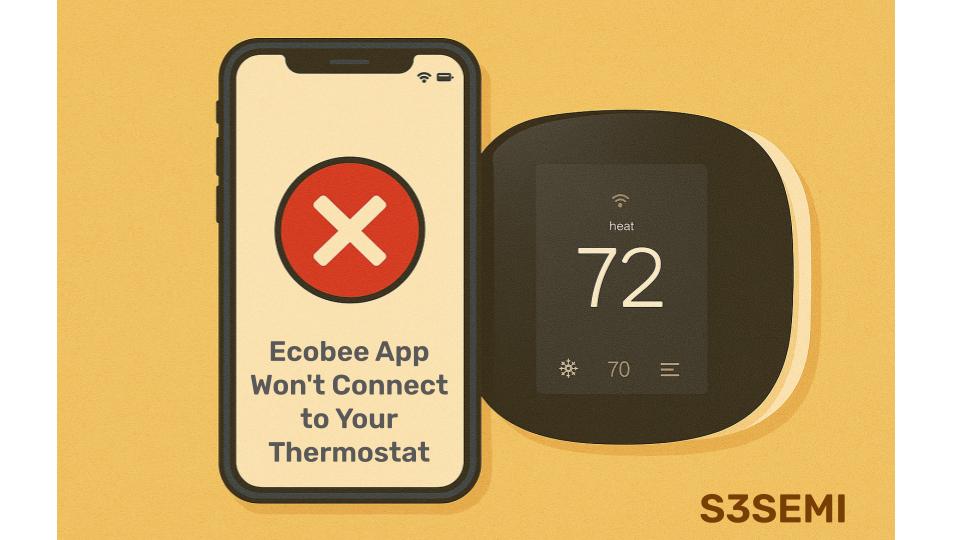
You’ve installed your Ecobee smart thermostat, downloaded the app, and expected seamless control of your home’s climate from anywhere. Instead, the app keeps spinning, showing connection errors, or claiming it can’t find your thermostat. You’re stuck adjusting temperature at the wall unit like it’s 1995, wondering what happened to all that smart home convenience you paid for.
Connection issues between the Ecobee app and thermostat rank among the most common complaints from users. The good news is that most connection problems stem from a handful of causes with straightforward solutions. Whether your app never connected successfully or suddenly stopped working, you can usually restore functionality within minutes.
Understanding How Ecobee App Connectivity Works
Before diving into fixes, understanding the connection pathway helps. Your Ecobee thermostat doesn’t communicate directly with your phone. Instead, the thermostat connects to your home WiFi network, which connects to the internet, which connects to Ecobee’s cloud servers. Your phone’s app also connects to those same Ecobee servers through your cellular data or WiFi connection. The servers act as intermediaries, relaying commands from your app to your thermostat and sending status updates back.
This cloud-based architecture means connection problems can originate from multiple points: your thermostat’s WiFi connection, your home internet service, Ecobee’s servers, your phone’s internet connection, or the app itself. Systematic troubleshooting helps identify which link in the chain has broken.
Check the Obvious First
Start with the simplest explanations. Is your phone connected to the internet? Try opening a web browser or another app that requires connectivity. If nothing works, your phone has lost its connection.
Toggle WiFi or cellular data off and back on, or enable then disable airplane mode to reset your phone’s network connection.
Verify that your Ecobee thermostat shows a WiFi signal indicator on its home screen. Most Ecobee models display WiFi bars or an icon showing connection status. If you see no WiFi indicator or a disconnected symbol, your thermostat has lost its network connection. This is the most common cause of app connectivity issues.
Check whether other smart home devices on your network are working. If multiple devices show connectivity problems simultaneously, your home internet connection or router likely needs attention rather than your Ecobee specifically.
Restart Everything
Technology’s most reliable fix applies here. Restart your phone first. Power it completely off, wait 30 seconds, then turn it back on. This clears temporary glitches and refreshes network connections.
Next, restart your Ecobee thermostat. On most models, go to Main Menu > Settings > Reset > Restart. This performs a soft reboot without losing any settings or WiFi credentials. The thermostat will go dark for a moment, then boot back up and reconnect to WiFi automatically.
Finally, restart your router and modem. Unplug both devices, wait 30 seconds, plug in the modem first and let it fully boot (usually 1-2 minutes), then plug in the router and wait for it to complete startup. This clears router issues that might be blocking your thermostat’s connection.
After everything restarts, give your thermostat a minute to reconnect to WiFi, then try the app again. Simple restarts resolve a surprising percentage of connection issues.
Thermostat WiFi Connection Problems
If your thermostat shows no WiFi connection, you need to reconnect it to your network. Go to Main Menu > Settings > WiFi on your thermostat. You should see your network name (SSID) listed. If it shows “Not Connected” or displays an error, select your network and re-enter the WiFi password.
WiFi passwords are case-sensitive and must be entered exactly. The Ecobee’s touchscreen keyboard can be finicky, so take your time entering each character. Double-check for typos before submitting.
If your network doesn’t appear in the available networks list, your thermostat might be too far from your router or experiencing signal interference. WiFi range issues commonly affect thermostats installed in basements, far corners of homes, or behind metal HVAC equipment that blocks signals.
Check your router’s 2.4GHz band specifically. Ecobee thermostats use 2.4GHz WiFi exclusively and cannot connect to 5GHz networks. If your router broadcasts both frequencies with the same network name, the thermostat should automatically select 2.4GHz, but router configuration issues can prevent proper connection. Access your router settings and verify 2.4GHz is enabled and broadcasting.
Some newer routers use WiFi 6 (802.11ax) with settings that prevent older devices from connecting. Check your router for compatibility mode settings and ensure 2.4GHz legacy device support is enabled.
Router Configuration Issues
Certain router settings block Ecobee connectivity even when the thermostat successfully joins your WiFi network. Advanced security features, port blocking, or firewall rules can prevent the thermostat from reaching Ecobee’s servers.
Check whether your router uses MAC address filtering, which allows only approved devices to connect. If enabled, you need to add your Ecobee’s MAC address to the allowed list. Find the MAC address on your thermostat at Main Menu > Settings > WiFi > Network Info. Add this address to your router’s MAC filter whitelist.
Some routers implement client isolation or AP isolation features that prevent devices on the network from communicating with each other or external services. This feature is common on guest networks but occasionally gets enabled on main networks. Disable client isolation in your router settings.
Parental controls or security features might inadvertently block the ports and services Ecobee requires. Ecobee thermostats need outbound access on standard HTTPS ports (443) and potentially other ports for firmware updates and remote access. Check your router’s security logs for blocked connections from the thermostat’s IP address.
ISP and DNS Problems
Your internet service provider’s network issues or DNS problems can prevent Ecobee connectivity even when your internet seems to work fine for browsing. DNS (Domain Name System) translates web addresses into IP addresses. If your router’s DNS servers aren’t responding properly, your thermostat can’t locate Ecobee’s servers.
Try changing your router’s DNS settings to use public DNS servers like Google DNS (8.8.8.8 and 8.8.4.4) or Cloudflare DNS (1.1.1.1). Access your router’s configuration page, navigate to DNS settings, and manually enter these addresses instead of using your ISP’s automatic DNS.
Some ISPs use transparent proxies or content filtering that interferes with IoT device connectivity. Business or educational internet connections often have more restrictive policies than residential service. If your Ecobee thermostat is installed in an office or on a campus network, IT policies might block cloud thermostat services.
Ecobee Server Outages
Occasionally, the problem isn’t on your end at all. Ecobee’s cloud servers experience outages or maintenance periods that prevent all app connectivity. During these times, your thermostat continues operating normally for heating and cooling, but remote access through the app becomes unavailable.
Check Ecobee’s status page at status.ecobee.com or search social media for reports of widespread connectivity issues. If many users report problems simultaneously, you’re experiencing a service outage. There’s nothing to fix on your end, just wait for Ecobee to resolve their server issues.
Most Ecobee outages last only a few hours. Your thermostat maintains its schedule and settings locally, so your comfort isn’t affected even when the app won’t connect.
App-Specific Issues
Sometimes the Ecobee app itself malfunctions rather than the underlying connectivity failing. Force-close the Ecobee app completely. On iPhone, swipe up from the bottom, find the Ecobee app, and swipe it away. On Android, go to Settings > Apps > Ecobee > Force Stop.
Clear the app’s cache. Android users can do this directly in Settings > Apps > Ecobee > Storage > Clear Cache. iPhone users might need to delete and reinstall the app to achieve the same result.
Make sure you’re running the latest version of the Ecobee app. Open your phone’s app store, search for Ecobee, and install any available updates. Outdated apps sometimes lose compatibility with server changes or contain bugs that newer versions fix.
If problems persist, uninstall the Ecobee app completely, restart your phone, then reinstall the app fresh from the app store. Sign in with your Ecobee account credentials. This eliminates corrupted app data that might be causing connection failures.
Account and Registration Issues
Verify that your thermostat is properly registered to your Ecobee account. This seems obvious, but account registration problems occur more often than you’d expect, especially after thermostat resets or if multiple family members tried setting up the device.
Log into your Ecobee account through a web browser at ecobee.com. Navigate to your account dashboard and verify your thermostat appears in your registered devices. If it’s missing, you need to register it. During registration, you’ll need the four-digit code displayed on your thermostat’s registration screen.
Multiple Ecobee accounts for the same household create confusion. If family members each created separate accounts and registered the thermostat to different accounts, connectivity becomes unpredictable. Consolidate to a single account and use the account sharing features to give multiple users access.
Two-factor authentication problems occasionally prevent app login. If you’ve enabled 2FA on your Ecobee account but aren’t receiving verification codes, check your email spam folder and verify the contact method is current. You can temporarily disable 2FA through the web interface if necessary to restore app access.
Firmware Updates and Compatibility
Outdated thermostat firmware causes app connectivity issues, especially after Ecobee releases major updates to their cloud services. Check your thermostat’s firmware version at Main Menu > Settings > About. Compare this to the latest version listed on Ecobee’s website.
Firmware updates normally download and install automatically when the thermostat has good WiFi connectivity and isn’t actively heating or cooling. If your firmware is outdated, the thermostat might have lost connection before completing recent updates.
Ensure automatic updates are enabled at Main Menu > Settings > Preferences > Software Update. Force an update check manually by selecting “Check for Updates” on that same screen. The thermostat will contact Ecobee’s servers and download any available firmware.
During firmware updates, your thermostat might show limited functionality or appear disconnected in the app. This is normal. Allow 15-30 minutes for updates to complete fully before troubleshooting further.
Physical Installation Issues
Rarely, physical installation problems affect connectivity. If your thermostat isn’t receiving adequate power, WiFi performance suffers. Ecobee thermostats require a C-wire (common wire) for reliable operation. Models include a Power Extender Kit (PEK) for systems lacking a C-wire, but incorrect PEK installation causes various problems including connectivity issues.
Verify your thermostat displays a stable power indicator. Flickering displays, random reboots, or the thermostat going dark intermittently suggest power problems that affect all functions including WiFi. Review your wiring against Ecobee’s installation guide or consult an HVAC professional if you suspect power delivery issues.
Extreme temperatures affect electronic components. Thermostats installed in very cold garages or hot attics might experience connectivity problems during temperature extremes. If connection issues correlate with particularly hot or cold days, temperature stress on the hardware might be the culprit.
Remote Sensor Connectivity
If your app connects to the thermostat but shows errors related to remote sensors, this represents a different issue. Remote sensors communicate with the thermostat via a separate radio protocol, not WiFi. Sensor connectivity problems don’t prevent app-to-thermostat communication, though the app will display sensor status issues.
Check sensor batteries first. Low batteries cause sensors to drop offline. Replace batteries annually or when the app shows low battery warnings.
Sensors too far from the thermostat lose connection. Maximum range is typically 45 feet without obstructions. Walls, metal ducts, and appliances reduce effective range. Relocate sensors closer to the thermostat if they frequently show disconnected.
Network Congestion and Bandwidth
Overcrowded WiFi networks struggle to maintain connections to all devices. If you have dozens of smart home devices, streaming services, and computers competing for bandwidth, your thermostat’s connection might drop during high-usage periods.
Your router’s 2.4GHz band is particularly susceptible to congestion since many devices use this frequency. WiFi range extenders, baby monitors, and cordless phones all operate on 2.4GHz and can interfere with your thermostat.
Consider upgrading to a mesh WiFi system if you have a large home or many connected devices. Mesh networks provide better coverage and device management than single router setups, improving reliability for devices like thermostats located far from the main router.
Alternative Control Methods
While troubleshooting app connectivity, remember you can still control your Ecobee directly at the thermostat. Touch the screen to adjust temperature, change modes, or modify settings. Your comfort doesn’t depend on app connectivity working perfectly.
Ecobee also offers voice control through Alexa, Google Assistant, Siri, and other platforms if you’ve set up those integrations. Voice control uses the same cloud connectivity as the app, so if the app won’t connect, voice control likely won’t work either, but it’s worth trying as a temporary control method.
The Ecobee web portal at ecobee.com provides another control interface. Try logging in through a web browser on your computer or phone. If the web portal connects successfully but your app doesn’t, the issue is specific to your mobile app rather than general connectivity.
When to Contact Support
If you’ve exhausted these troubleshooting steps without success, contact Ecobee support. They can check your account status, verify your thermostat’s connection to their servers, and run diagnostics that aren’t available to end users.
Before calling, have your thermostat’s serial number ready (found at Main Menu > Settings > About), your Ecobee account email, and notes on what troubleshooting steps you’ve already attempted. This information helps support representatives diagnose your issue efficiently.
Ecobee’s support team can sometimes identify problems from server logs that aren’t visible on your end. They might also initiate a remote reset or send configuration updates that resolve connectivity issues.
Prevention and Maintenance
Once you’ve restored connectivity, take steps to prevent future issues. Enable automatic firmware updates on your thermostat. Check periodically that your router’s firmware is current as well, as router updates sometimes affect connected device behavior.
Document your WiFi network name and password in a secure location. If you ever need to reconnect your thermostat, having this information readily available saves frustration.
Consider giving your Ecobee thermostat a reserved IP address in your router settings. This prevents the thermostat from receiving different IP addresses over time, which can occasionally cause connectivity glitches. Check your router documentation for “DHCP reservation” or “reserved IP address” instructions.
Test your app connectivity periodically, even when everything’s working. Open the app every few weeks and verify it connects quickly and displays current thermostat status. Catching connectivity degradation early makes troubleshooting easier than waiting until complete failure occurs.
Connection problems between your Ecobee app and thermostat are frustrating but rarely permanent. The systematic approach of checking WiFi connections, restarting devices, verifying settings, and eliminating potential interference points resolves most issues. Your smart thermostat’s convenience is worth the occasional troubleshooting effort needed to keep it connected and responsive.